Follow along here:
Or go at your own pace here:
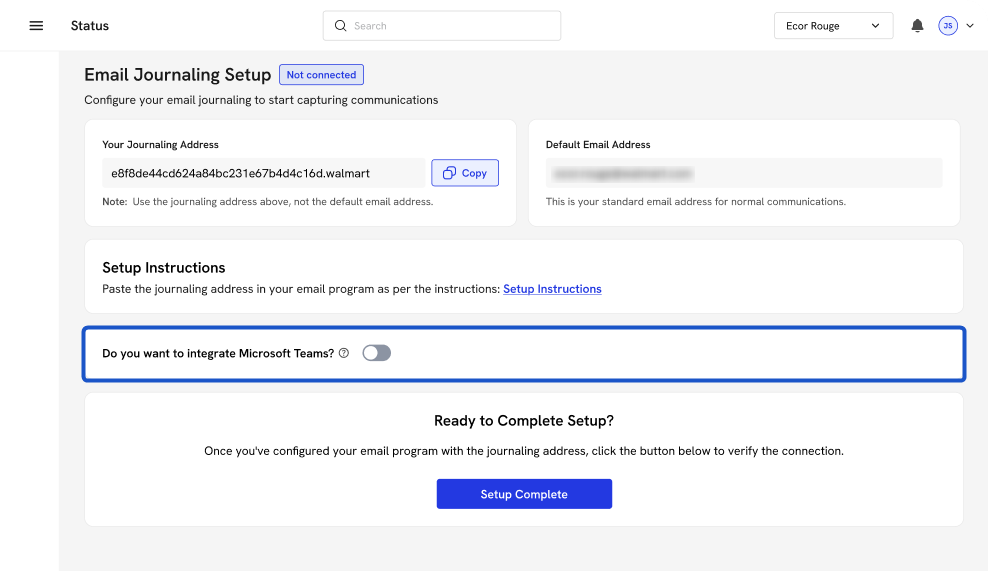
Journaling Address Overview
This article will cover where to find your organization's Journaling Address, the basics of Journaling Setup, and how to manage journaling once setup is complete.
Creation Date: Jul 22, 2025 Created By: Muzammil Hasan View most recent version
# Org IQ
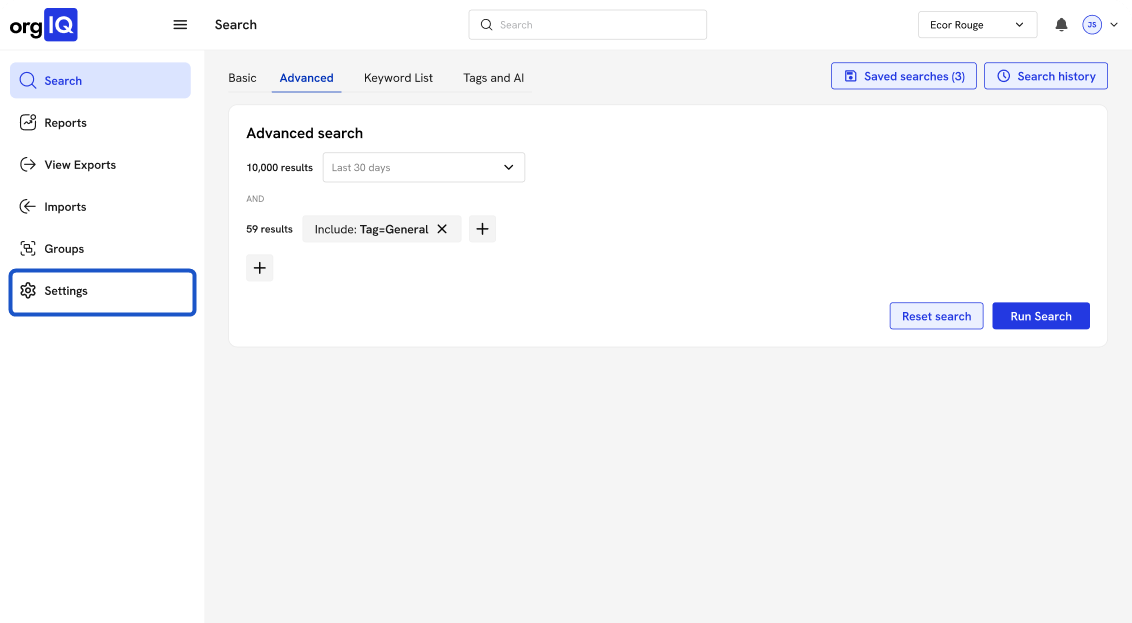
1. Click on Settings.
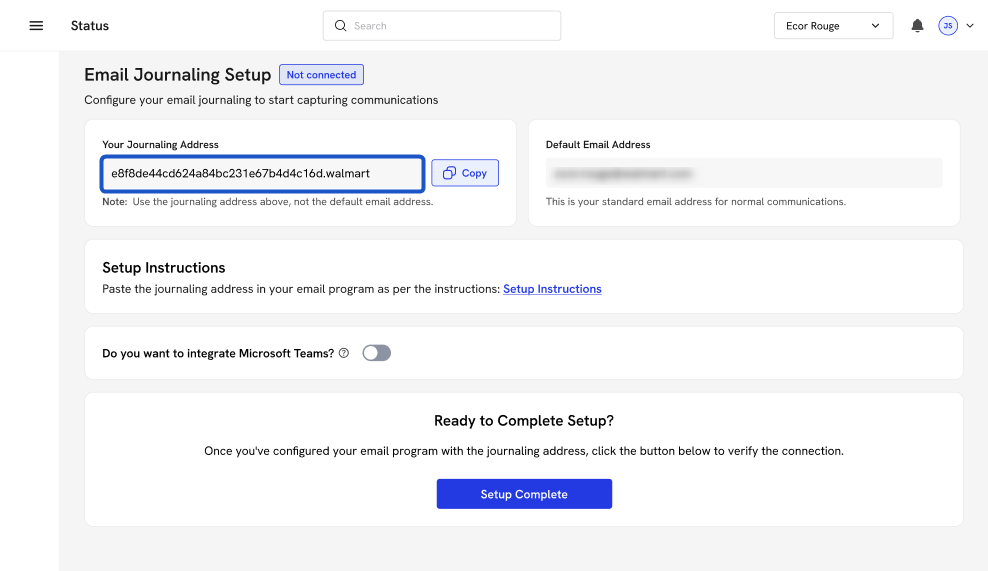
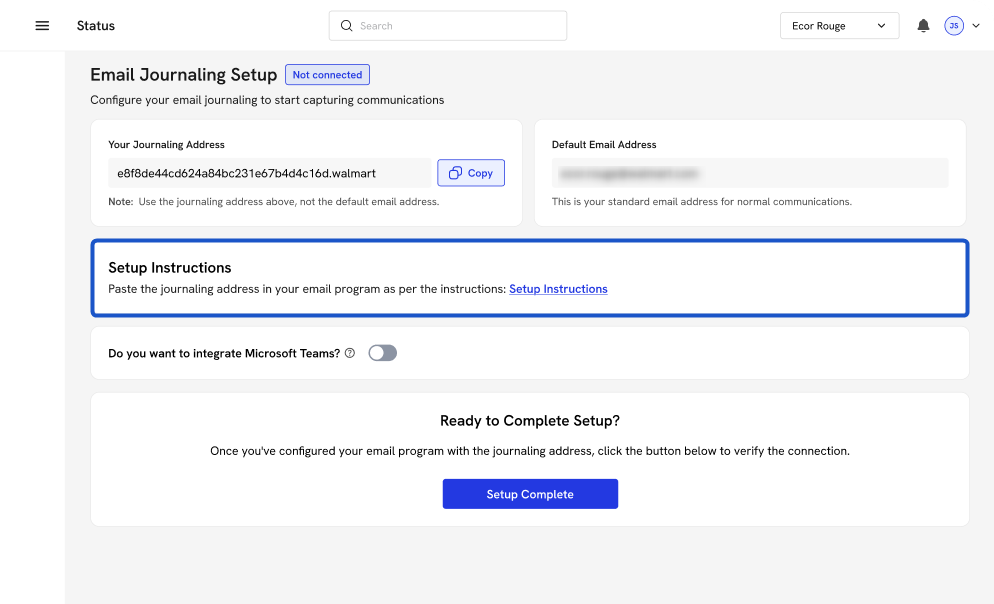
2. View and copy your unique journaling address.
Your organization’s journaling address appears under Your Journaling Address.
-
Click Copy to copy it.
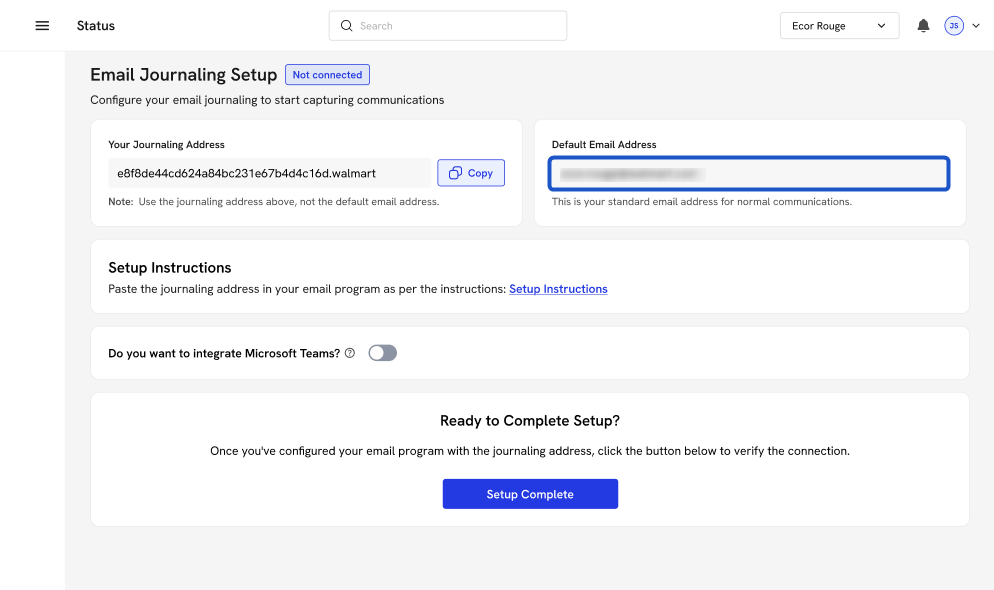
3. Default Email Address
This is the address that you set up your account with. It should be an email address associated with your organization's email account. During Journaling Setup, Org IQ will send a test email to this email address; when the email is journaled, Org IQ confirms that your account has been set up correctly.
4. Follow the instructions for your company's specific email service.
Click Setup Instructions in the app. This opens the Knowledge Base, where you’ll find provider-specific steps for your email service:
-
Google Workspace: Setup Guide for Google Workspace
-
Microsoft 365: Setup Guide for Microsoft 365
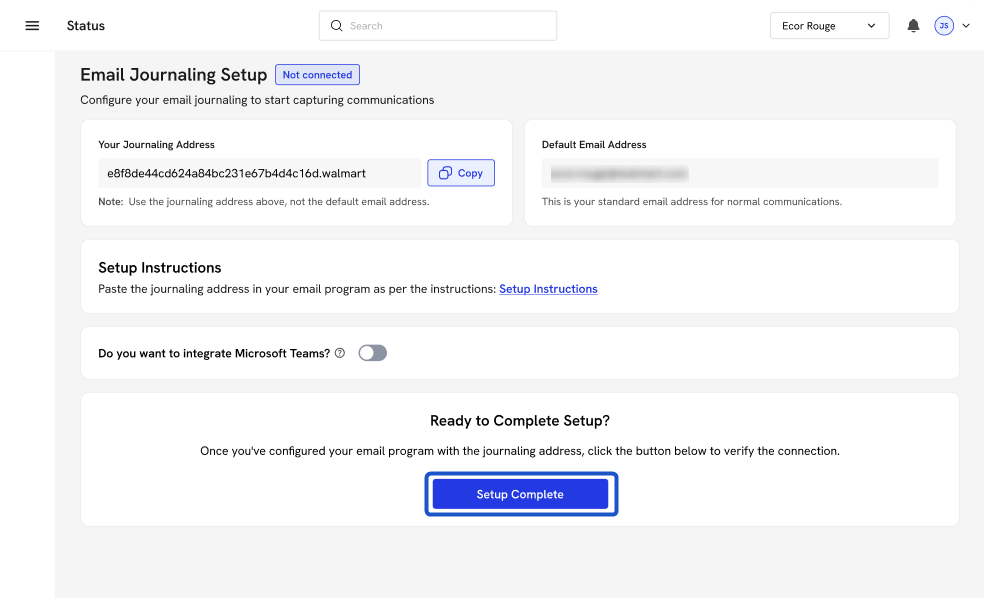
5. Once the instructions are complete, press the Setup Complete button to test the connection.
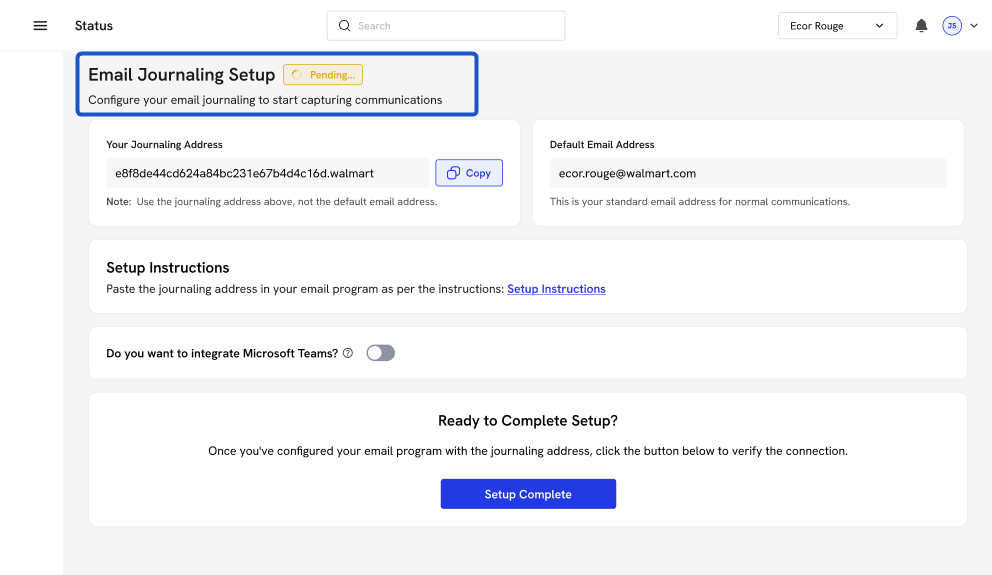
6. The Status will display as pending while Org IQ sends a test email to your email address. This test can take up to 5min. You are welcome to leave the screen and return to verify the status.
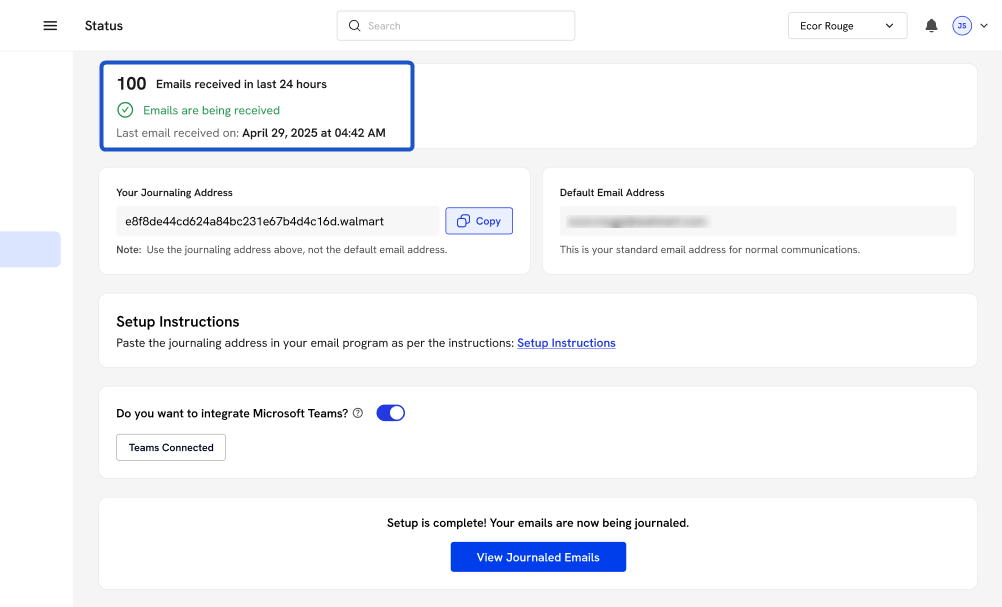
7. Once the test email has been journaled, the status will update to 'Connected'
8. If the setup fails, you will get a 'Failed' status. Repeat the process. If you need additional assistance, you can click on the Help Center icon at the bottom right of the screen and ask to chat with someone at Org IQ.
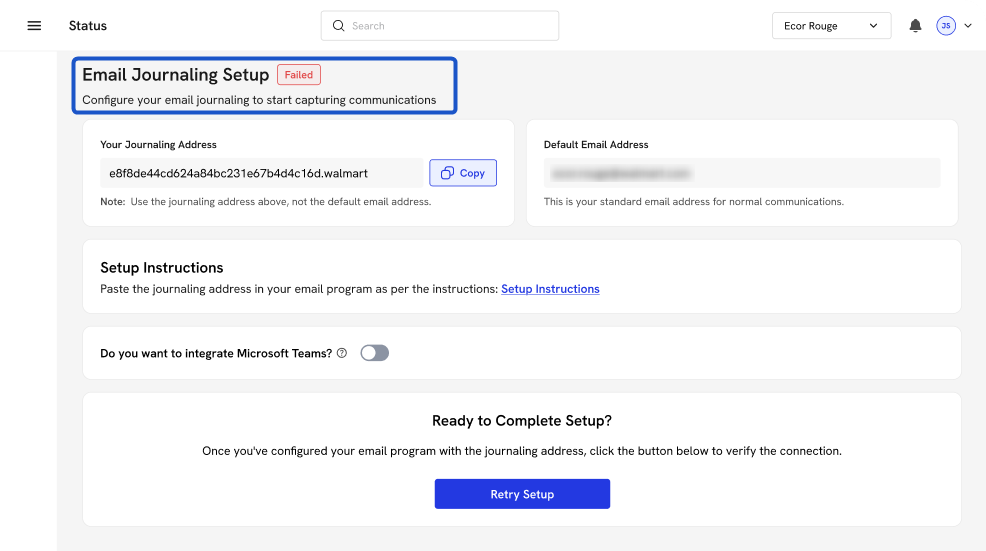
9. On top, you can continue to confirm the status of your journaling.
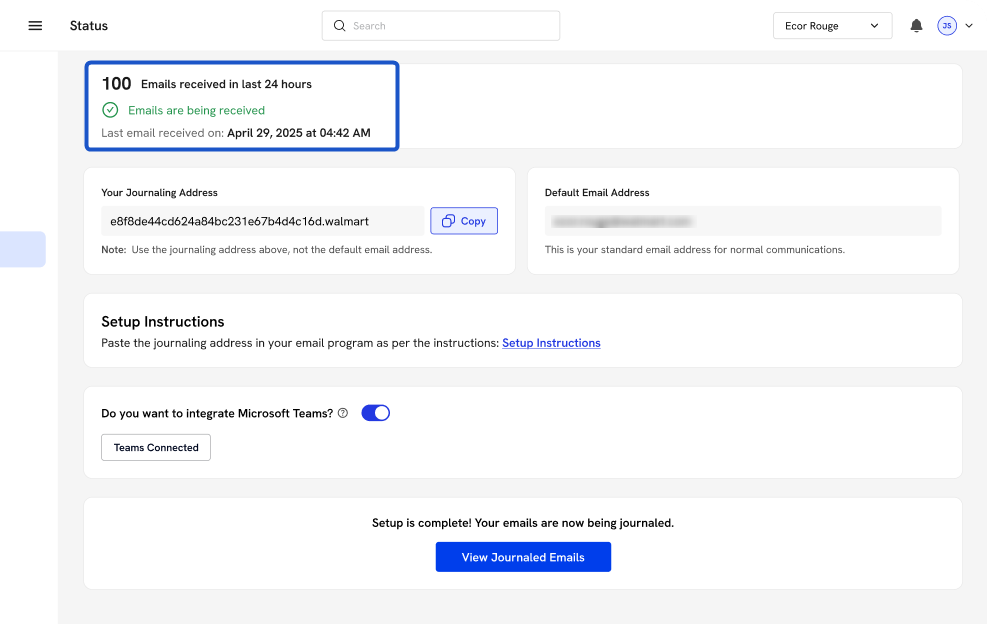
10. Now, click on Search and search for your journaled emails.
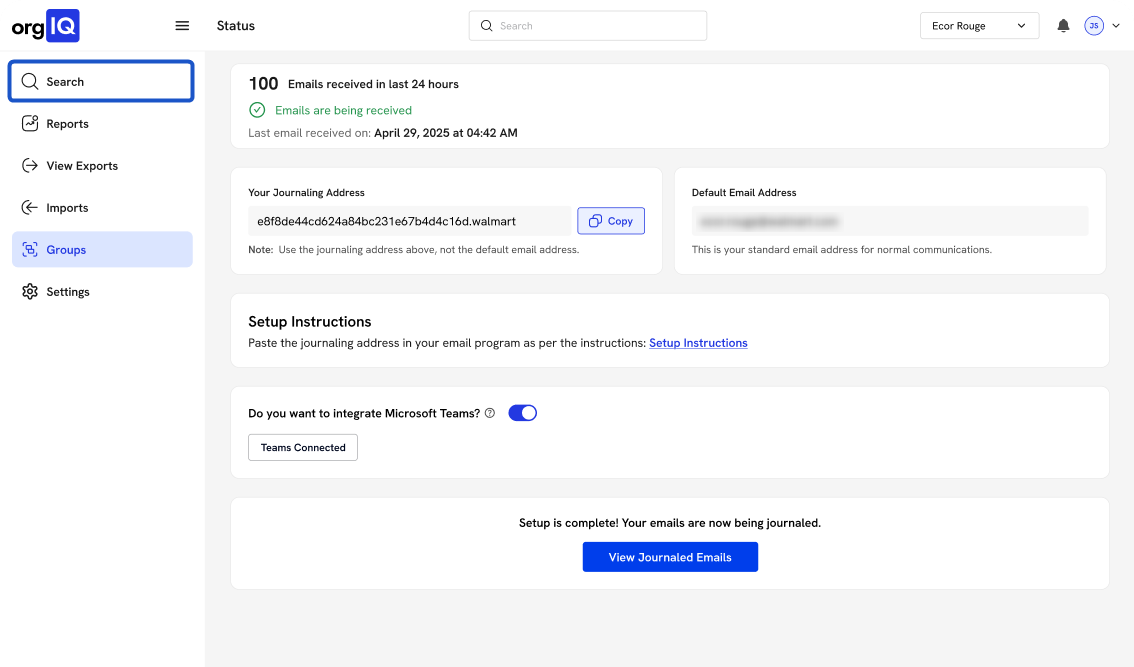
11. Also can integrate Microsoft Teams. If you want to enable Teams integration, toggle Do you want to integrate Microsoft Teams? before completing setup.