Follow along here:
Or go at your own pace here:
Sign up and Login for Company (Customer) Accounts
This article walks you through the full signup and login process for standard Company accounts, including password setup, email verification, and billing.
Creation Date: July 24, 2025. Created By: Muzammil Hasan. View most recent version on Tango.us
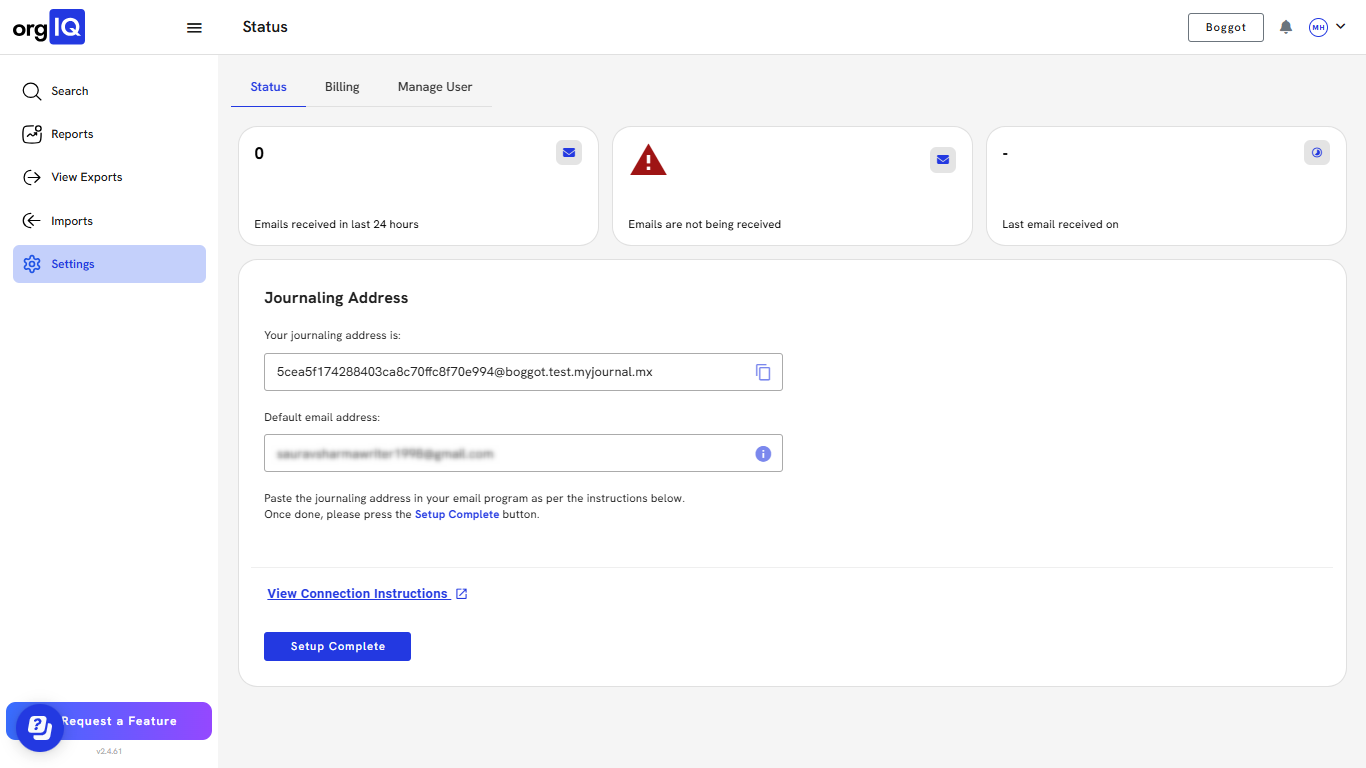
1. Go to https://app.orgiq.com
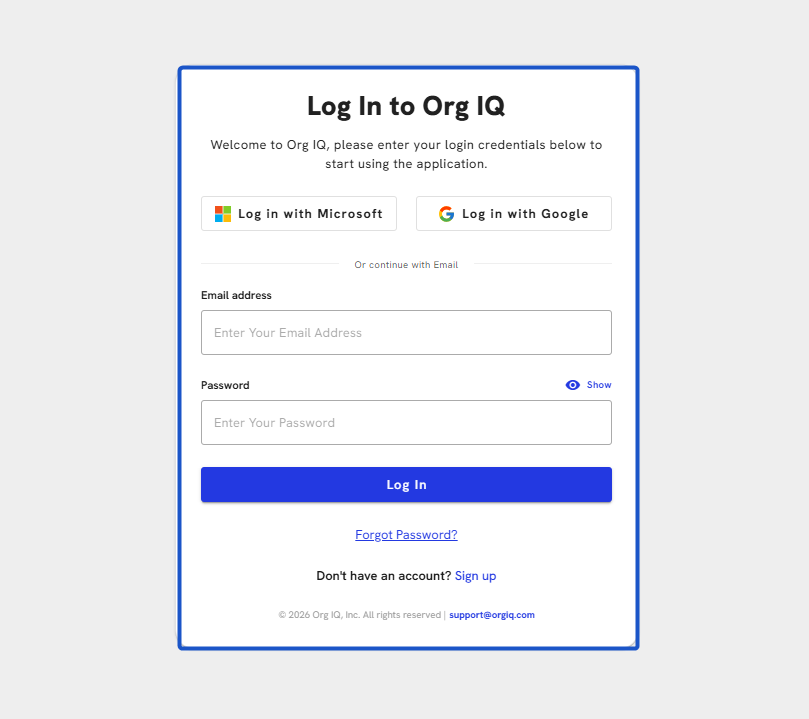
2. Click on Sign Up. You’ll be redirected to the signup form.
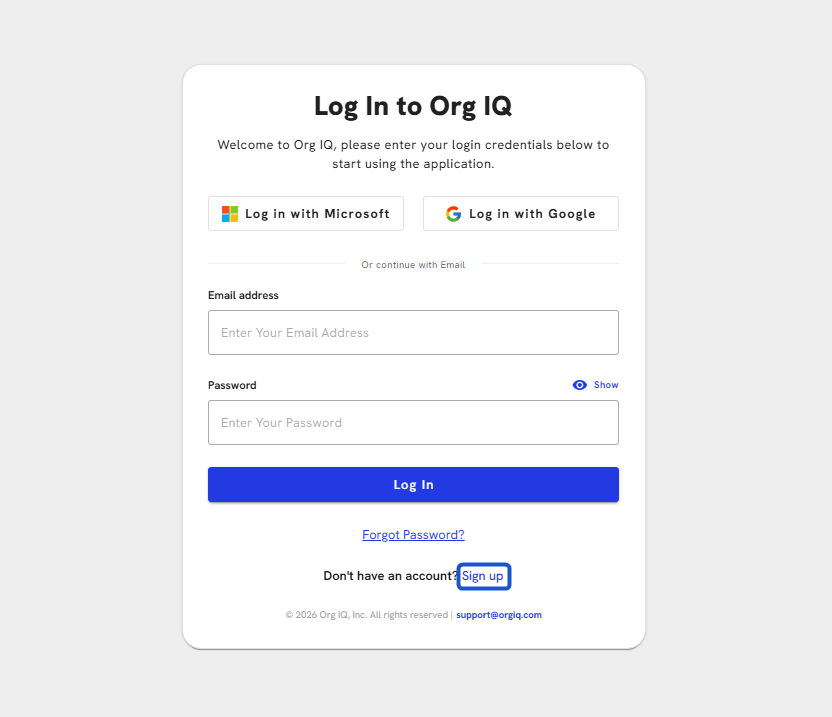
3. Fill out the form to create an account.
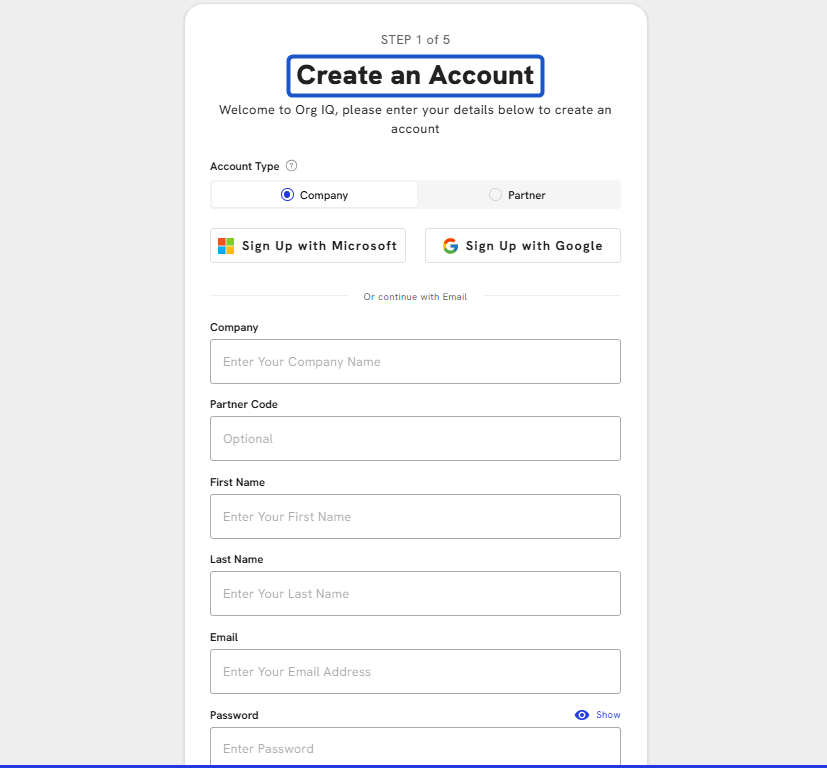
4. Select account type as Company.
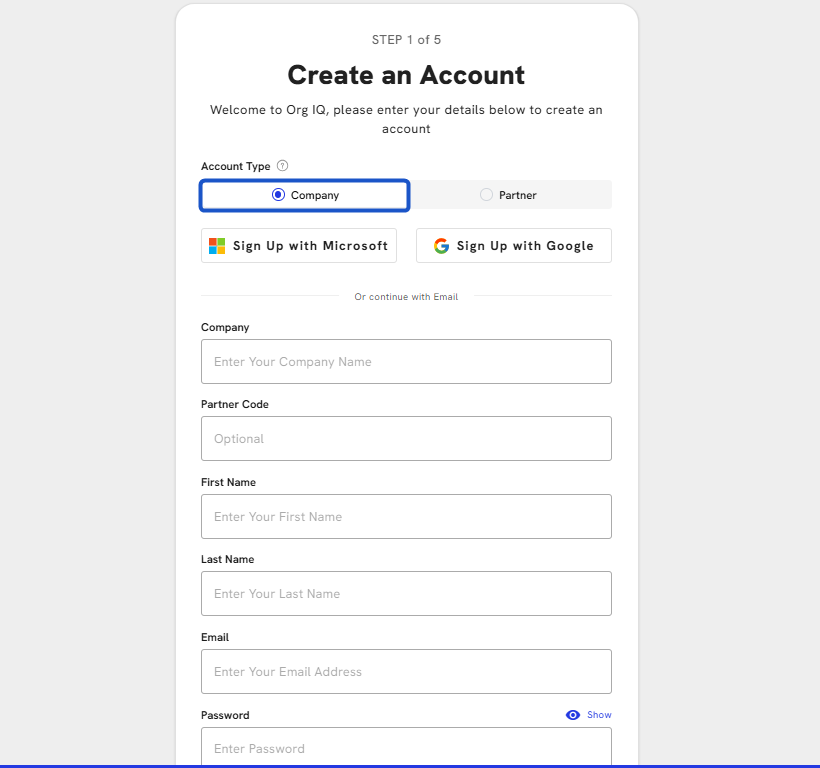
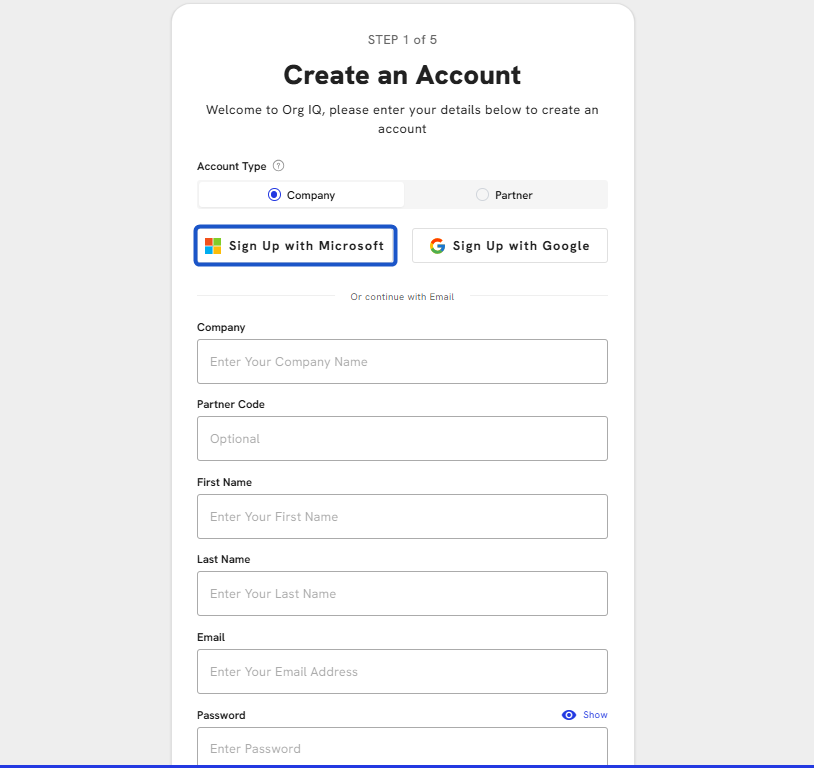
5. Alternately can sign up with your existing Microsoft account.
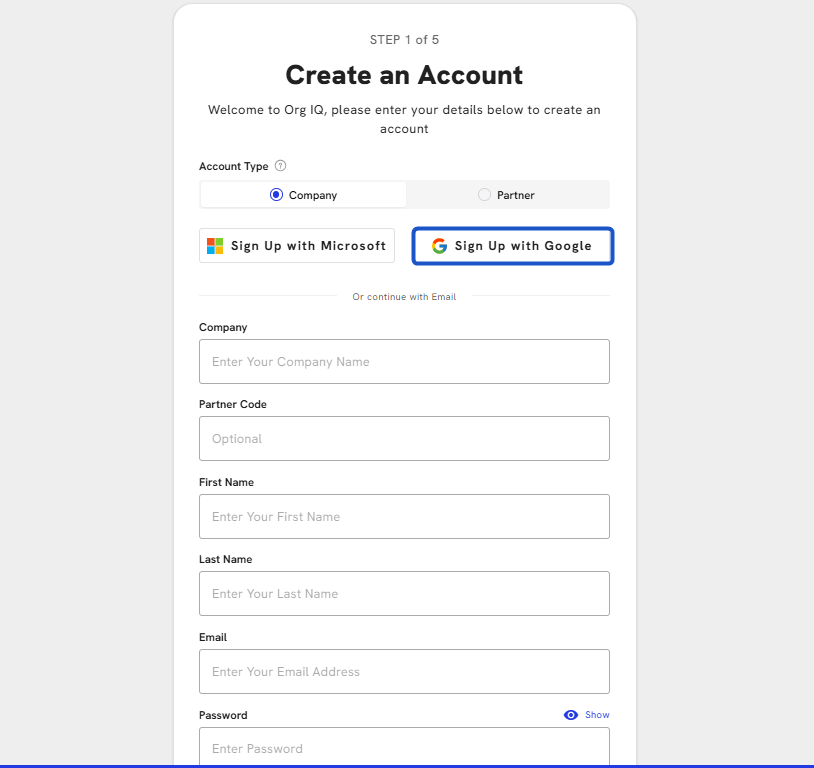
6. Or you can sign up with your existing Google account.
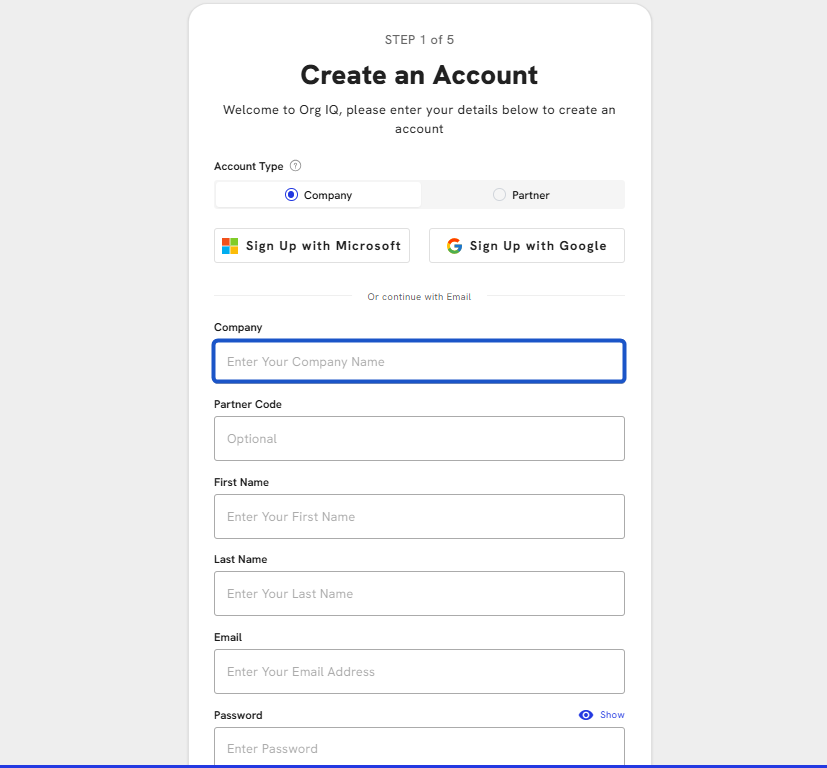
7. Enter Company name
8. Enter Partner Code (Optional). If you have a partner or referral code.
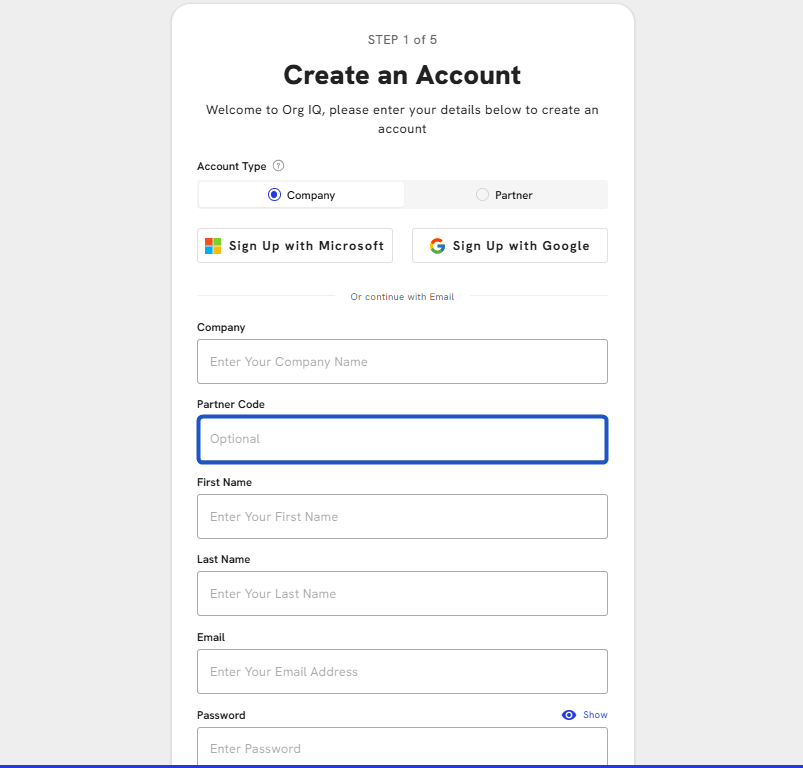
9. Enter First name
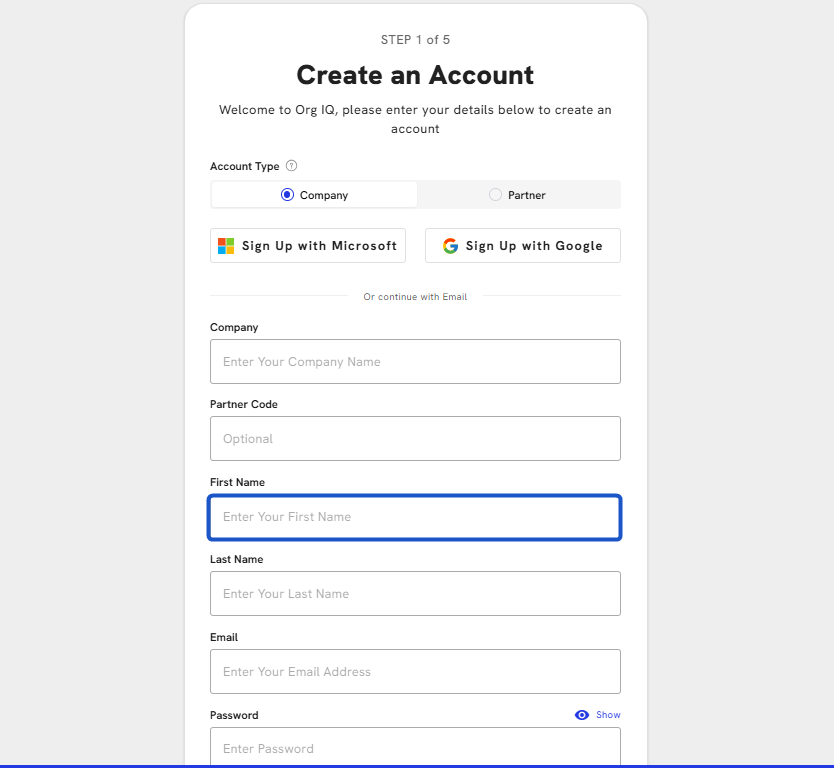
10. Enter Last name
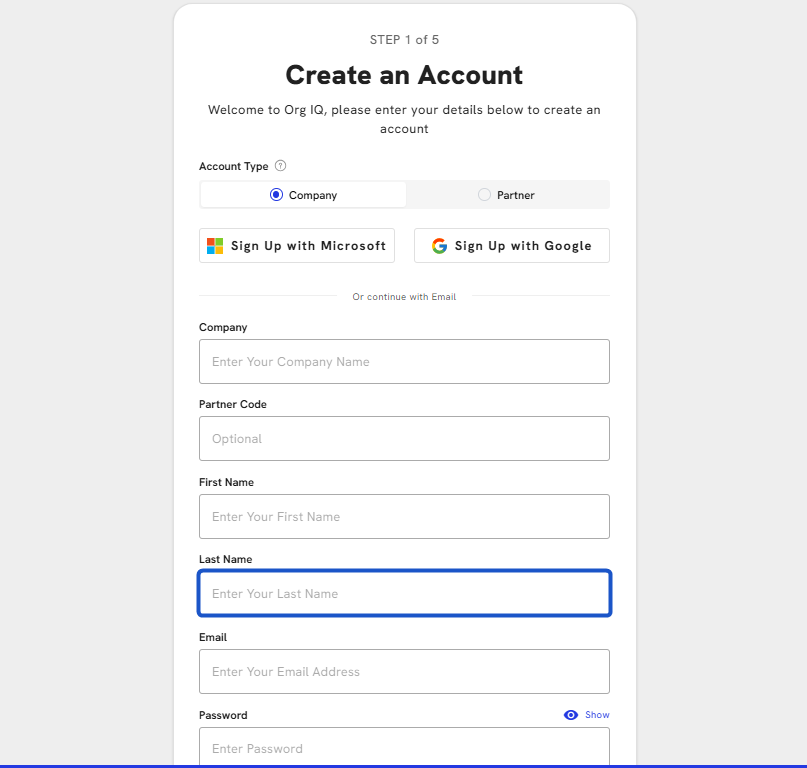
11. Enter Email Address.
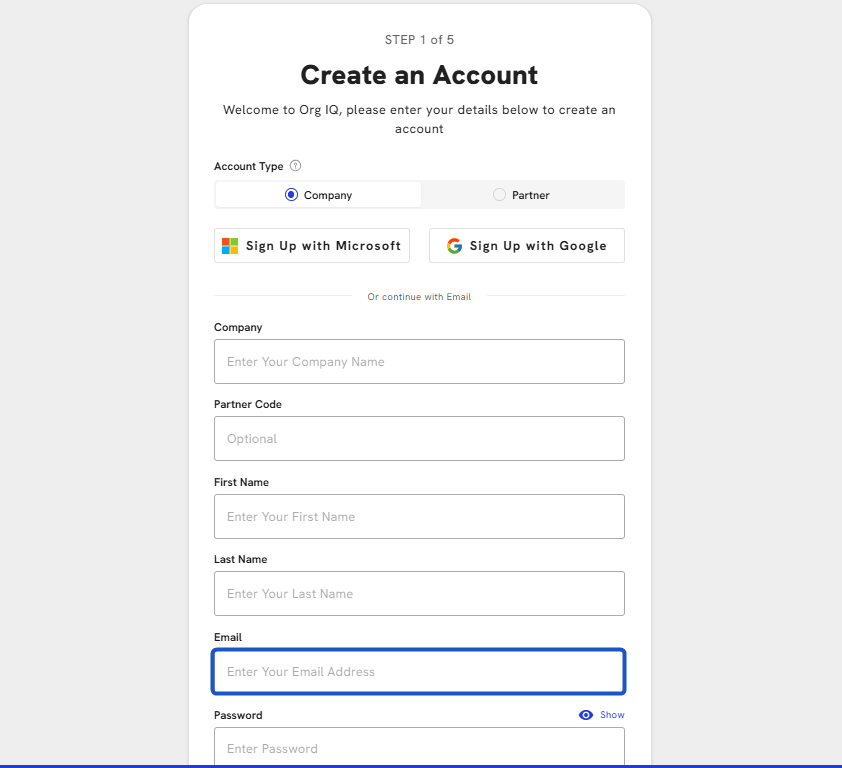
12. Enter the password
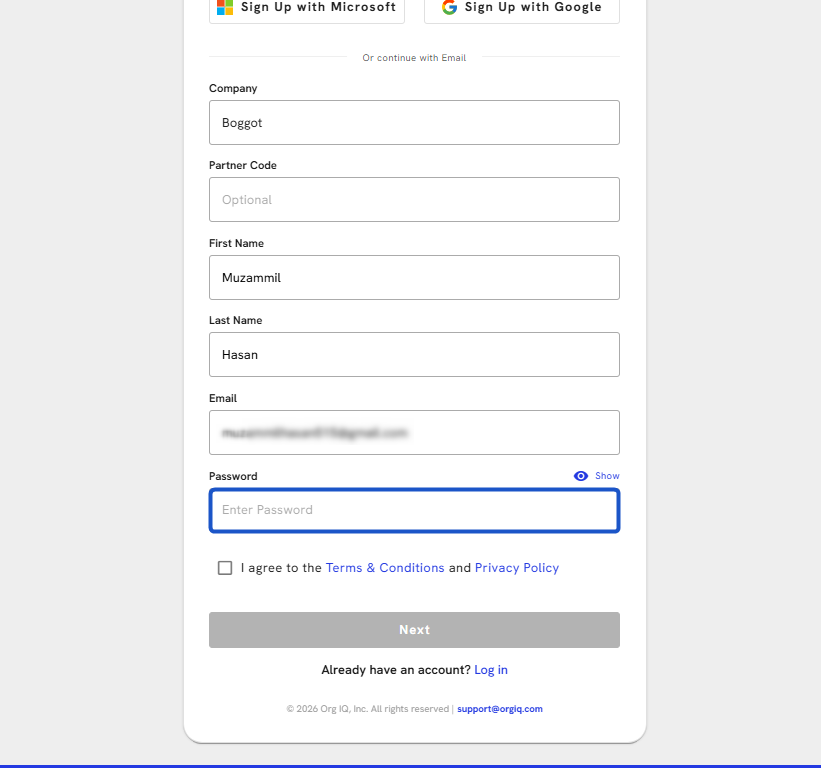
13. Set your Password. Make sure your password includes:
- At least 8 characters
- 1 uppercase letter
- 1 lowercase letter
- 1 number
- 1 special character
Click Show to check and confirm it meets all requirements.
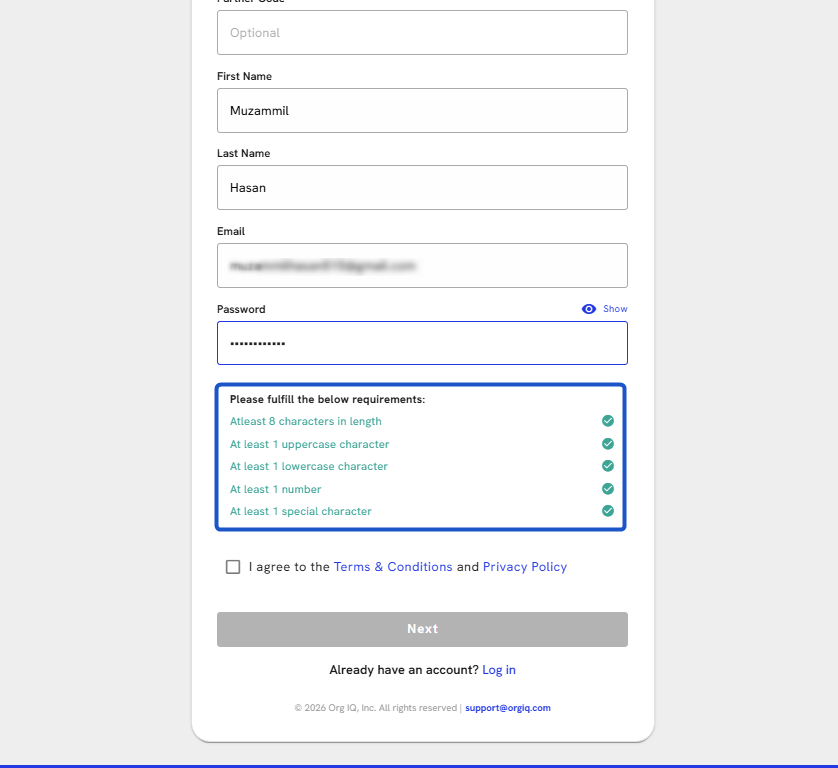
14. Check that I agree to the Terms & Conditions and Privacy Policy.
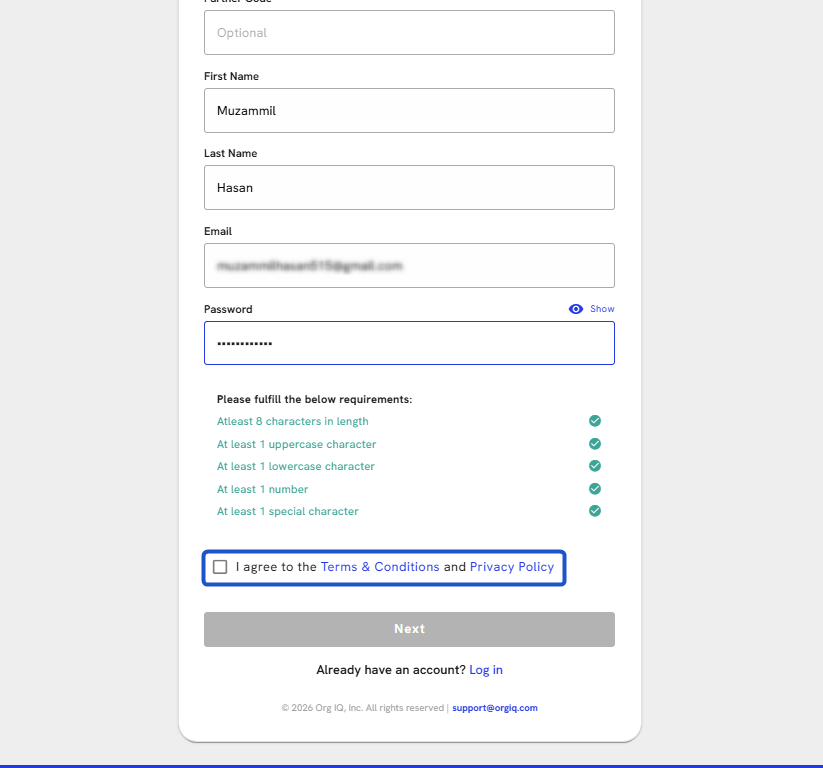
15. Click on Next
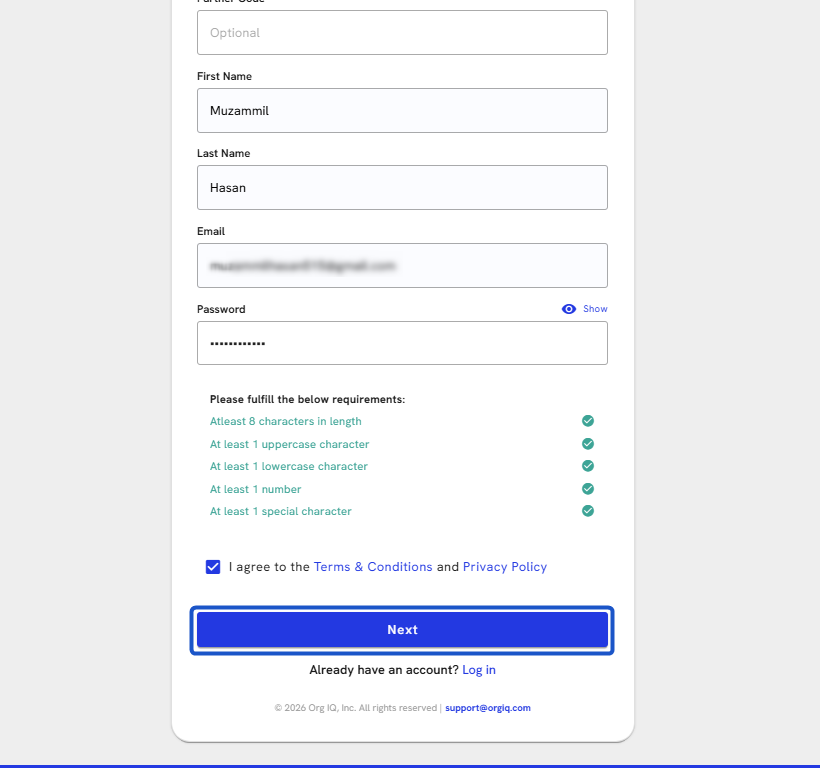
16. This will take you to verify your email
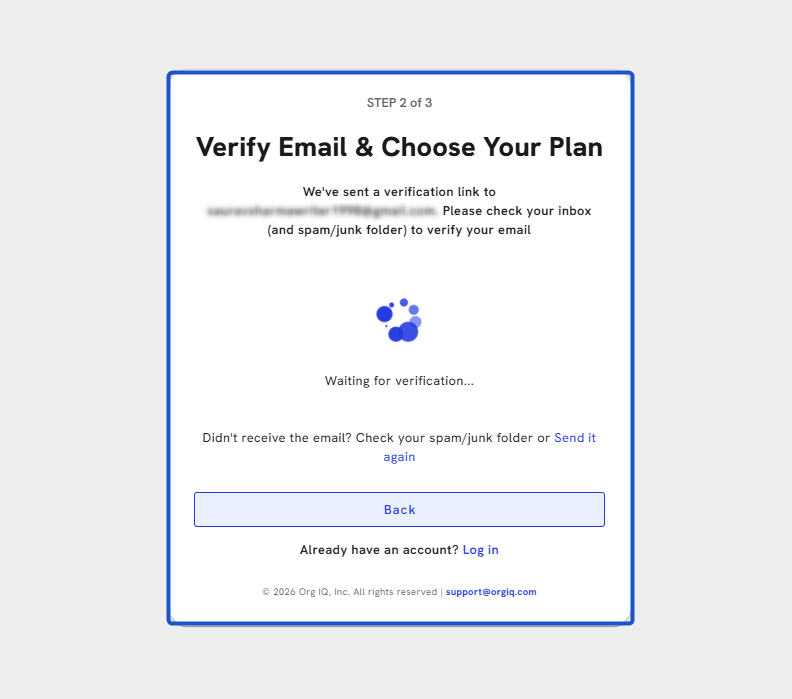
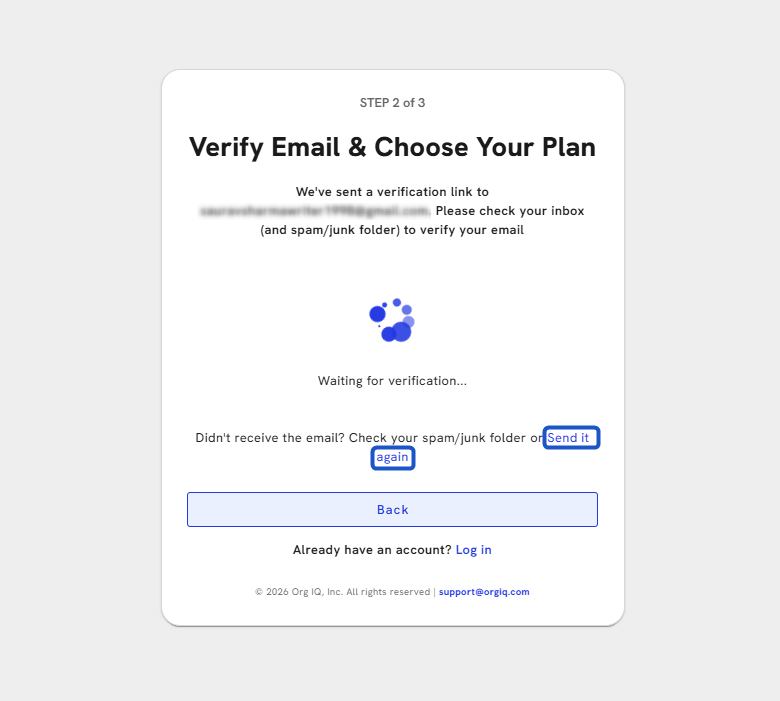
17. If you didn't receive the email? Check your spam/junk folder or send it again.
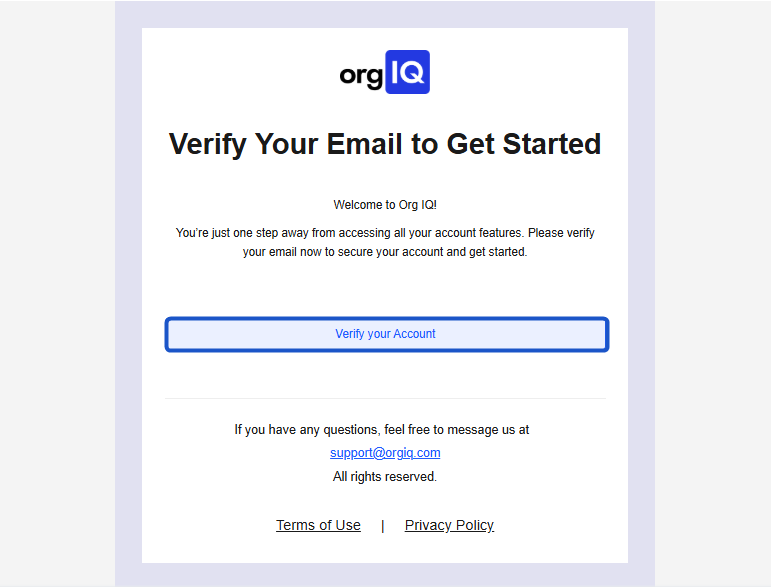
18. Go to the Email thread and click on Verify your Account
19. Once your email is verified, you can choose your plan.
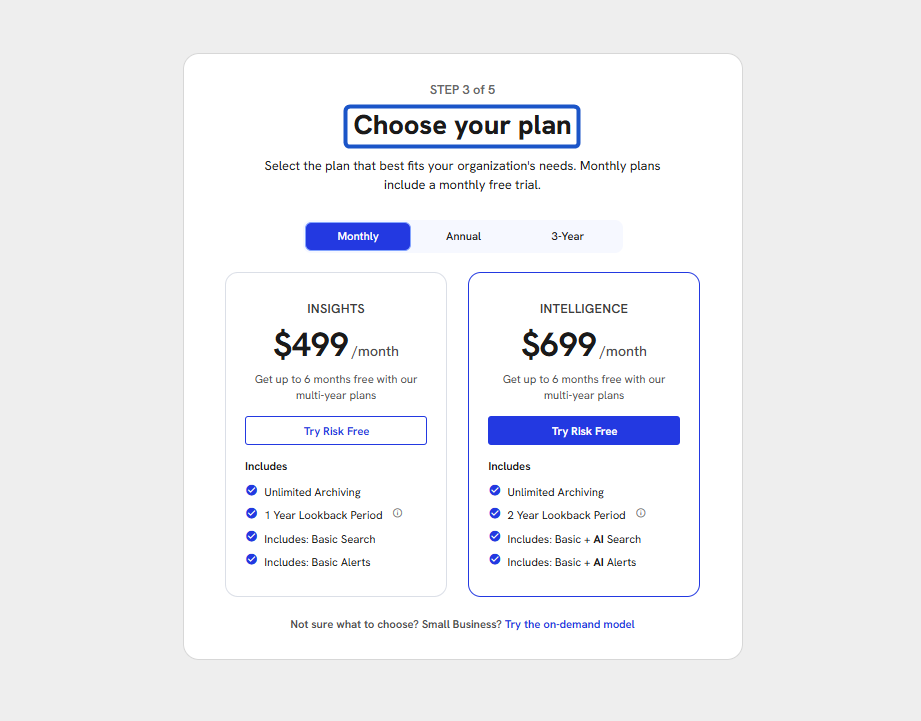
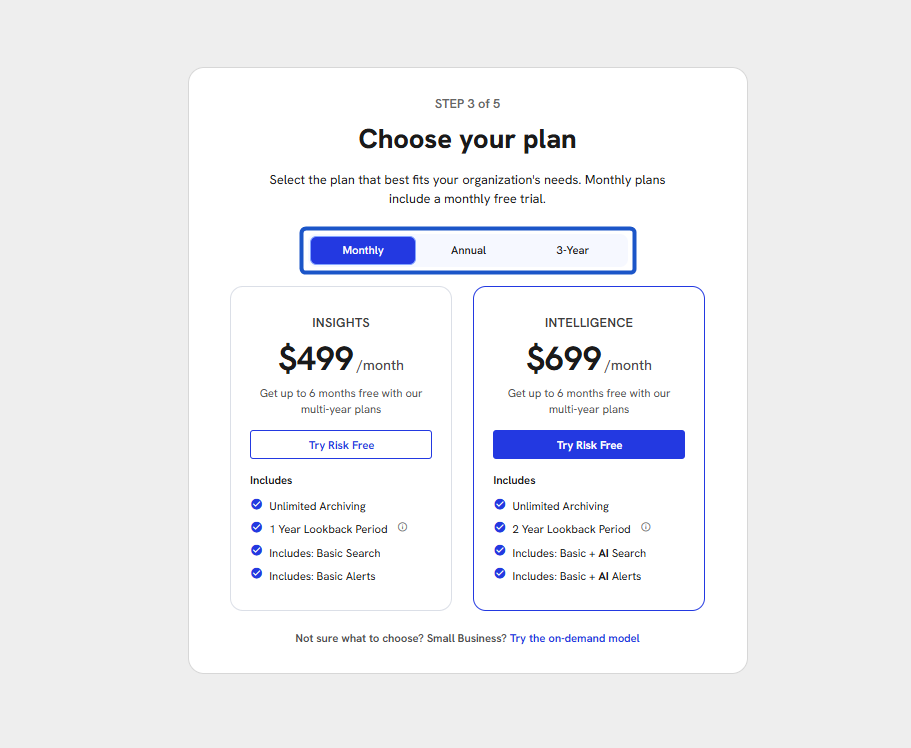
20. Select the plan monthly/annually/3-yearly according to your need.
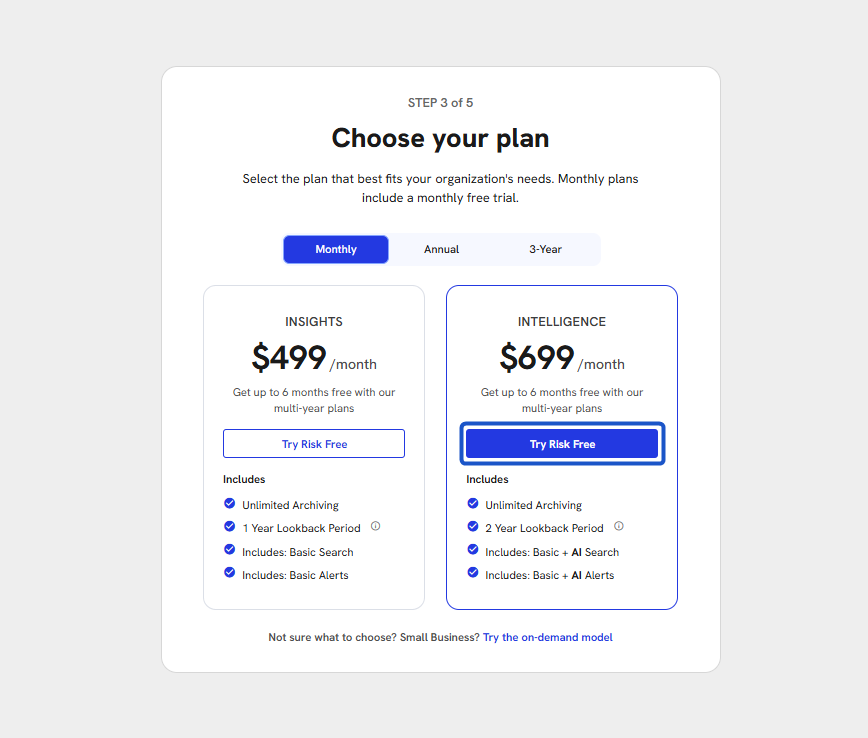
21. Click on Try Risk Free.
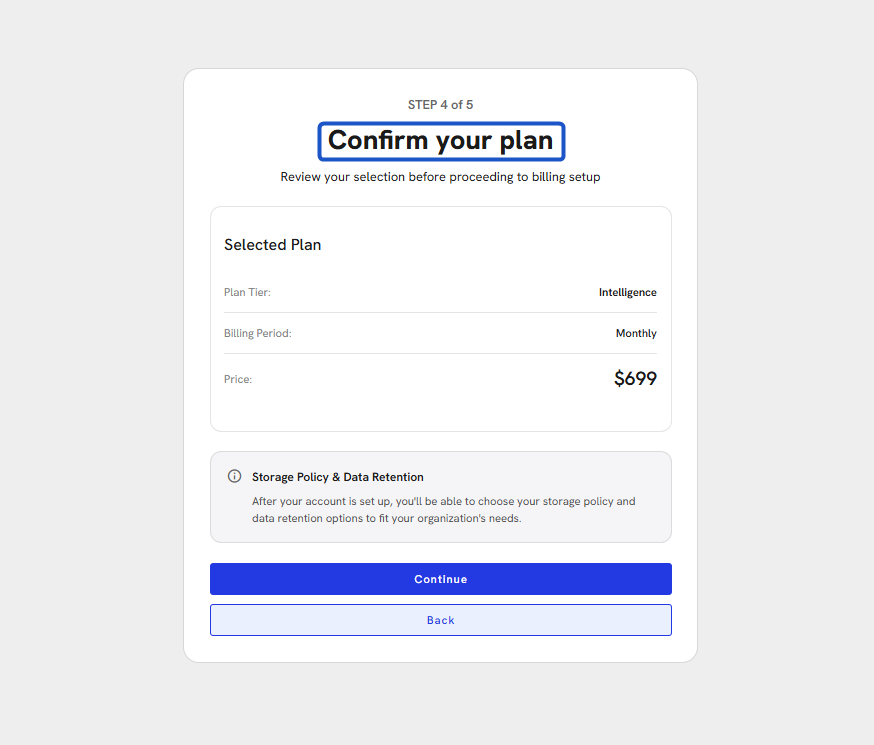
22. Confirm your plan
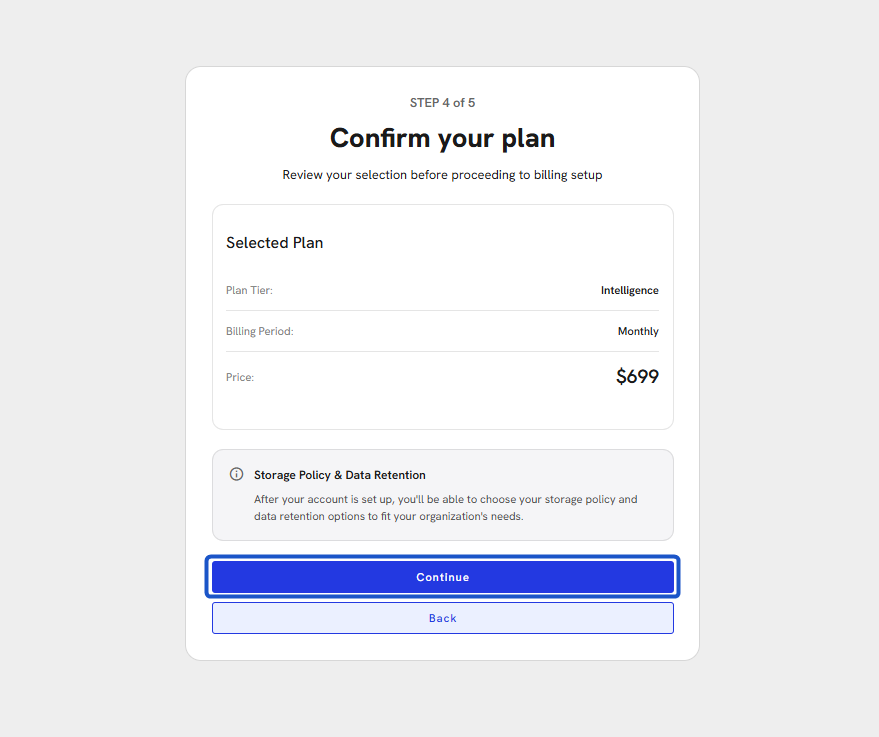
23. Click on the Continue button.
24. Navigated to Set Up Billing Method
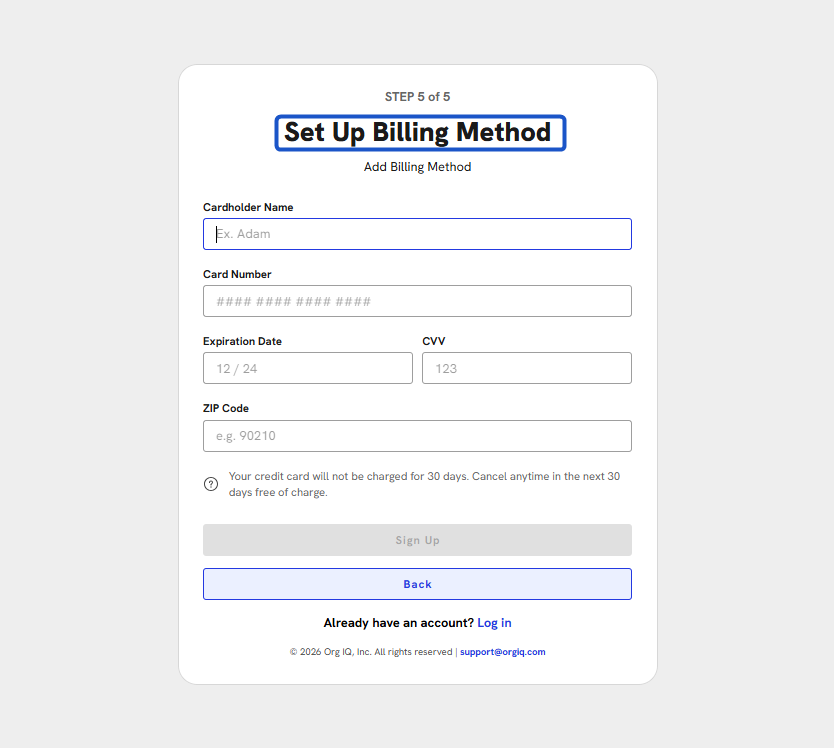
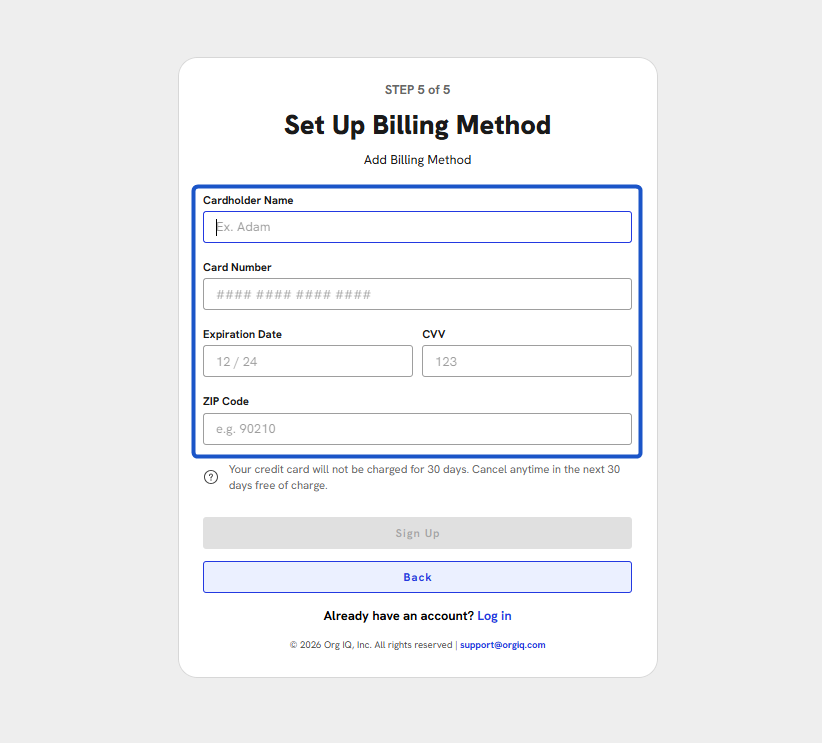
25. Enter your billing information. Fill in the following:
-
Name on Card
-
Card Number
-
Expiration Date
-
CVV
Note: Your card won’t be charged for 30 days.
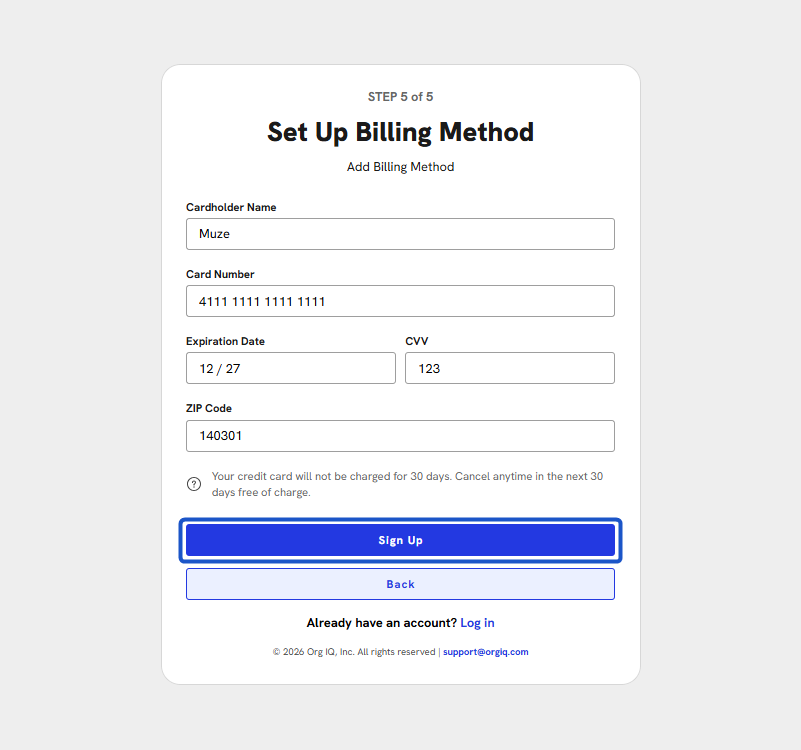
26. Click Sign Up. Your billing information will be saved securely.
27. Your account will be successfully created. Click on Walk me through it.
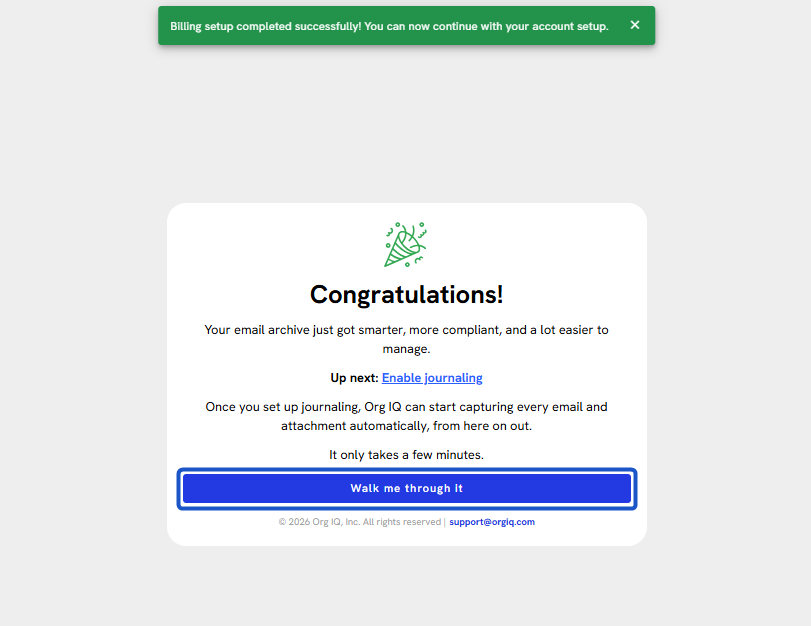
28. You’re in! Your account is now live. Welcome to the Org IQ dashboard.