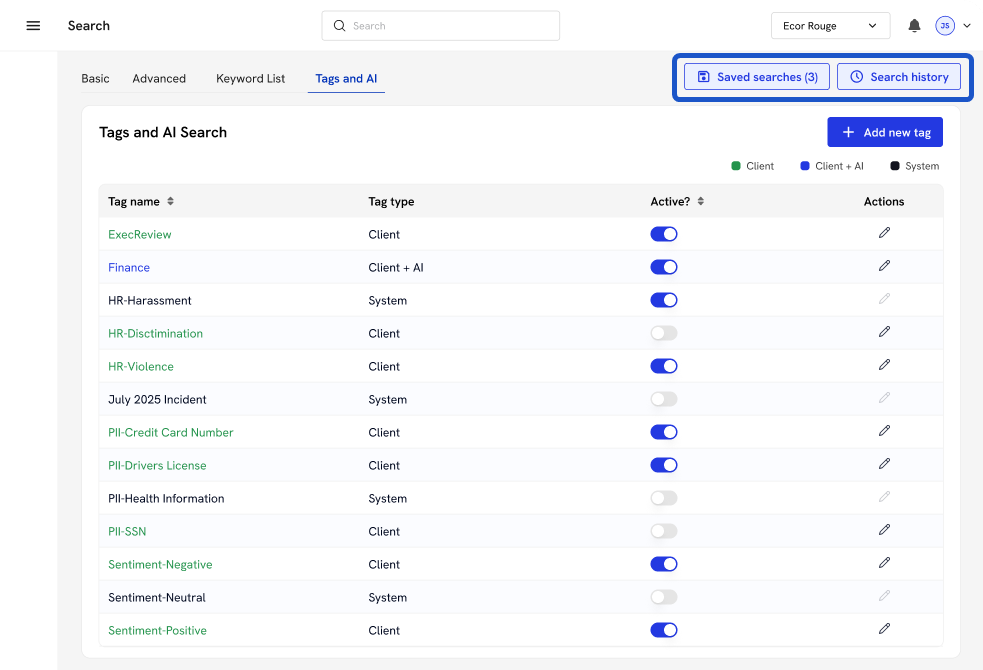
You can follow along here:
Or follow along at your own pace here:
Using Tags and AI in Org IQ
This guide walks you through how to create, manage, and automate tags in Org IQ using AI-driven detection.
Created: November 14, 2025. Created By: Muzammil Hasan. View the most recent version on Tango.us
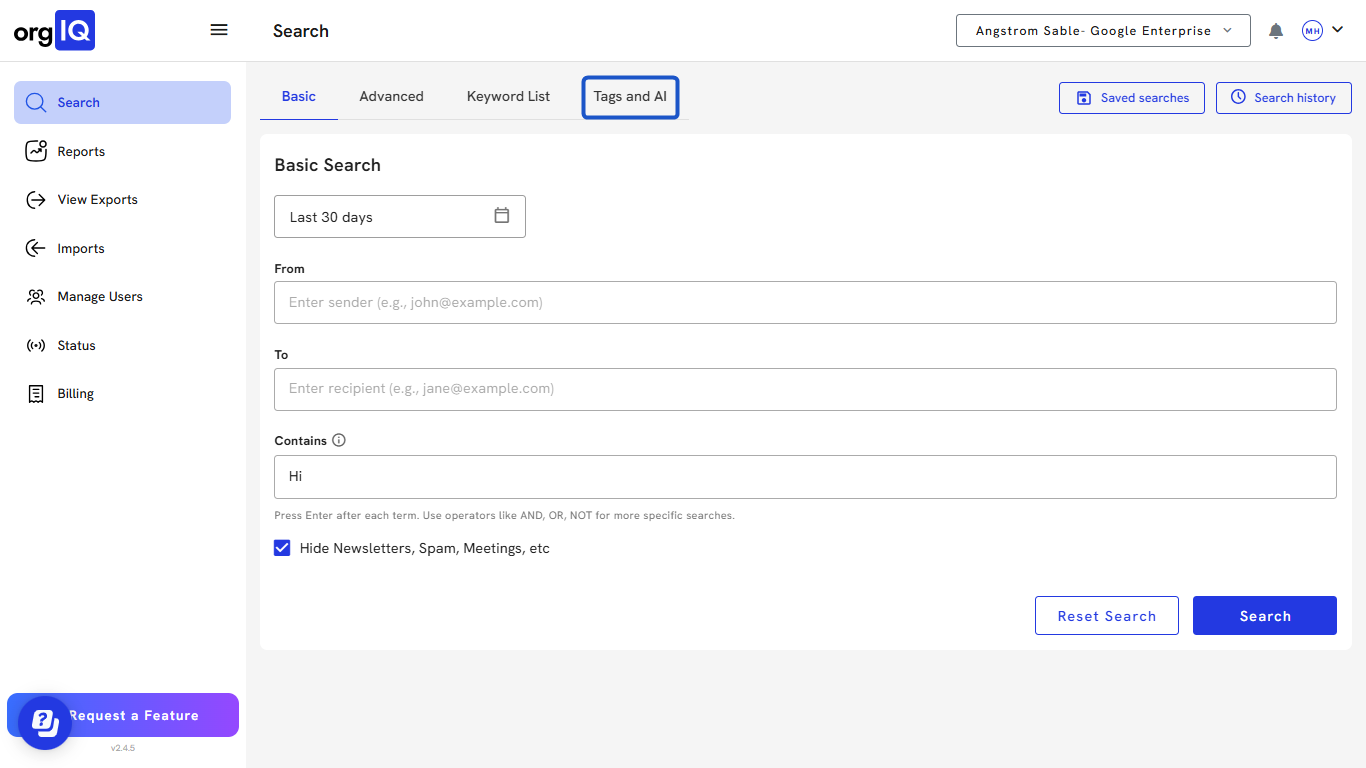
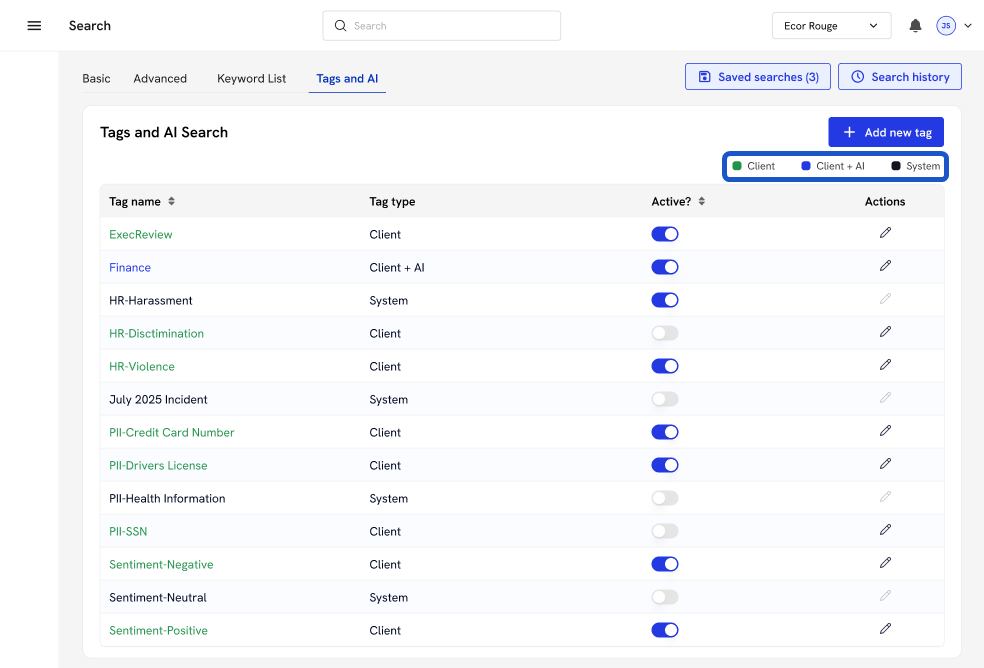
1. Click on the Search window and select the Tags and AI tab at the top.
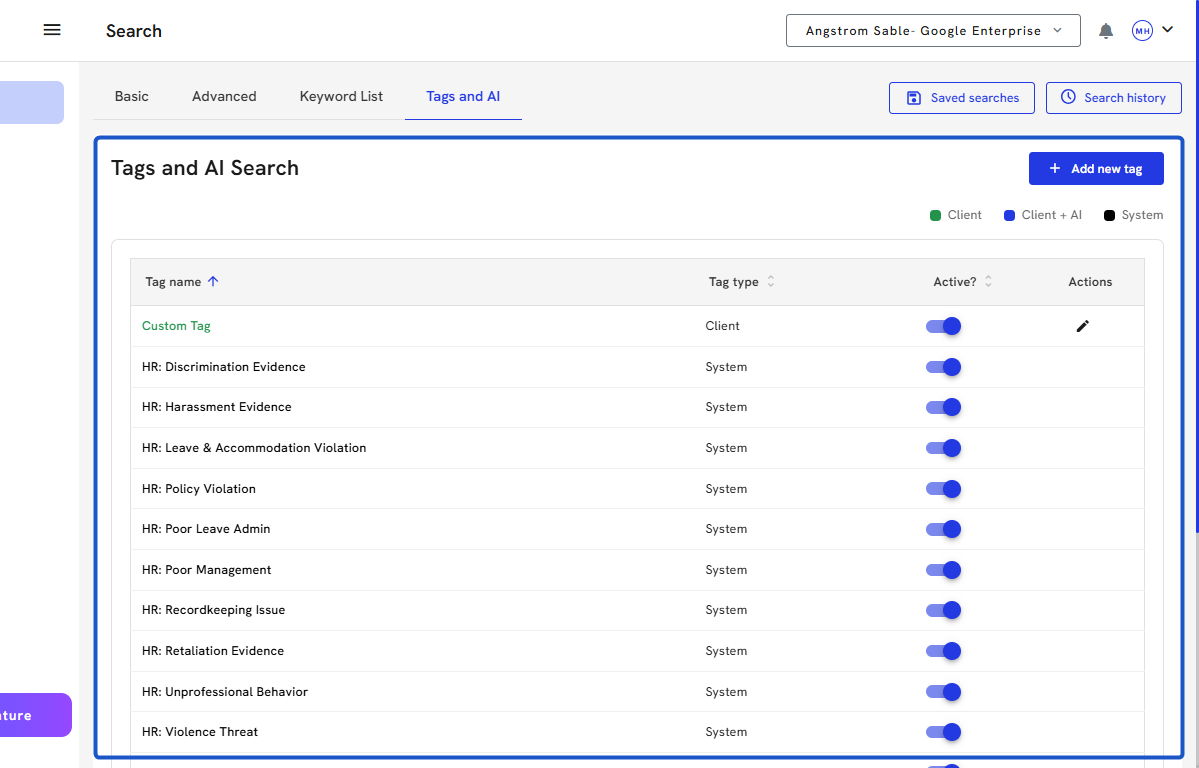
2. In the Tags and AI section, view all existing tags in the table, including:
-
Tag Name
-
Tag Type
-
Active Status
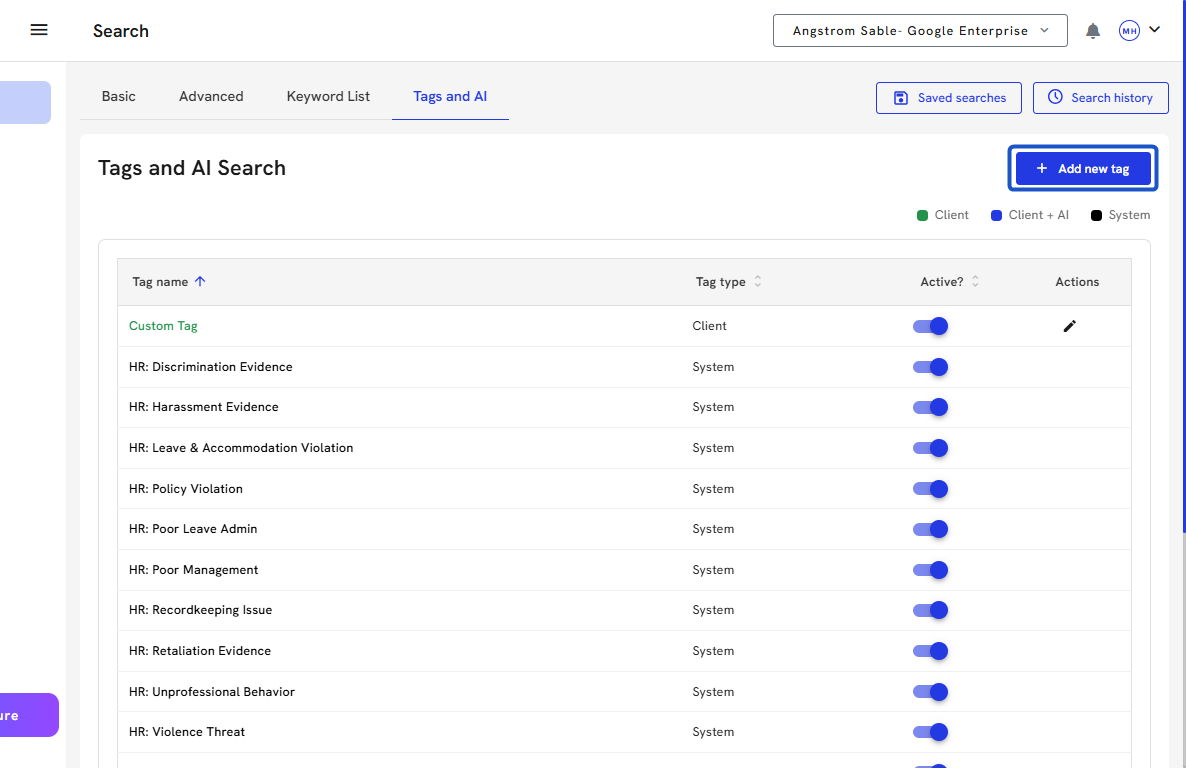
3. To create a new tag, click the Add new tag button in the top-right corner.
4. Enter the Tag name in the field.
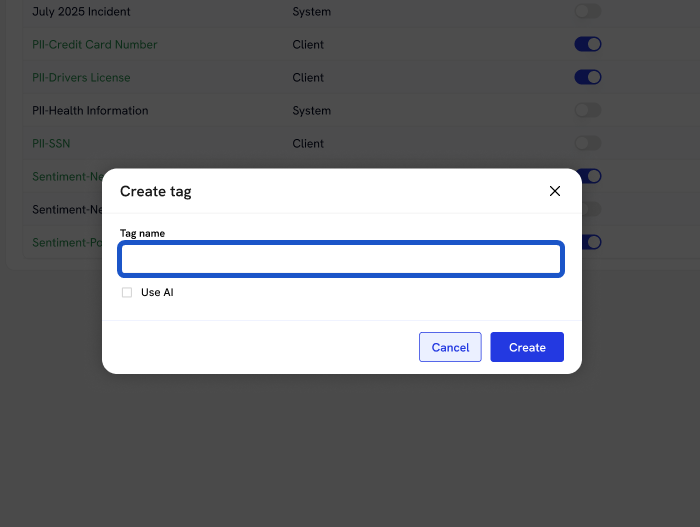
5. (Optional) Enable AI tagging by checking Use AI, then enter the Prompt that guides how AI detects this tag.
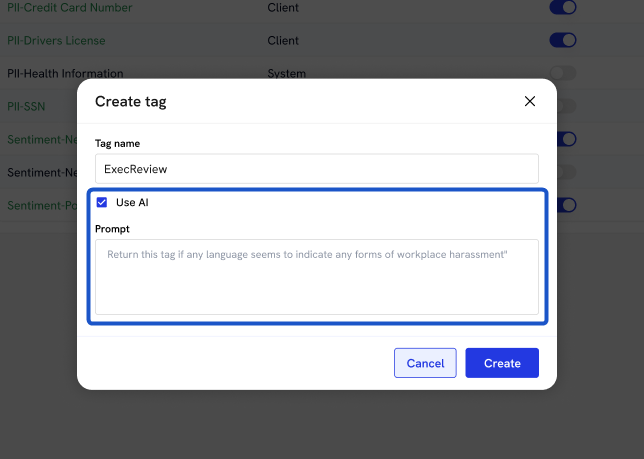
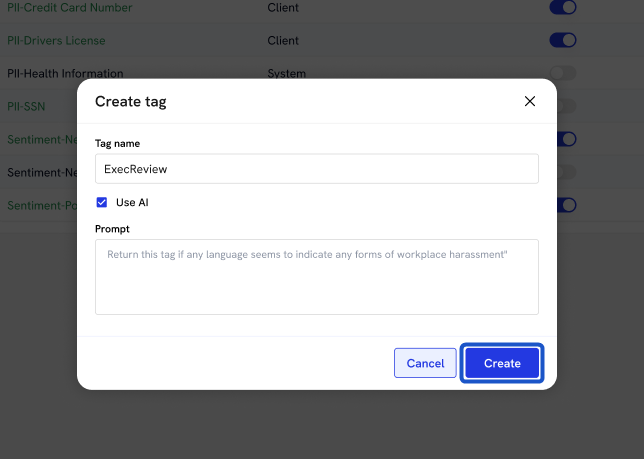
6. Click Create.
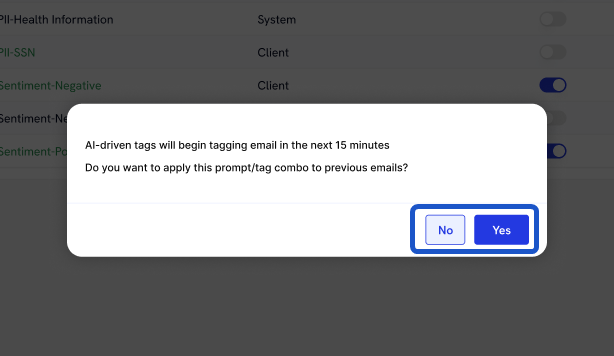
7. A message will appear asking whether you want to apply this tag to previous emails - click Yes or No based on your preference.
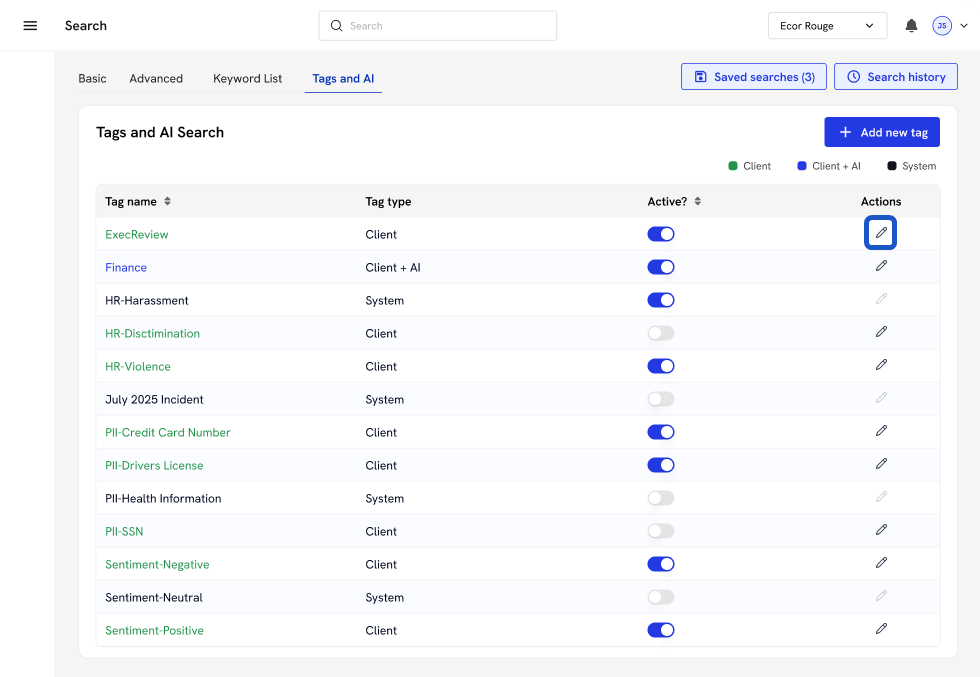
8. To edit or delete an existing tag, click the pencil icon under the Actions column for that tag.
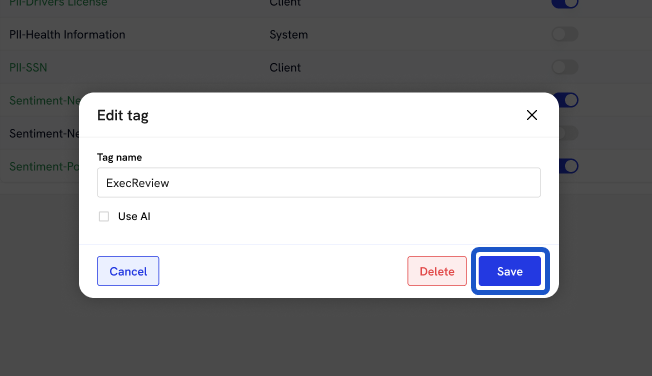
9. Edit the tag details as needed and click Save.
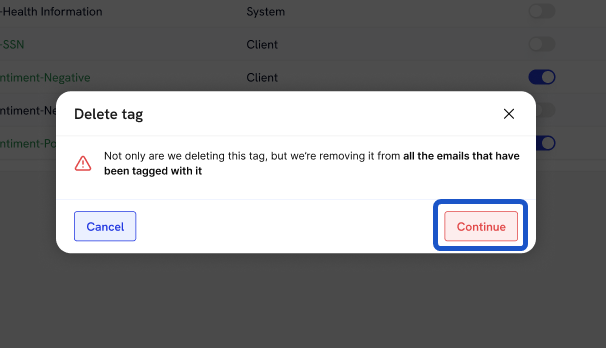
10. To delete the tag, click Continue when prompted.
11. Use the toggle button in the Active? column to enable or disable a tag.
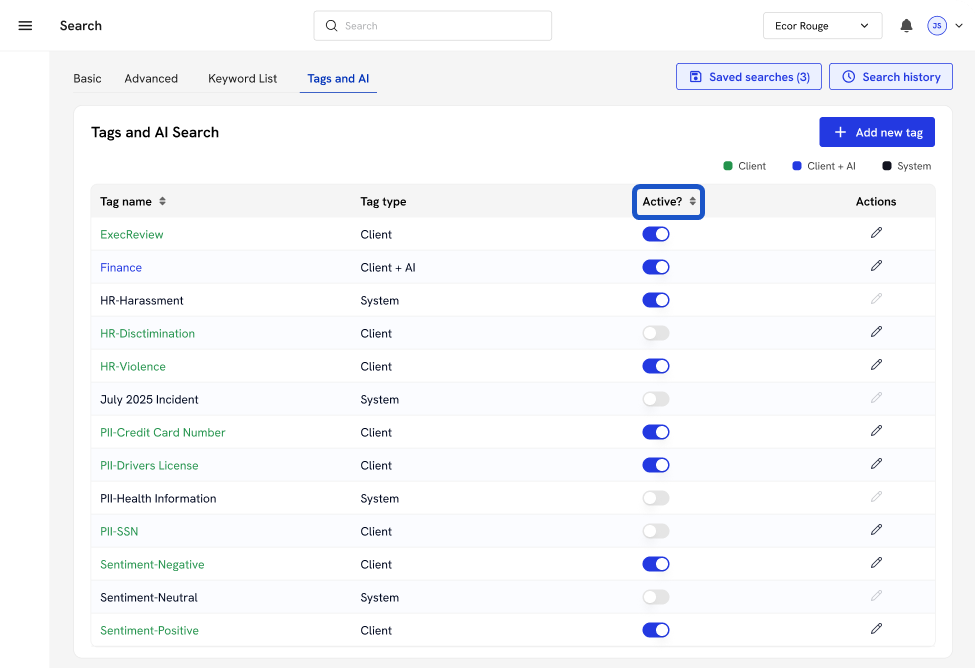
12. Use the color indicators to quickly identify tag types:
-
Green → Client
-
Blue → Client + AI
-
Gray → System
13. You can also use Saved searches or the Search history panel to locate emails by tag.