You can follow along here:
Or go at your own pace here:
Searching Emails with Org IQ
Creation Date: July 18, 2025 Created By: Muzammil Hasan View most recent version on Tango.us
# Org IQ
1. Click on the Advanced tab.
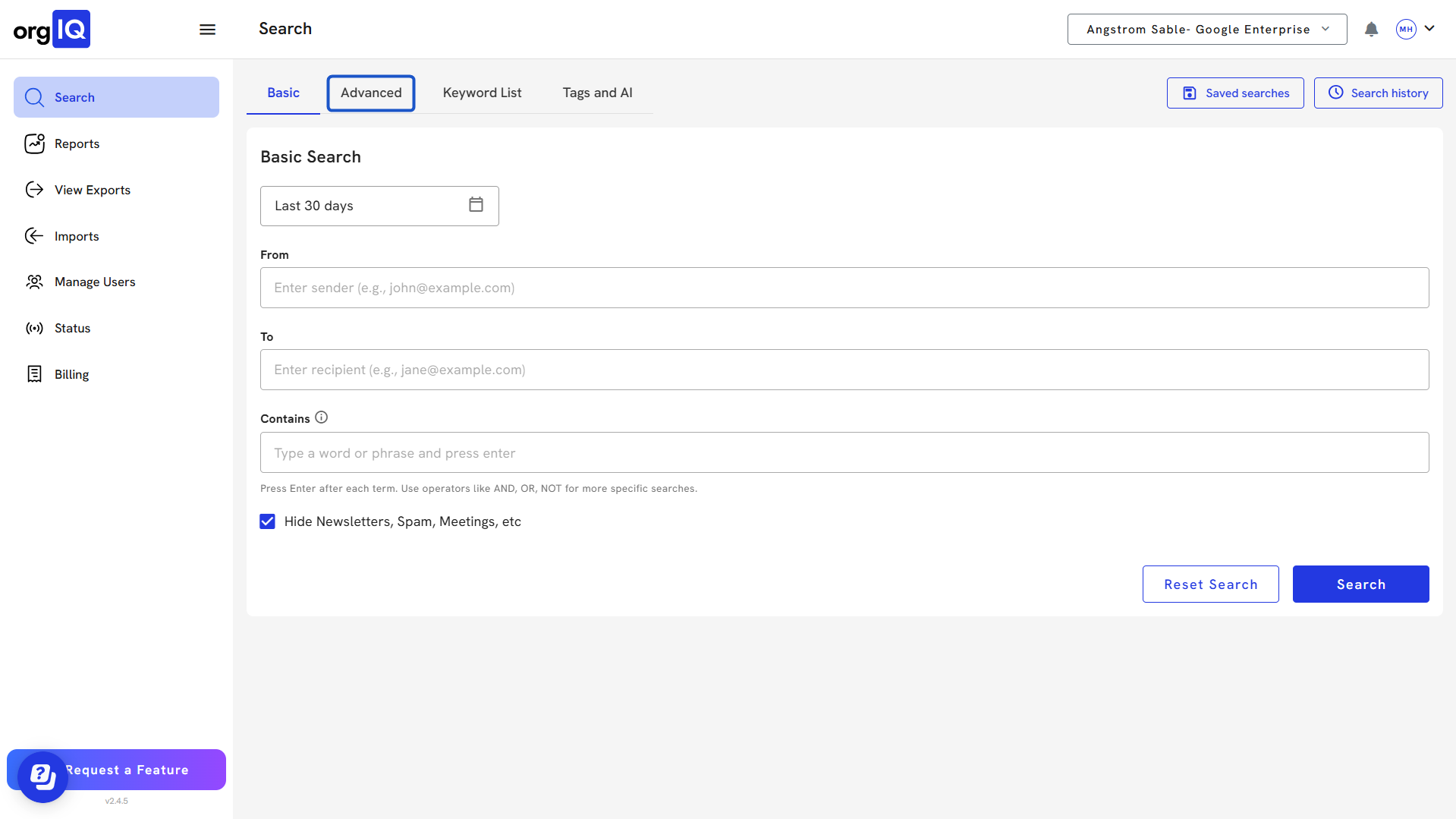
2. At the top of the screen, you will see the total number of emails, the date range of "all time" and a "+" sign to add more search criteria.
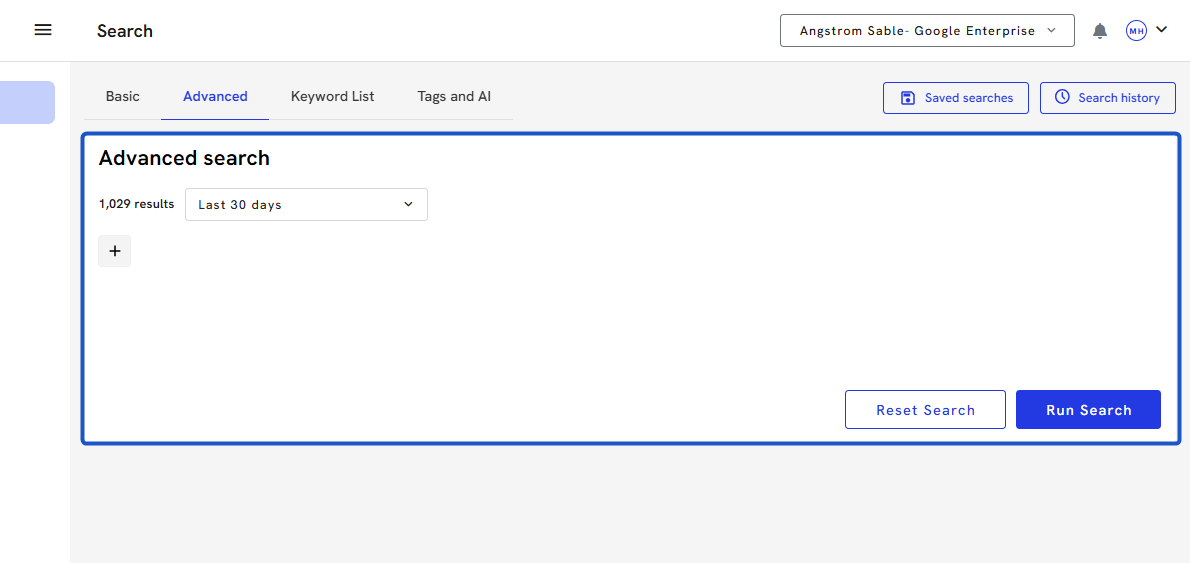
3. Click on Date
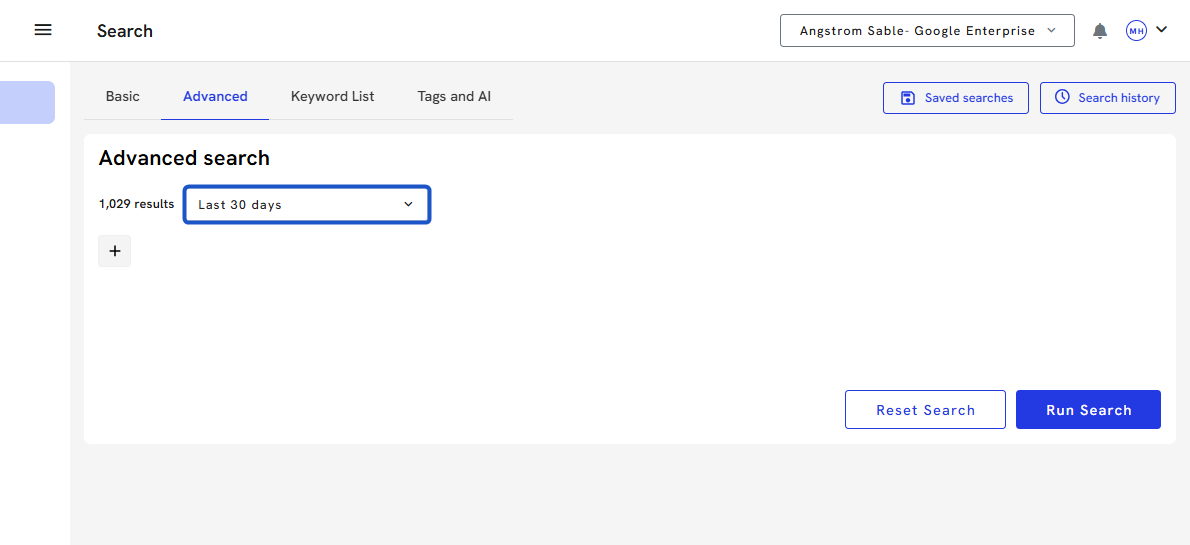
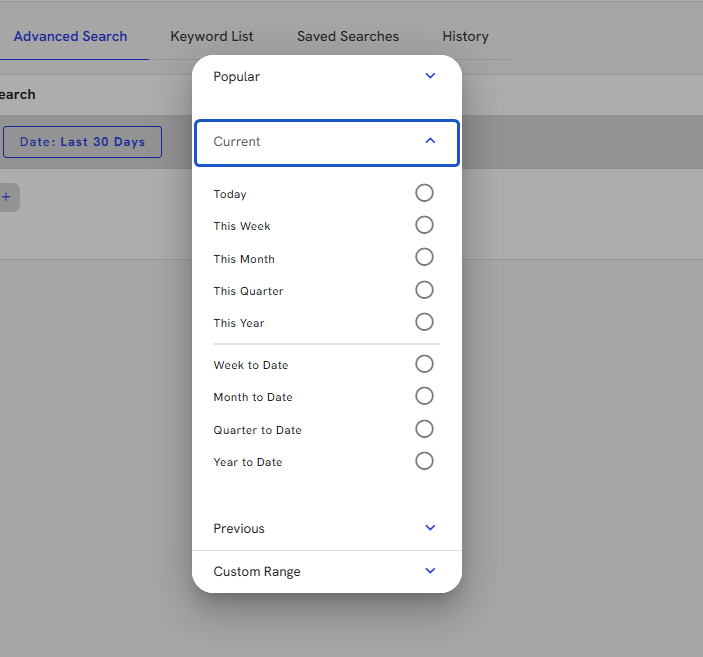
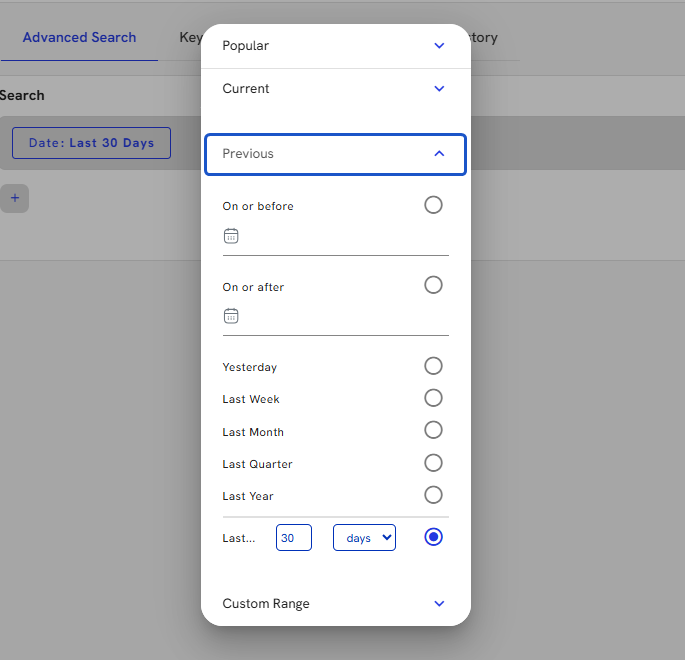
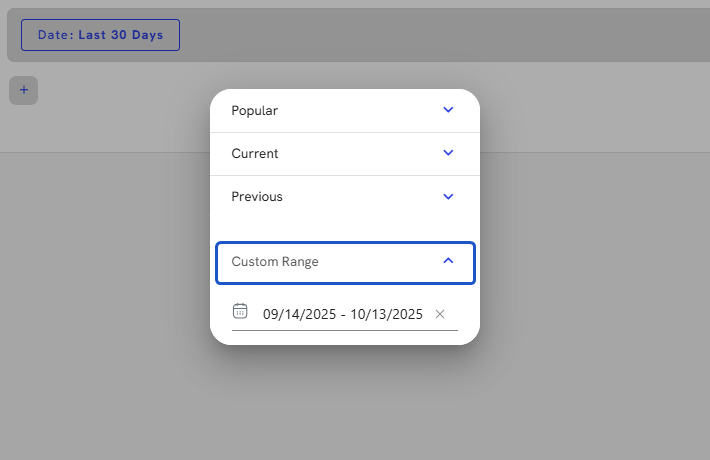
4. To update the date criteria, click on the chip, and a date window opens, offering a multitude of quick searches as well as a custom date option.
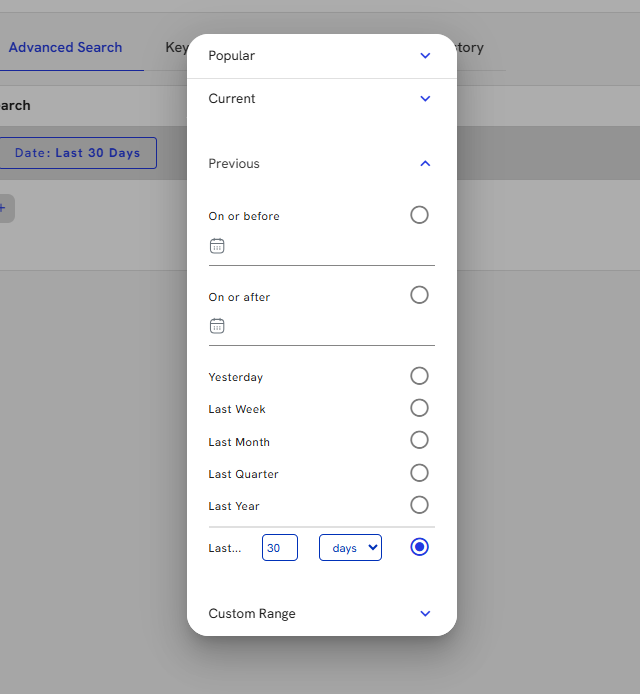
5. Click on Current.
6. Click on Previous.
7. Click on Custom range.
8. To add more search filters, press the "+" sign.
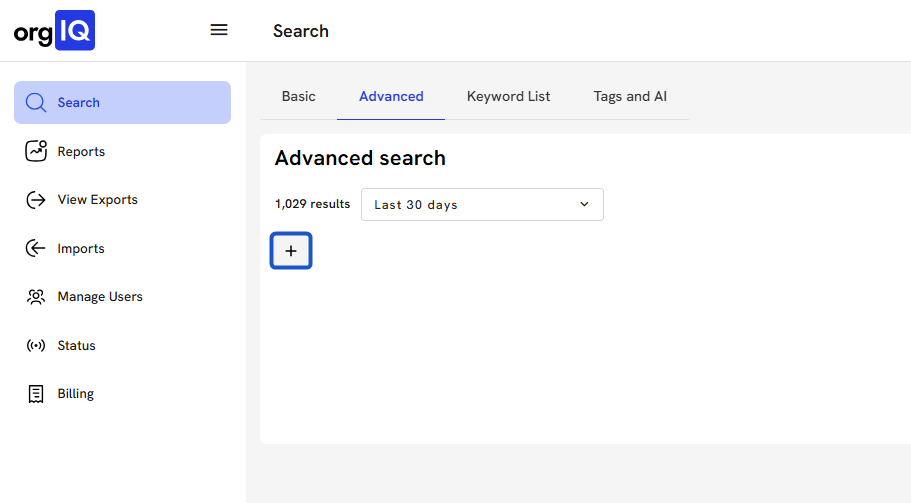
9. A window will open and give you several filtering options.
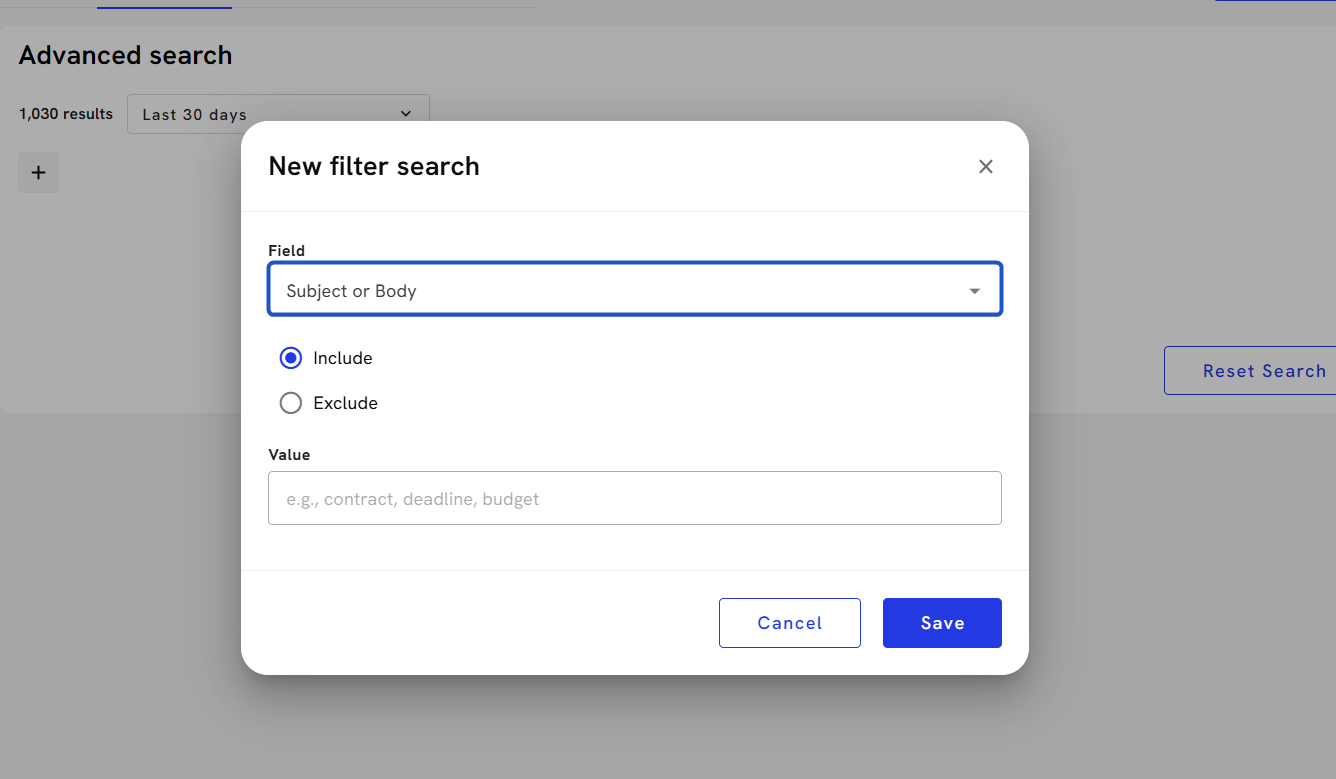
10. On toggling the Include or Exclude options, it will show or hide items that match the selected value.
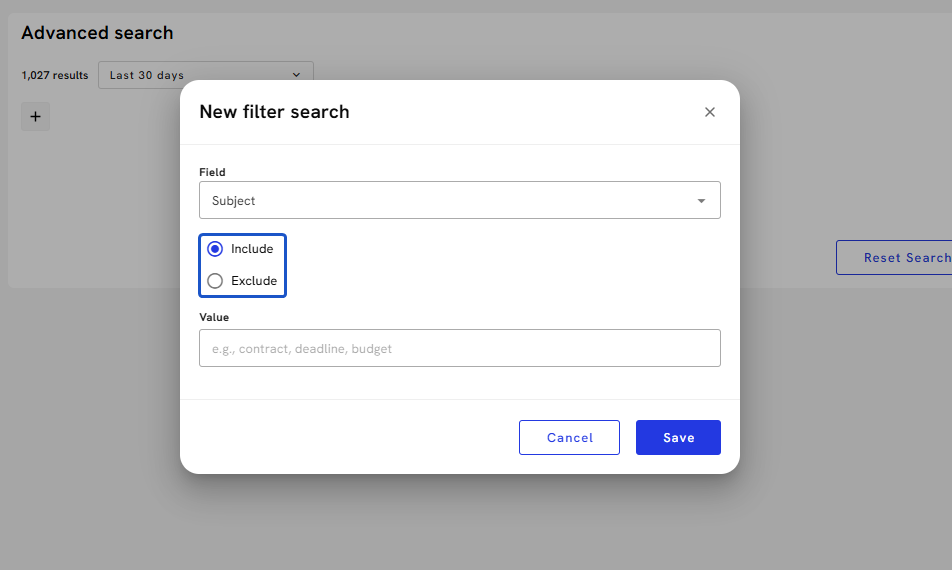
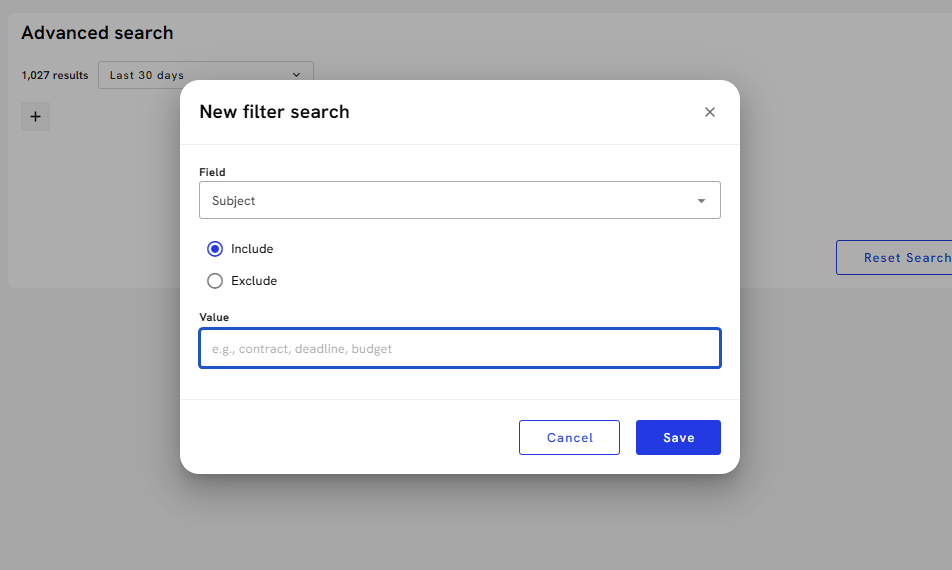
11. Once you choose a field and enter a search value.
12. Click on Save
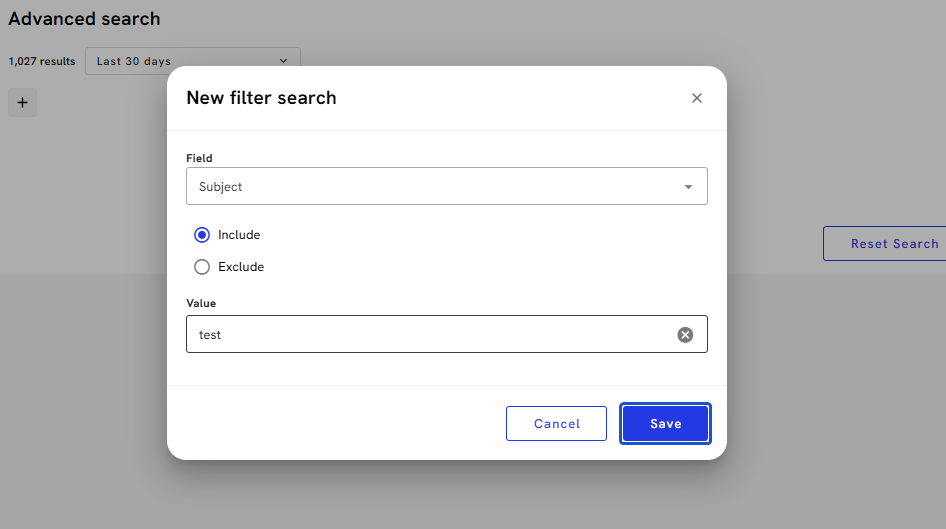
13. After you add search criteria to the search, you will see an additional "+" to the right. If you add additional criteria to the right, this is considered an "OR" option.
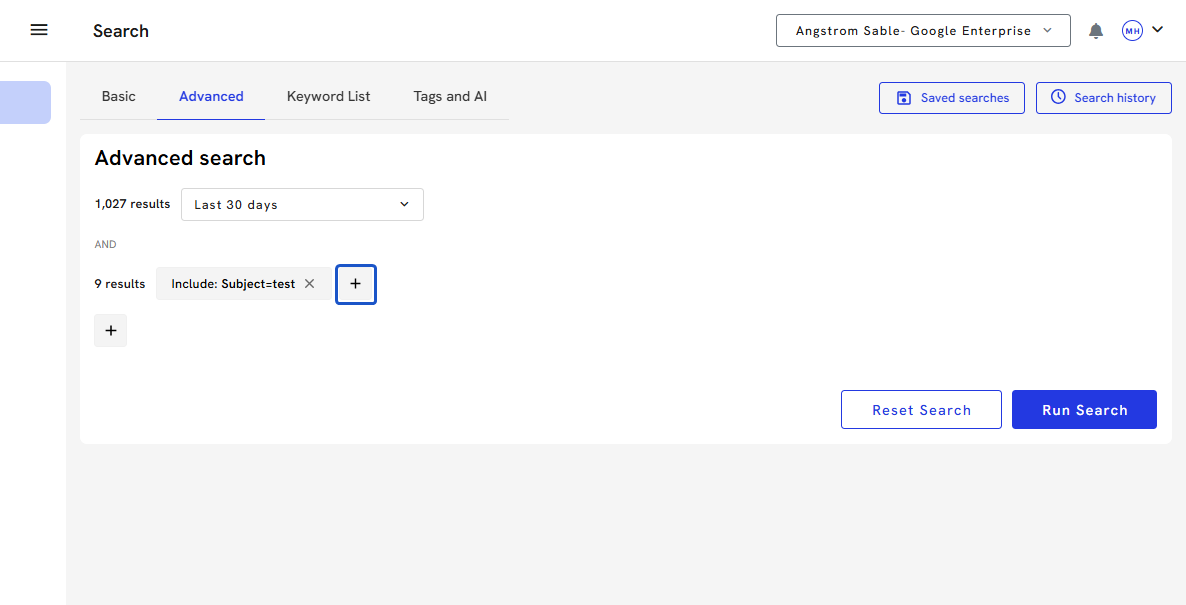
14. Click on Run Search.
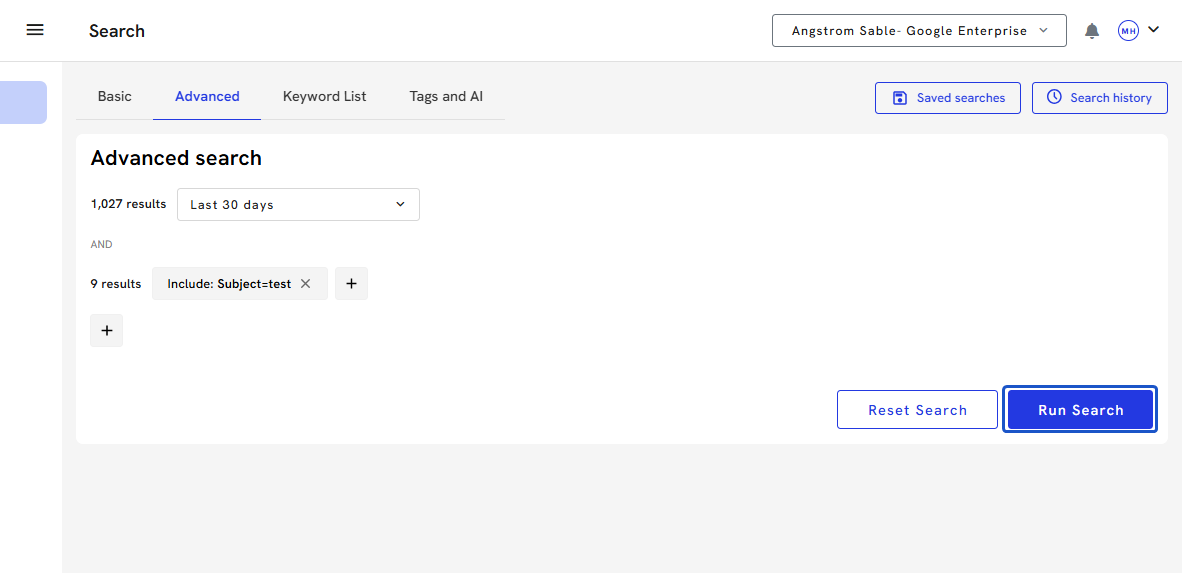
15. Once the search has been run, you will see the search criteria at the top and a list of all the emails that contain your search criteria.
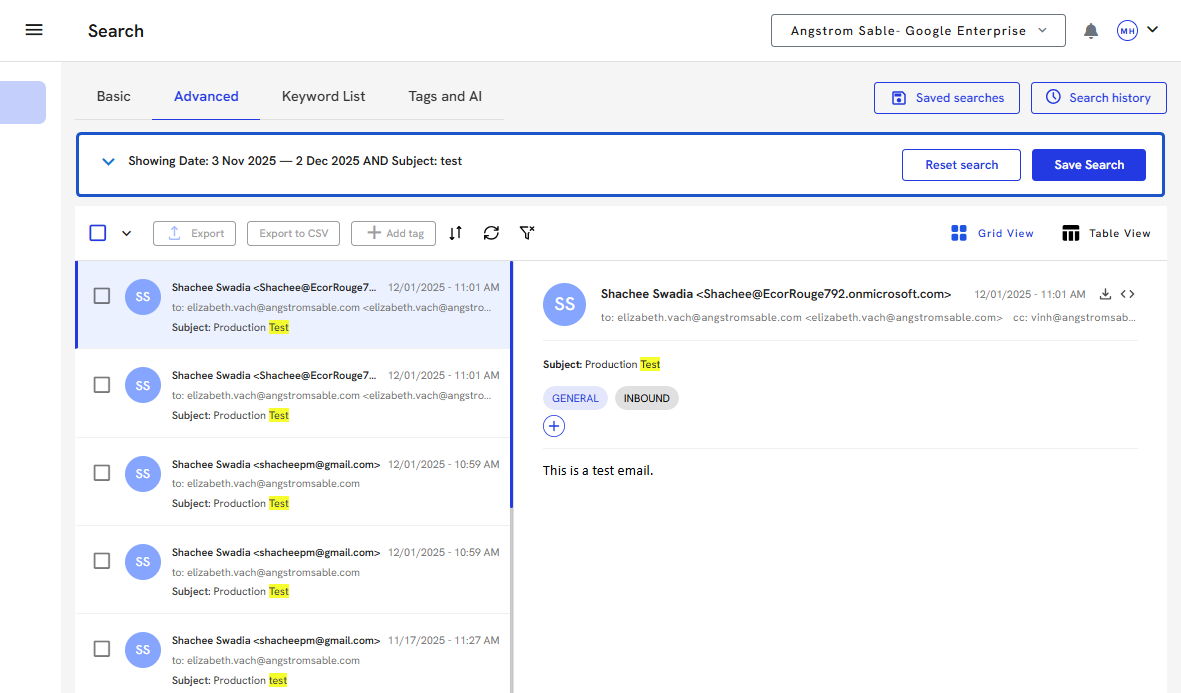
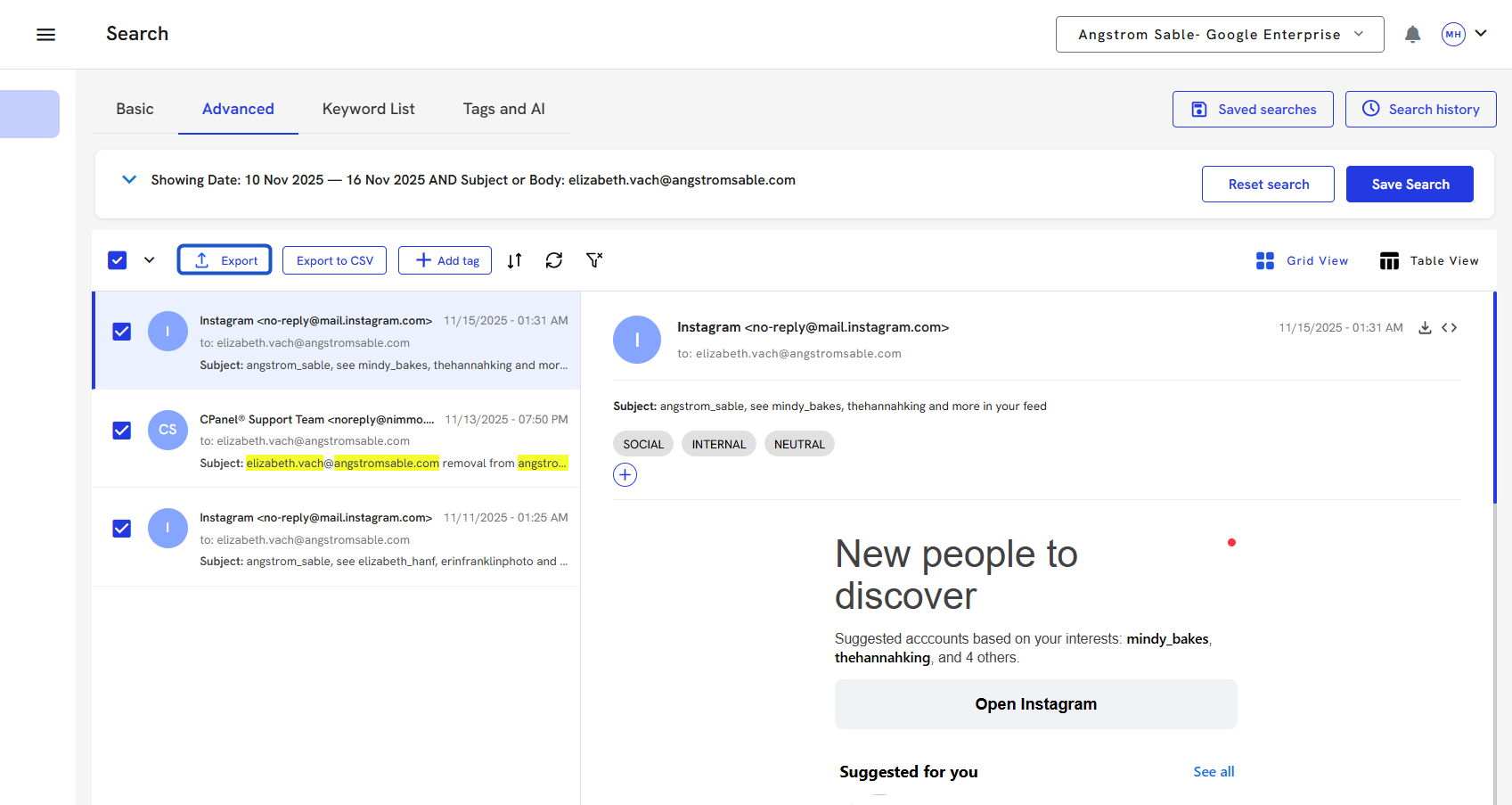
16. To export specific emails, select each checkbox.
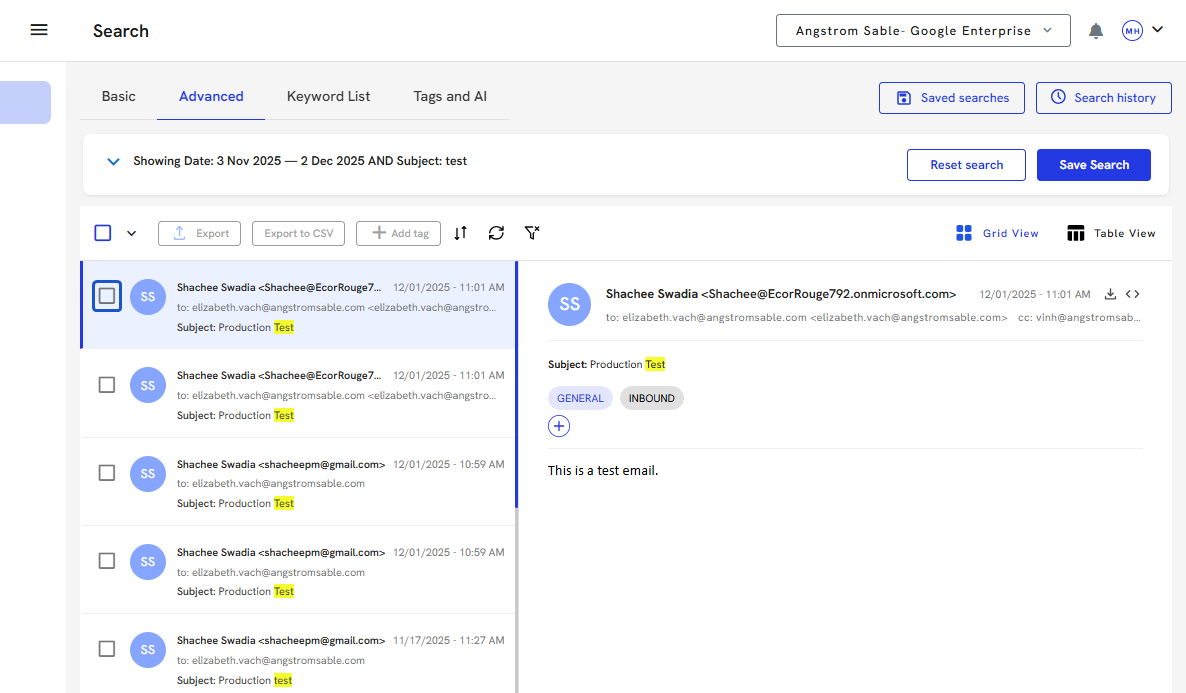
17. Once the emails have been selected, click on the Export icon.
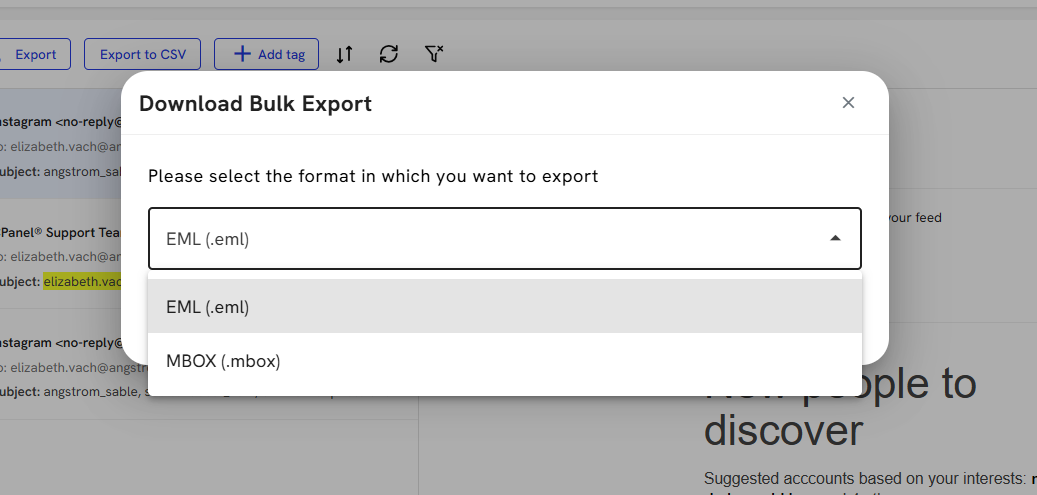
18. Choose your format.
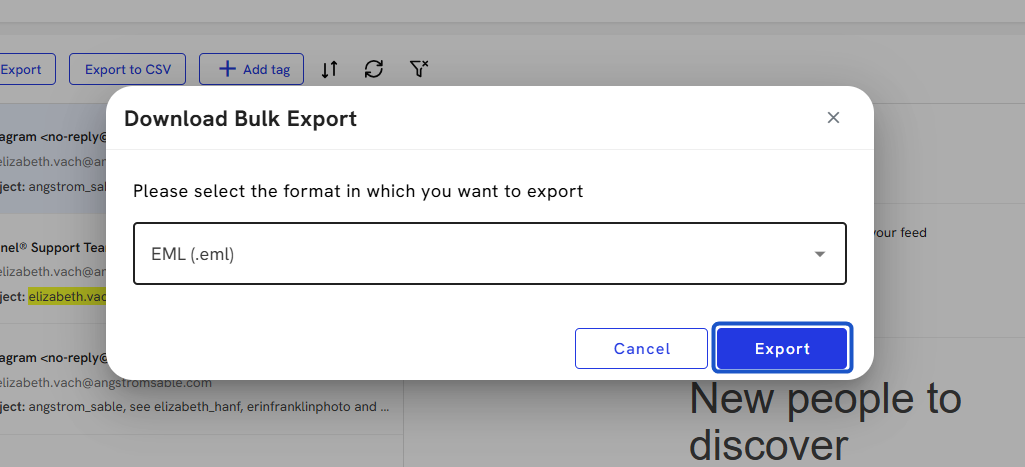
19. Click on Export.
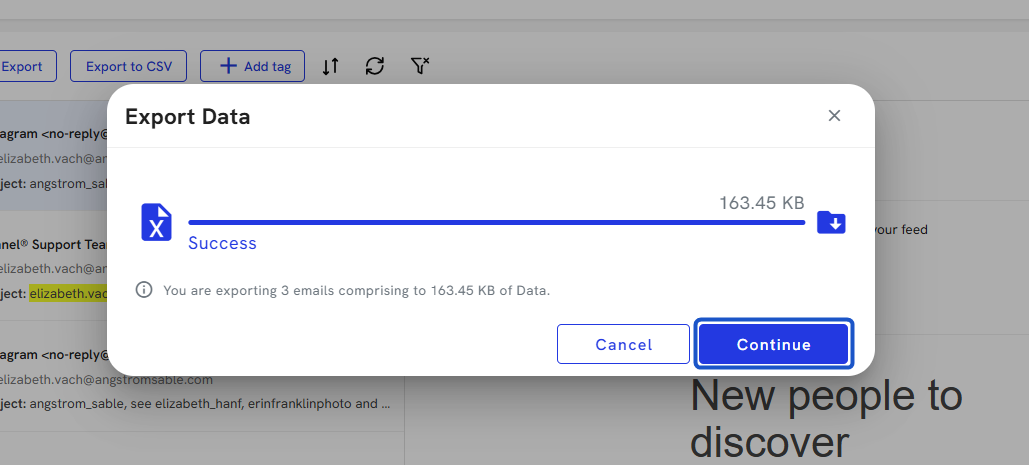
20. Once exported, click on Continue.
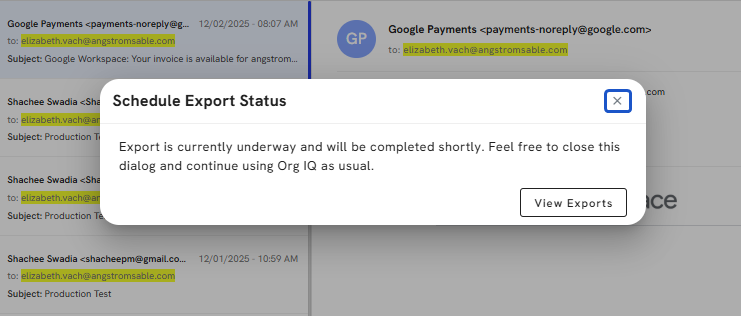
21. The Export Status is on schedule
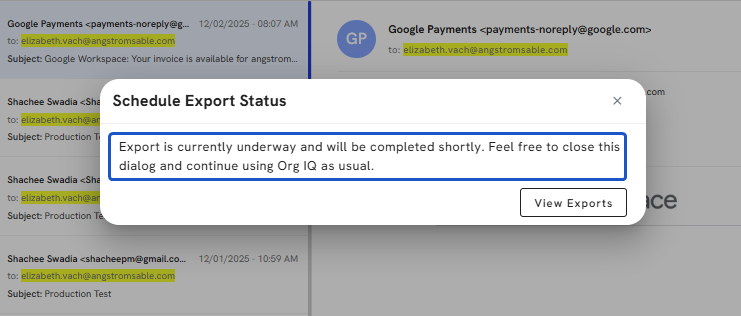
22. Click on Cancel or View Exports.
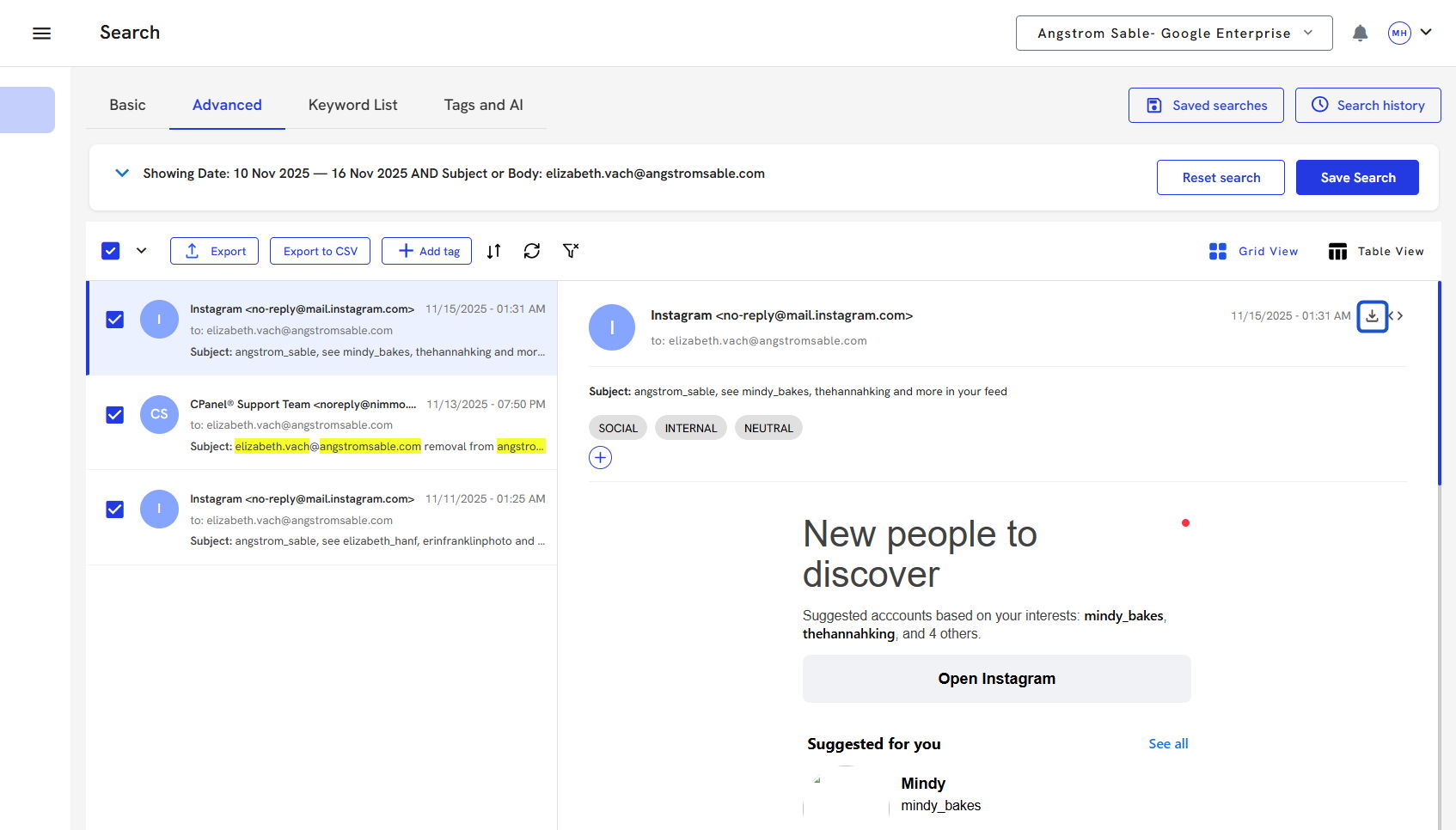
23. If you want to quickly download an email, you can click the download icon within the email.
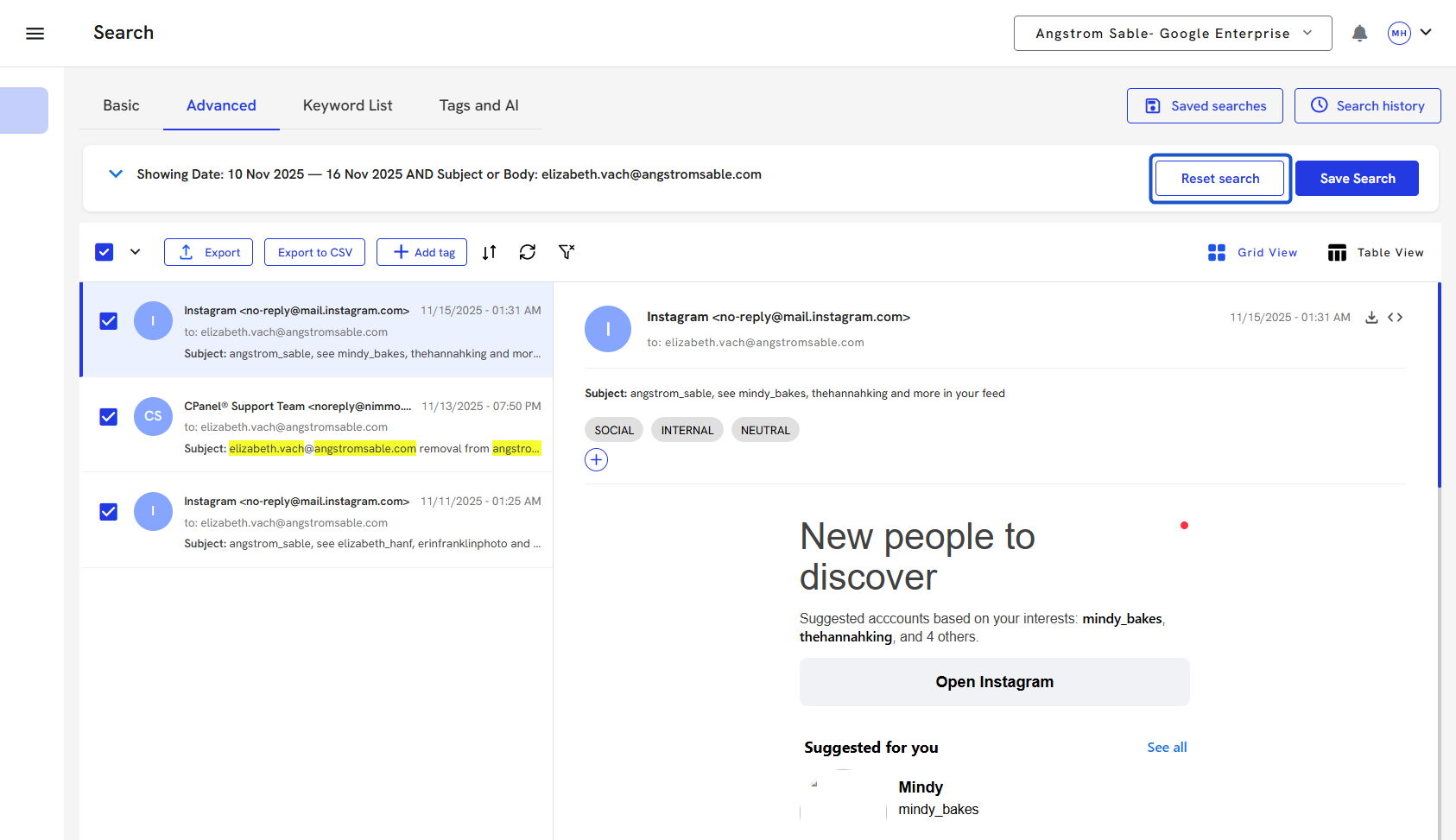
24. Click on Reset search to clear out your search filters and start a brand new search.
25. Click on the dropdown trigger to edit the criteria or add more by clicking on a "+" sign. You can also remove criteria by clicking the "-".

