You can follow along here:
Or go at your own pace here:
Configuring an Azure AD App Registration for the Org IQ MS Teams Connector
#Microsoft Entra / Azure AD
1. Go to the Microsoft Entra admin center: https://entra.microsoft.com/#view/Microsoft_AAD_RegisteredApps/ApplicationsListBlade/quickStartType~/null/sourceType/Microsoft_AAD_IAM
New registration
2. Name the application.
Enter a name for the application, such as Org IQ Teams Connector. Leave Supported account types set to Single tenant only and leave Redirect URI blank.
Click Register.
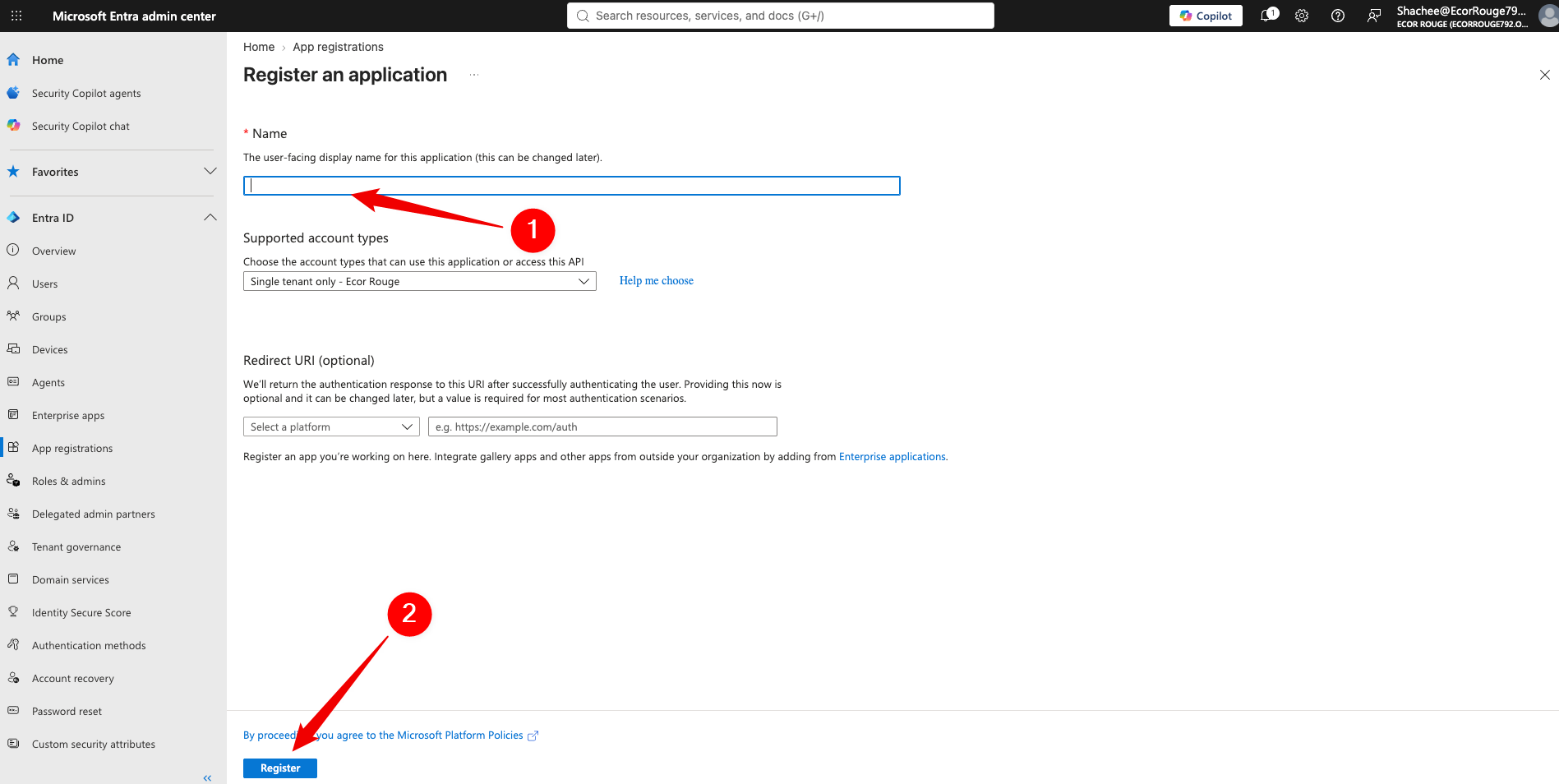
Register application
3. Open API permissions.
From the left navigation, select API permissions. Click + Add a permission.
Select Microsoft Graph.
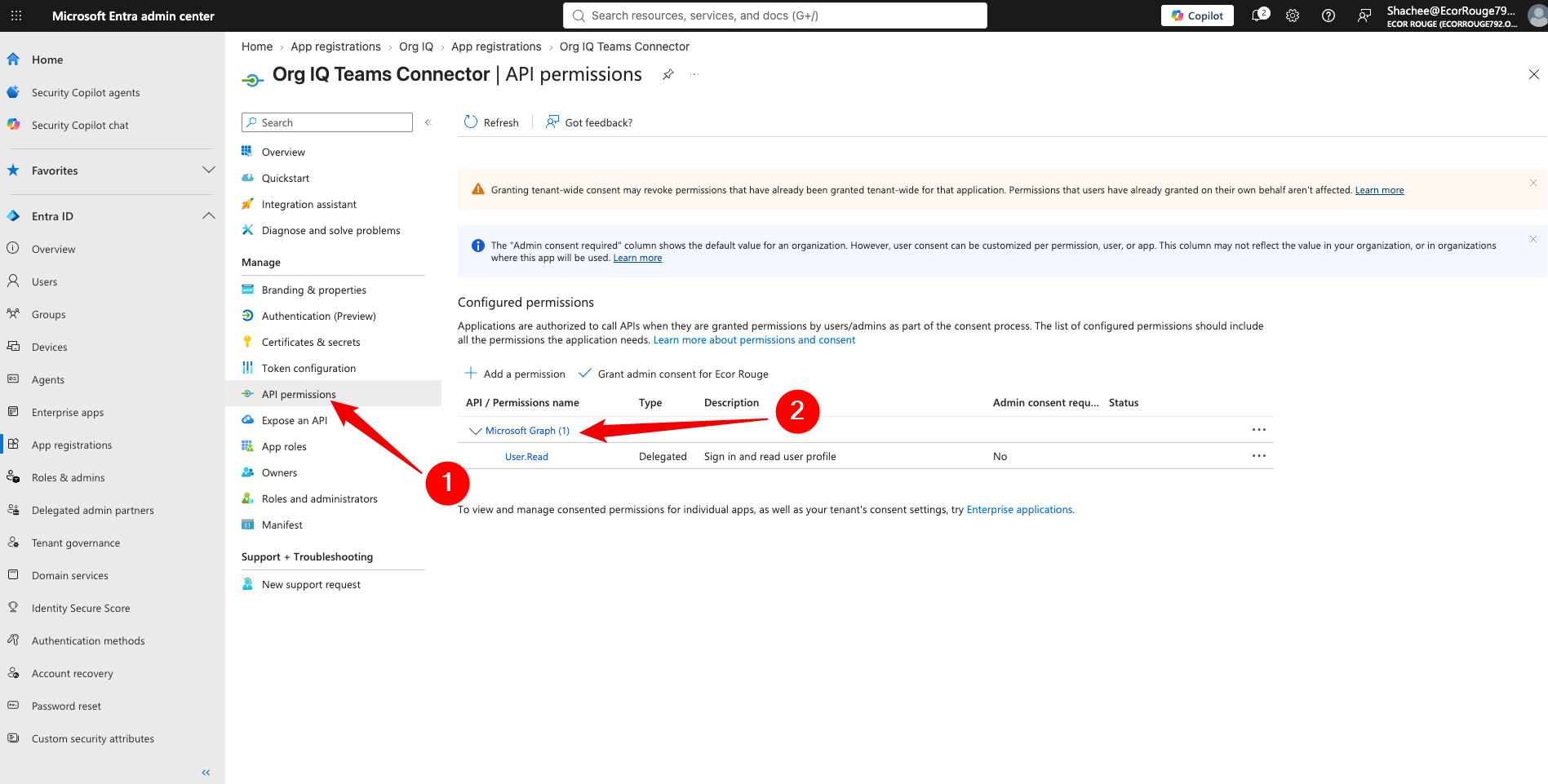
API permissions
4. Select Application permissions.
Under Microsoft Graph, select Application permissions.
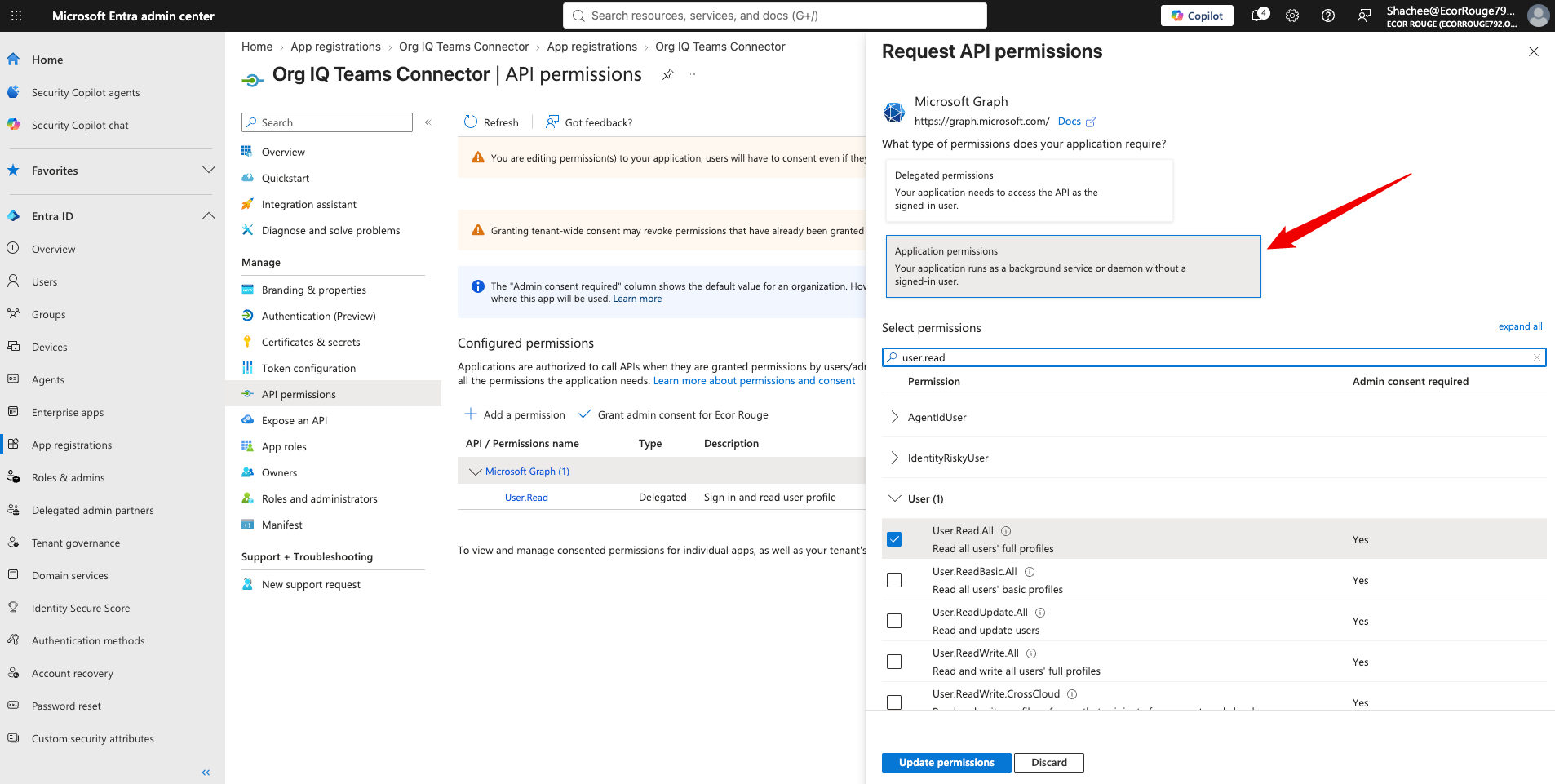
NOTE: CRITICAL STEP
Microsoft initially displays Delegated permissions, but you must select Application permissions for the Org IQ MS Teams Connector.
Correct: Application permissions
Incorrect: Delegated permissions
Application permissions
5. Select the required permissions.
Search for and select:
Chat.Read.All
ChannelMessage.Read.All
User.Read.All
Files.Read.All and/or Sites.Read.All
Click Update permissions.
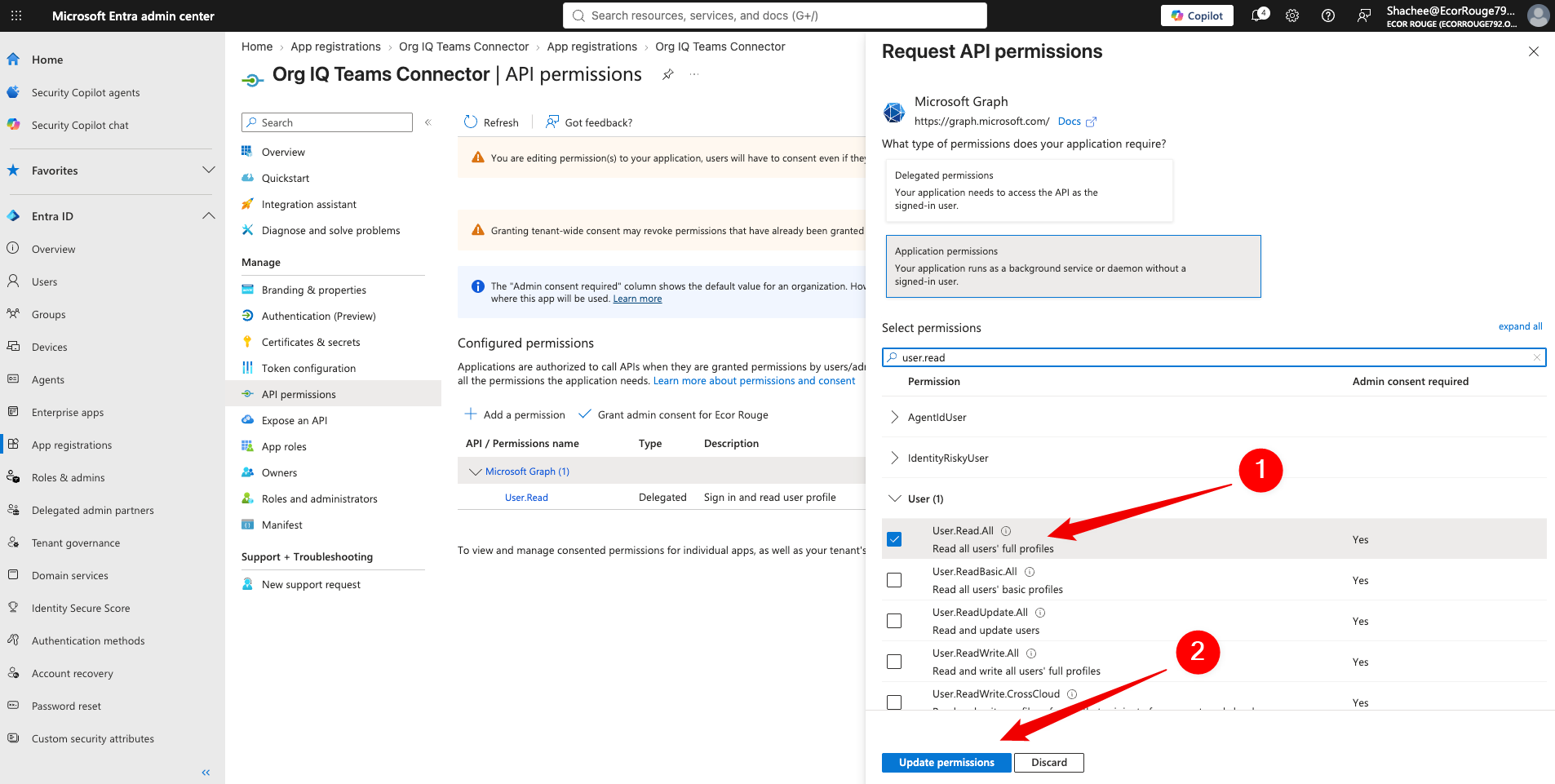
Required API permissions
6. Grant admin consent.
Click Grant admin consent for [tenant name].
When prompted, click Yes.
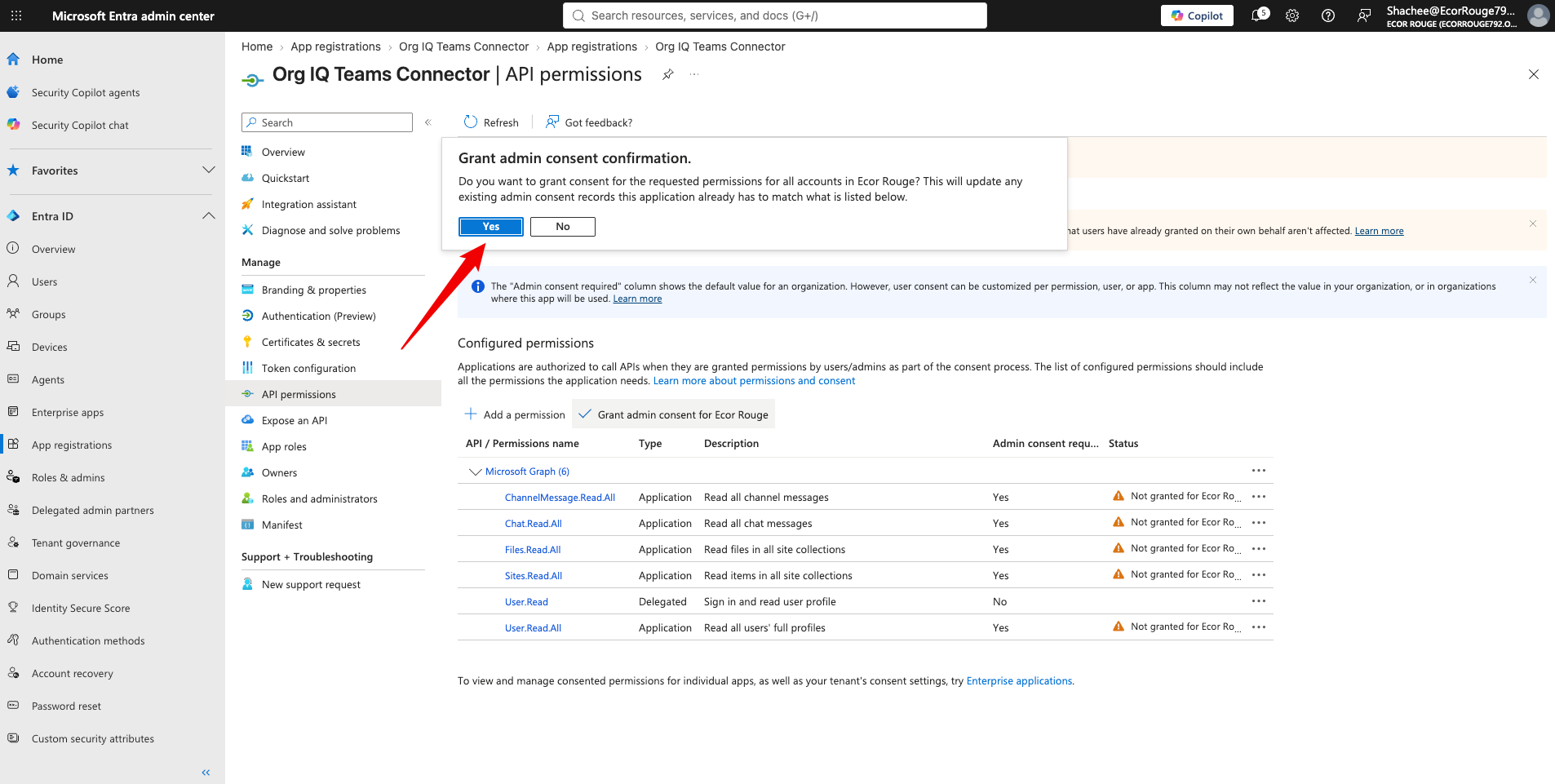
Grant admin consent
7. Confirm that admin consent was granted.
Check the Status column for each permission.
Each permission should display a green Granted status.
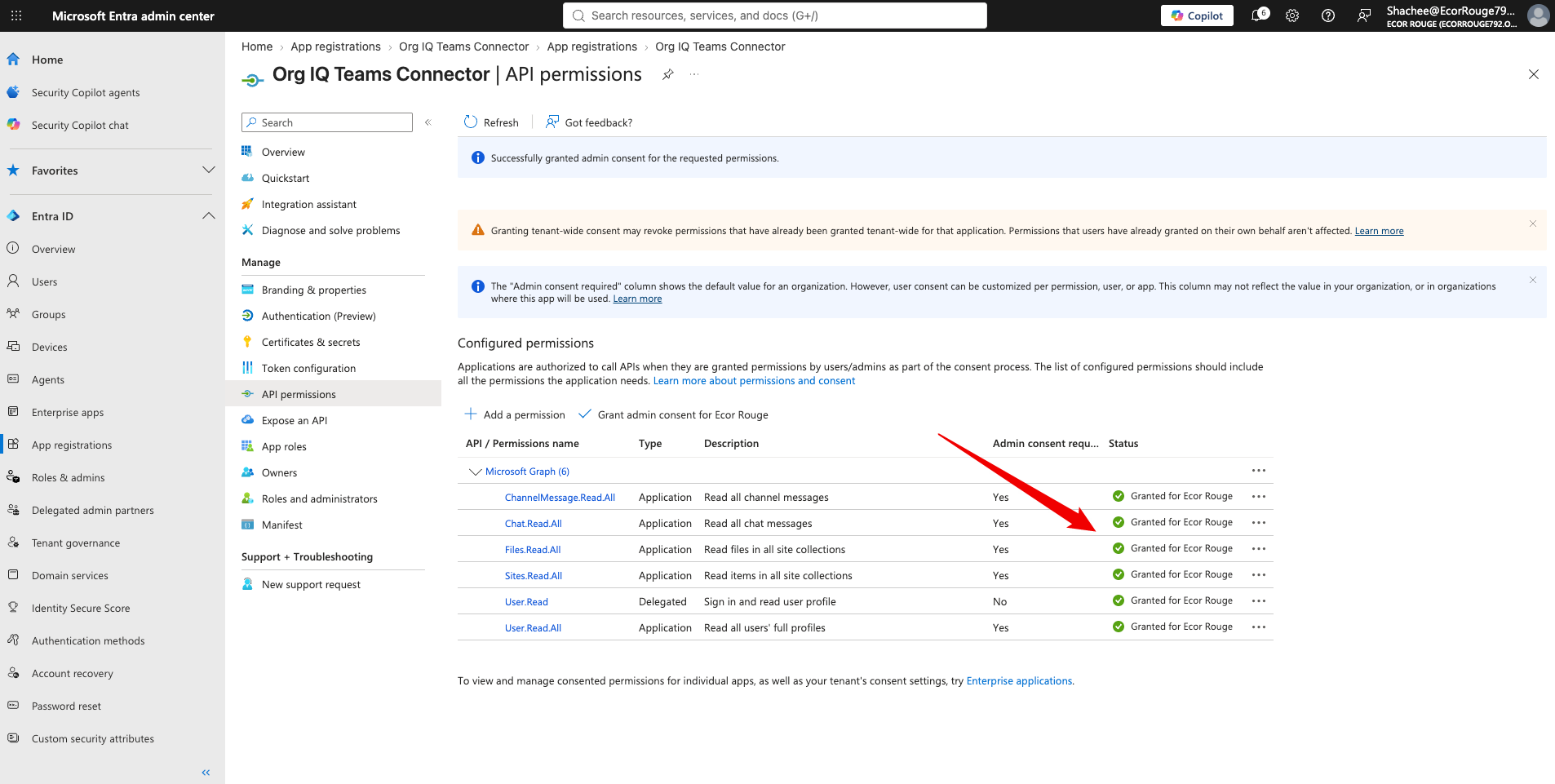
Granted status
8. Open Certificates & secrets.
From the left navigation, select Certificates & secrets.
Open the Client secrets tab.
Click + New client secret.
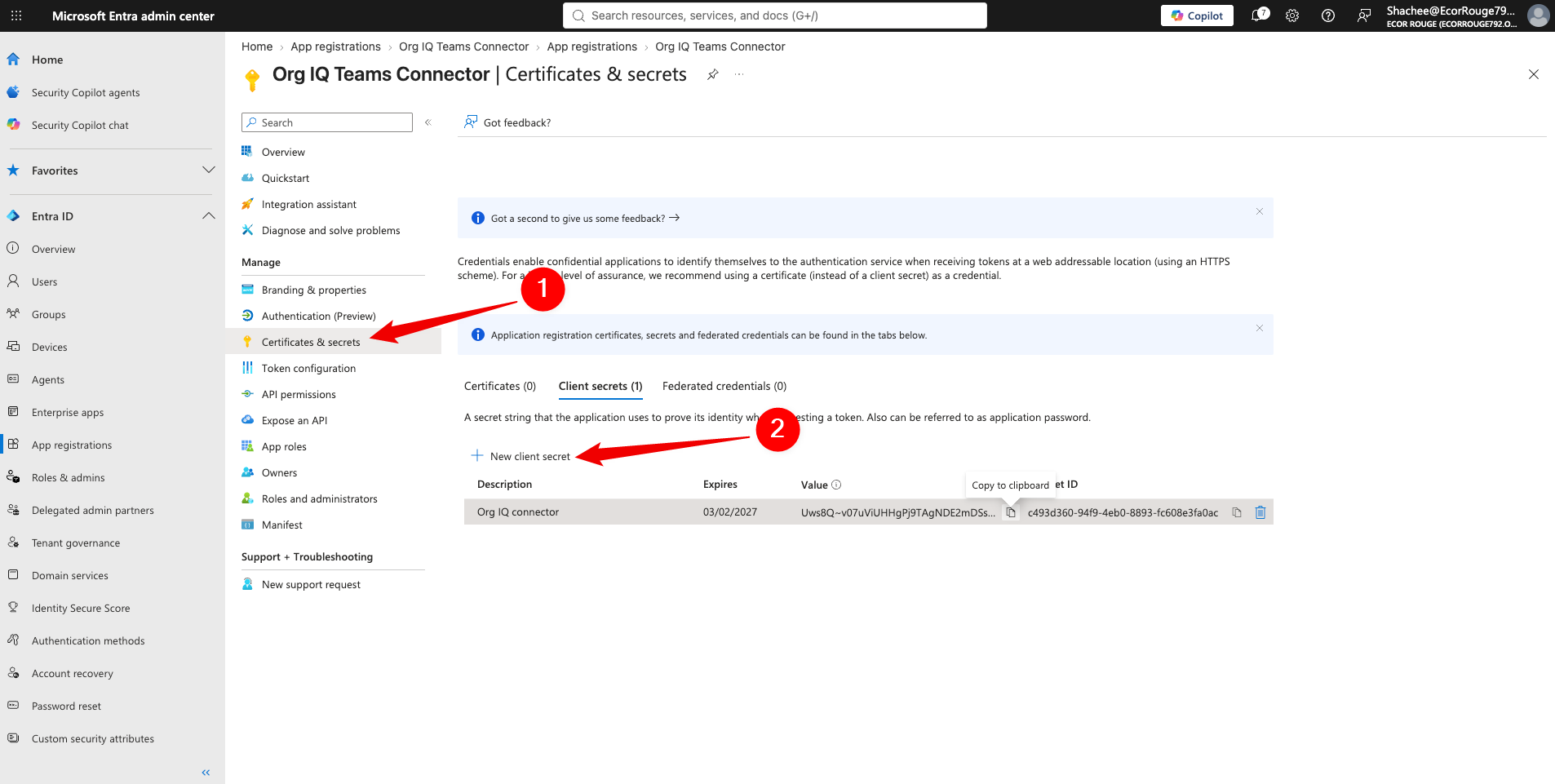
Client secrets
9. Create the client secret and then copy the client secret Value.
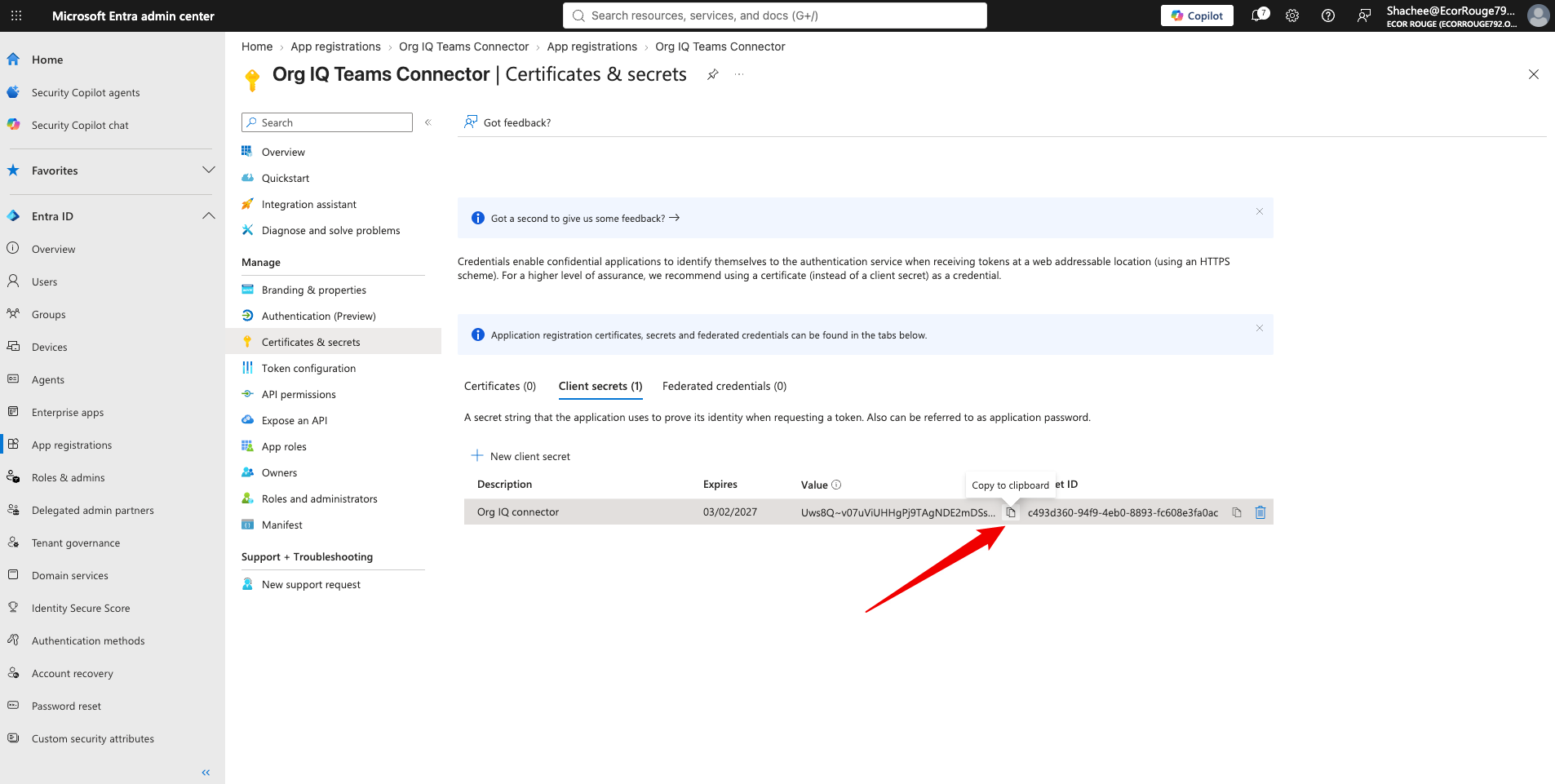
Copy the Value shown for the newly created client secret immediately.
NOTE: CRITICAL STEP
Microsoft displays the client secret Value only once. Copy it before leaving this page.
Correct: Client secret Value
Incorrect: Secret ID
The Secret ID is a GUID used as an internal reference. It will not work for authentication.
Client secret Value
11. Open the application's Overview page.
From the left navigation, select Overview.
In the Essentials section, locate the Directory (tenant) ID and Application (client) ID.
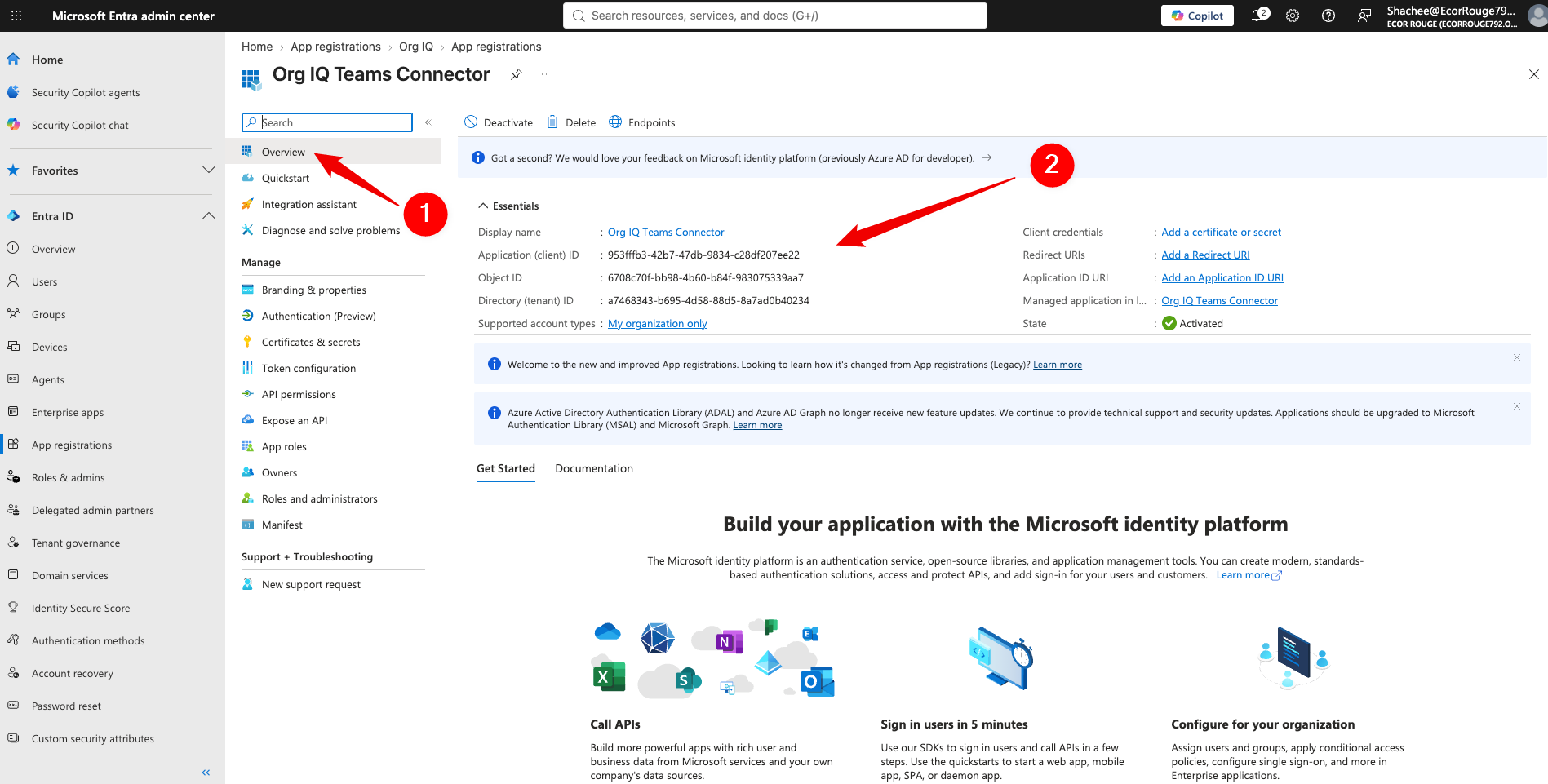
Application Overview
12. Enter the Azure AD details in Org IQ
Return to the Org IQ Settings page and enable Microsoft Teams.
Then enter the following values:
- Applicant Client ID — the Application (client) ID from Microsoft Entra
- Directory ID — the Directory (tenant) ID from Microsoft Entra
- Secret Value ID — the client secret Value copied when you created the client secret
Important: Make sure you enter/paste the client secret Value, not the Secret ID.
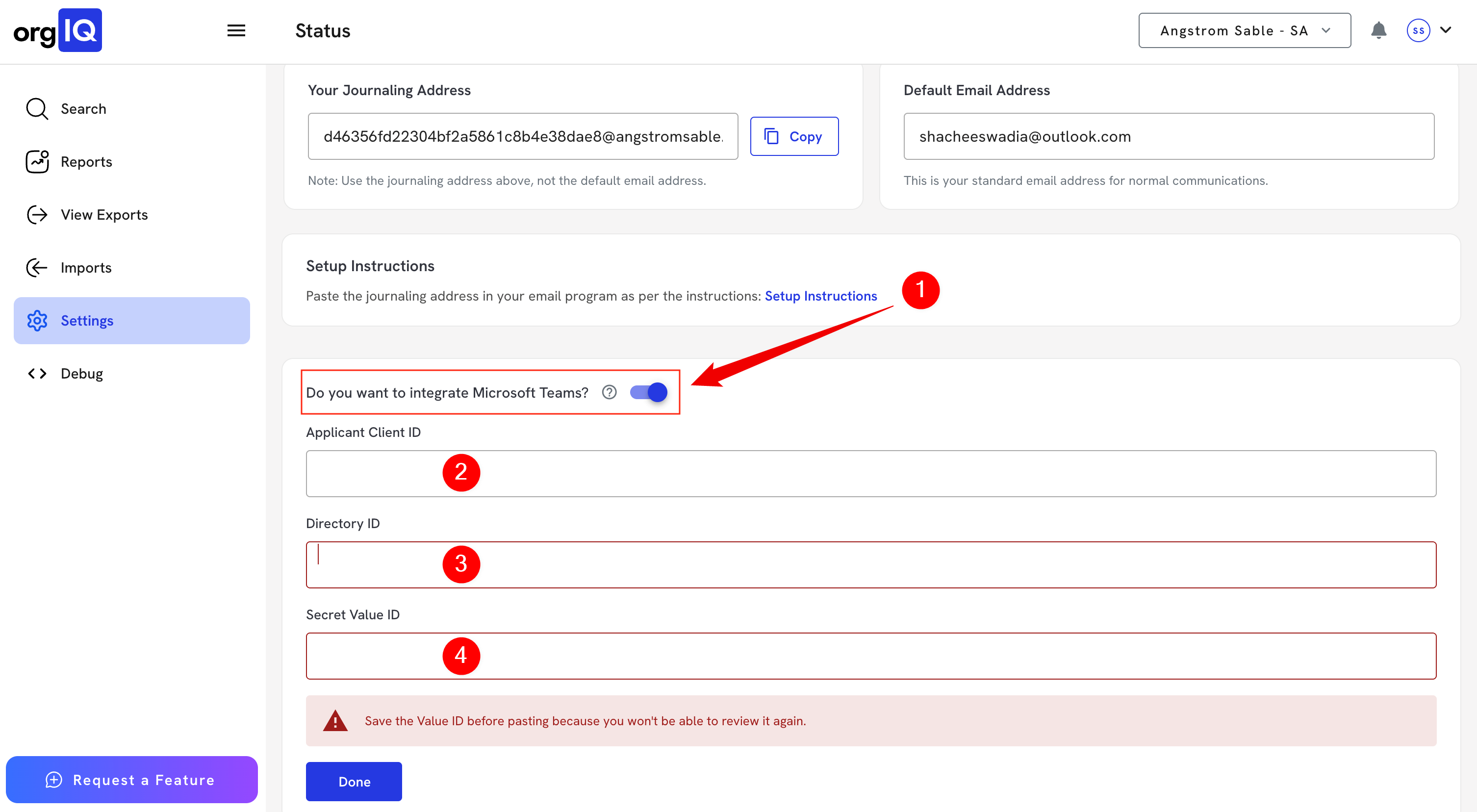
Click Done to save the configuration.
