You can follow along here:
Or go at your own pace here:
Managing and Exporting Emails from Org IQ
Creation Date: Jul 25, 2024 Created By: Elizabeth Hanfman View most recent version on Tango.us
# Org IQ
1. Click on View Exports
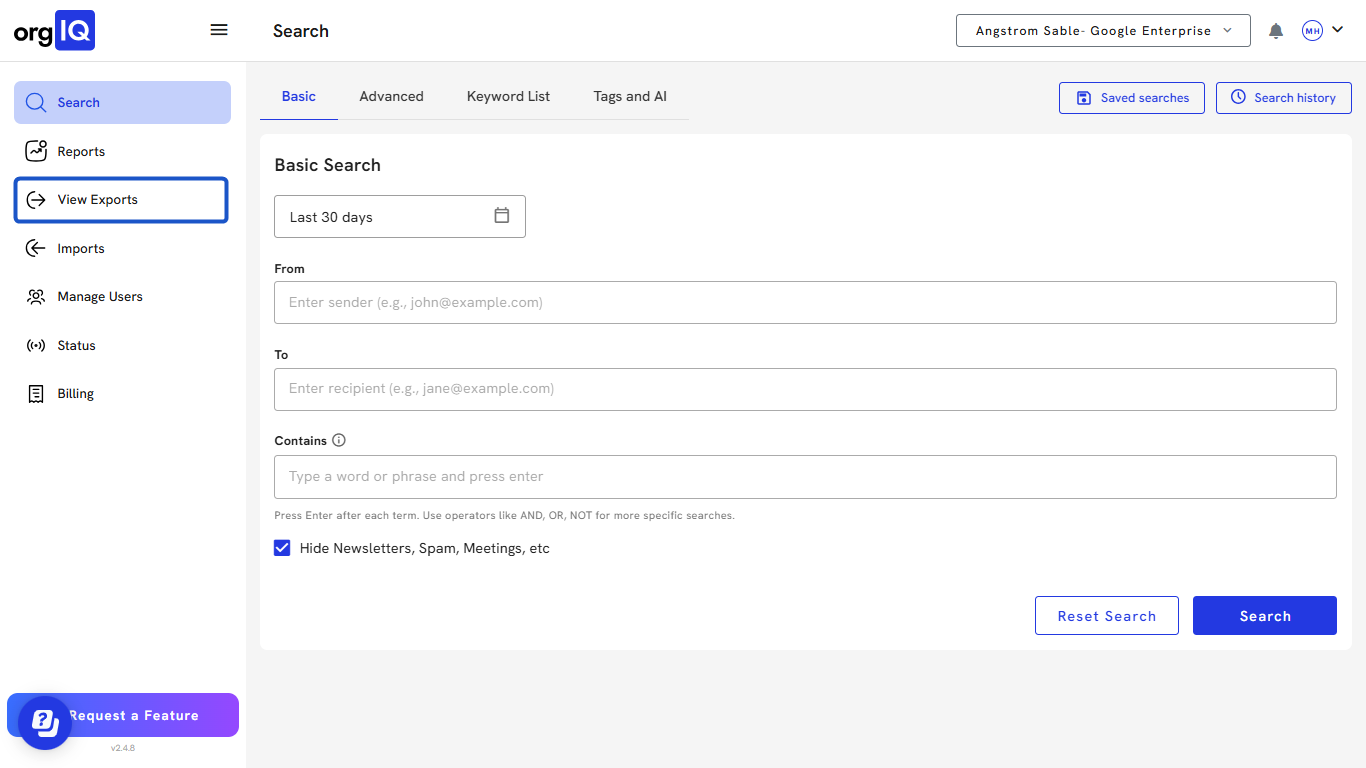
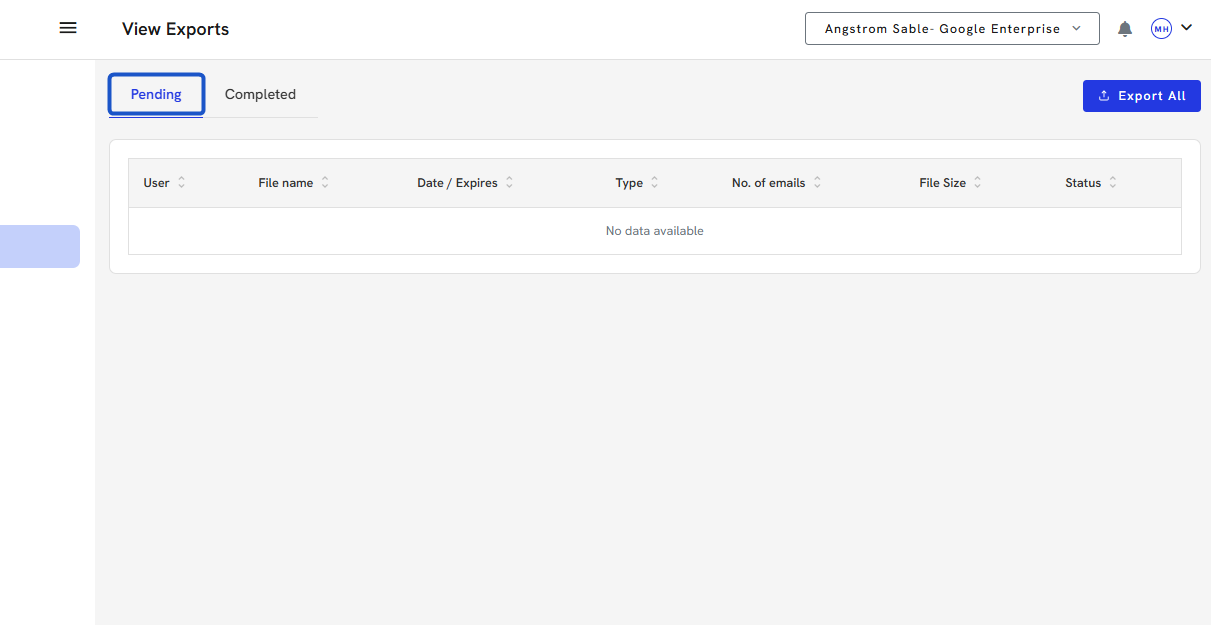
2. Export screen is split into two tabs: Pending.
3. Completed.
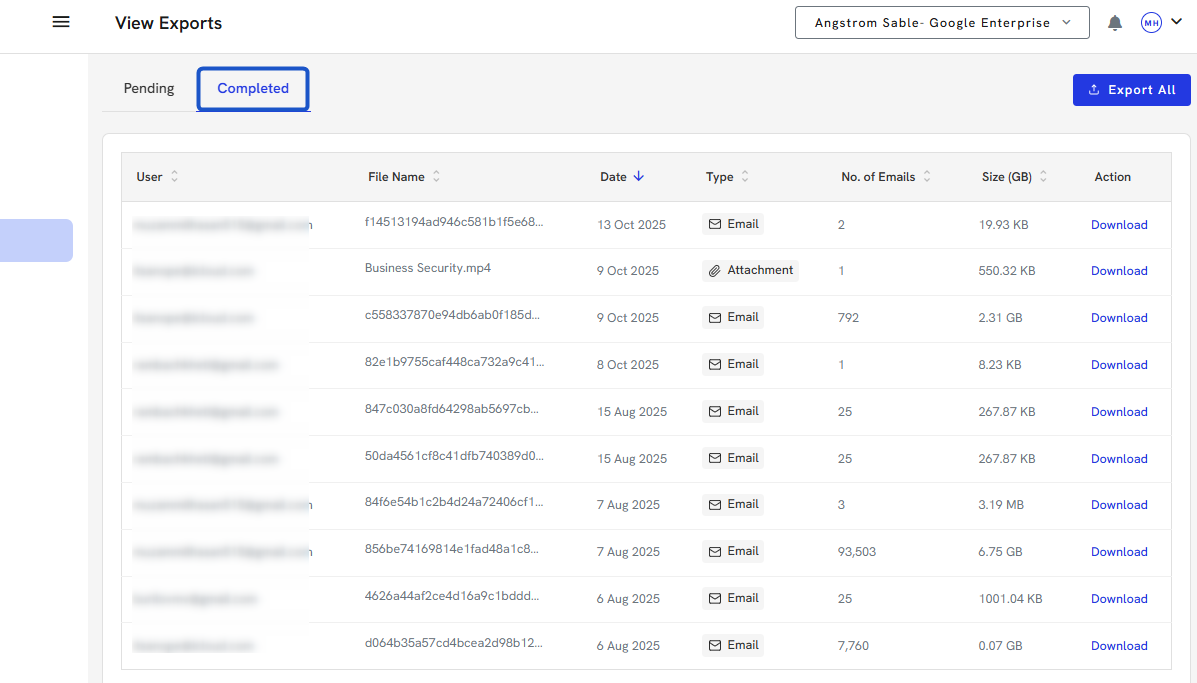
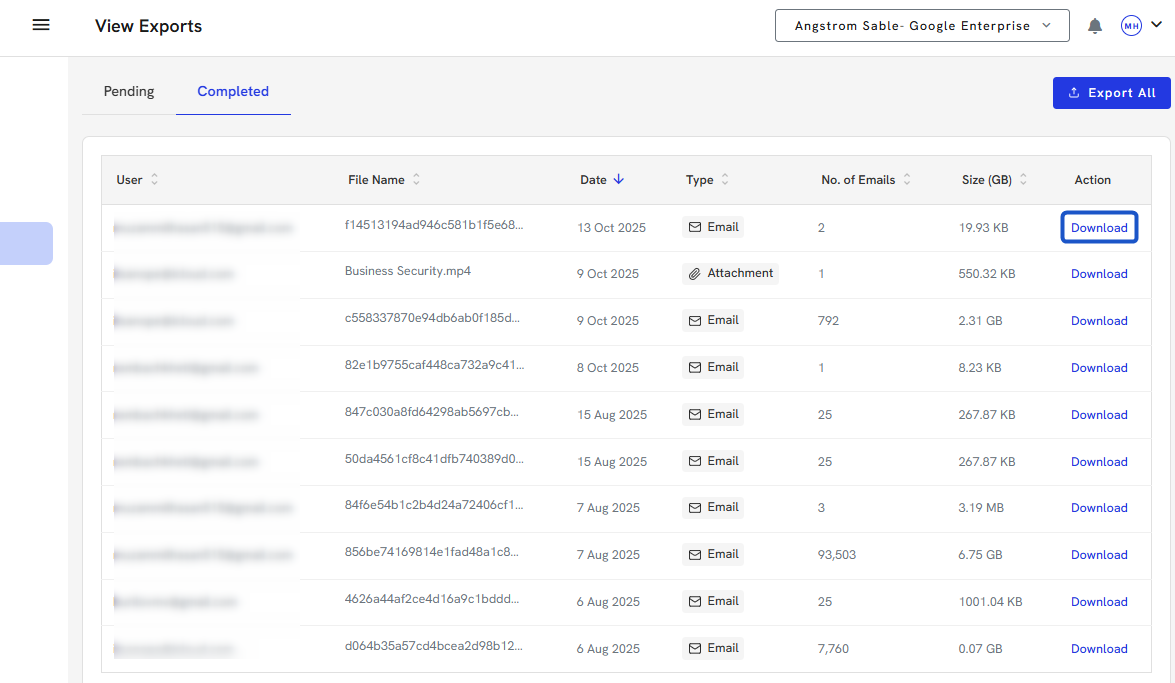
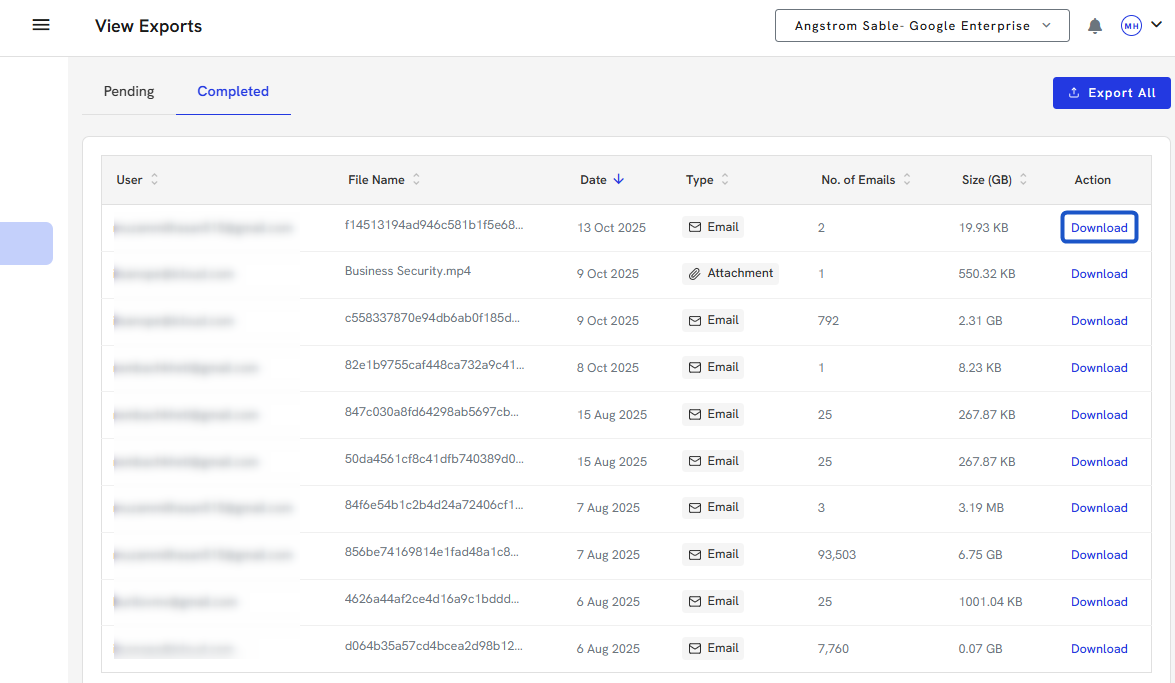
4. You can download large exports once completed in the Completed section.
5. Click on Export All if you wish to download all of your emails.
If you are deleting your account, you will also be allowed to export all emails during that process.
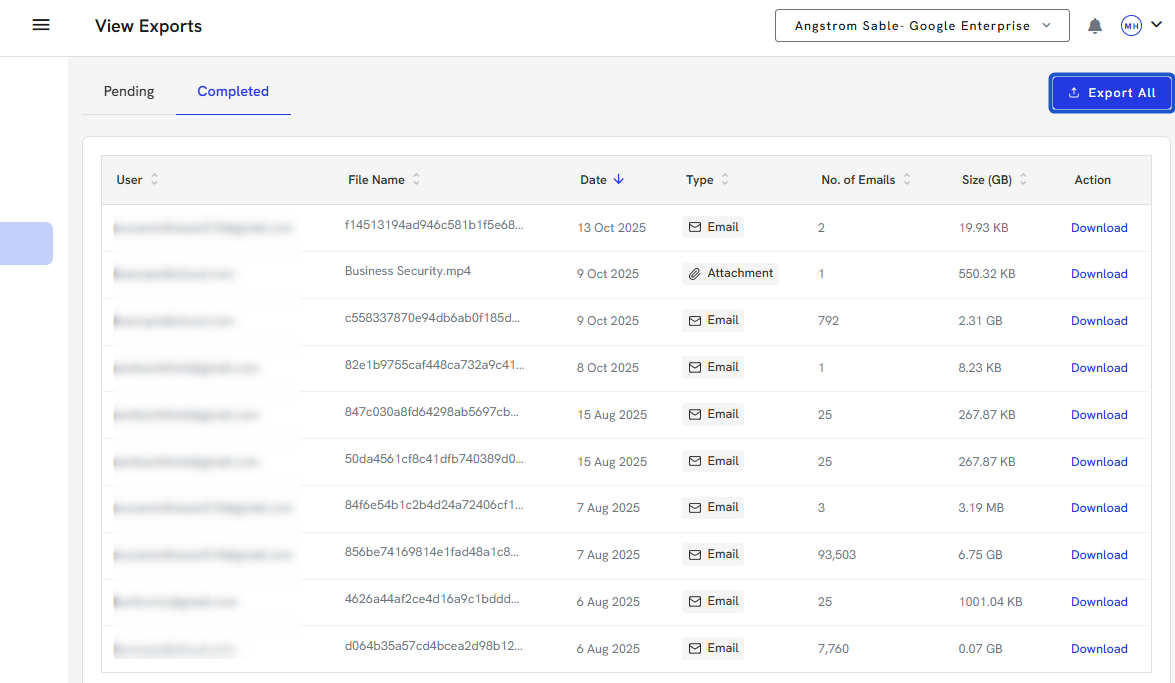
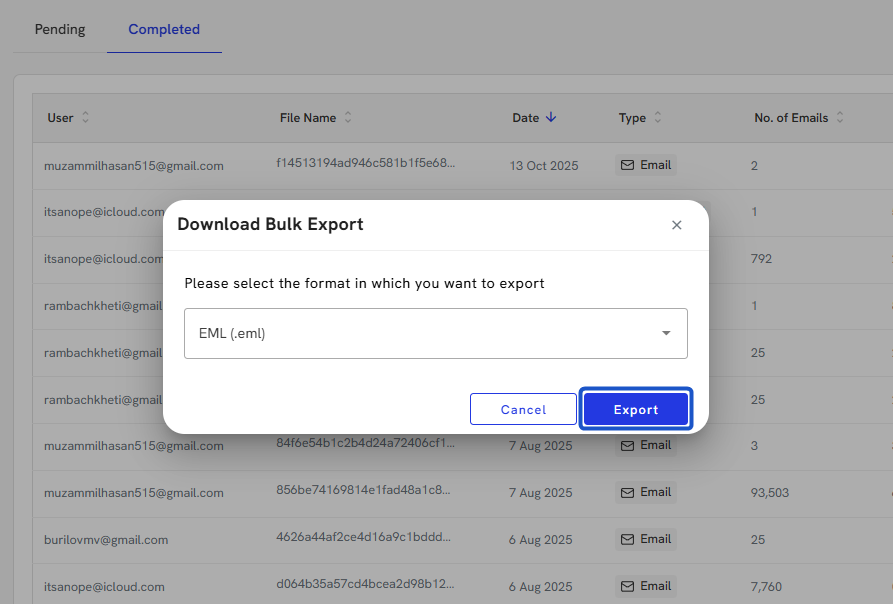
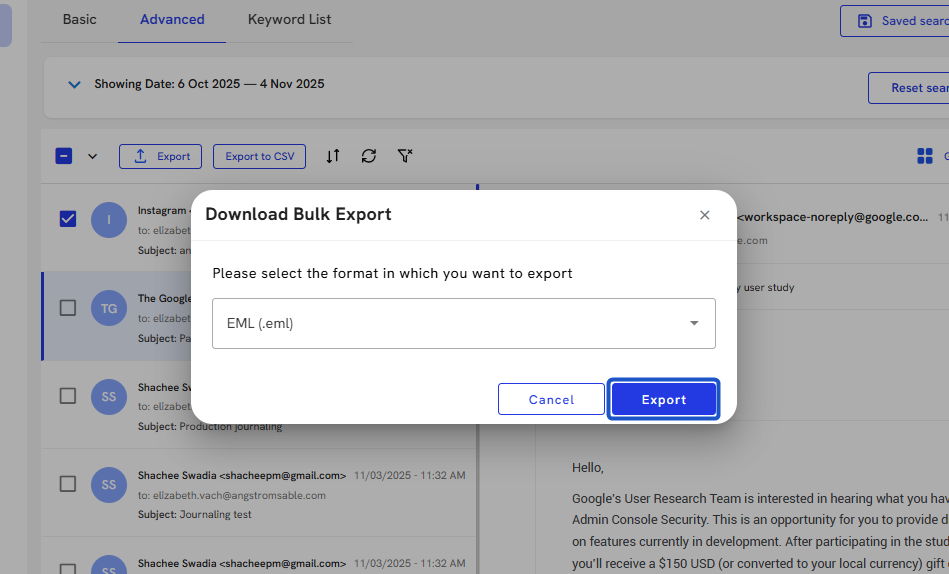
6. When exporting, you can choose .eml or .mbox file types.
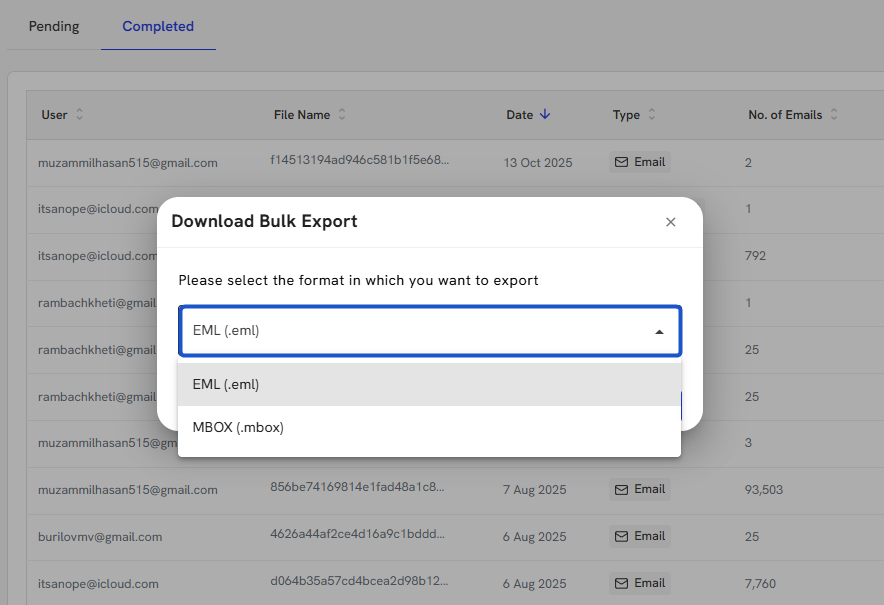
7. Click on Export.
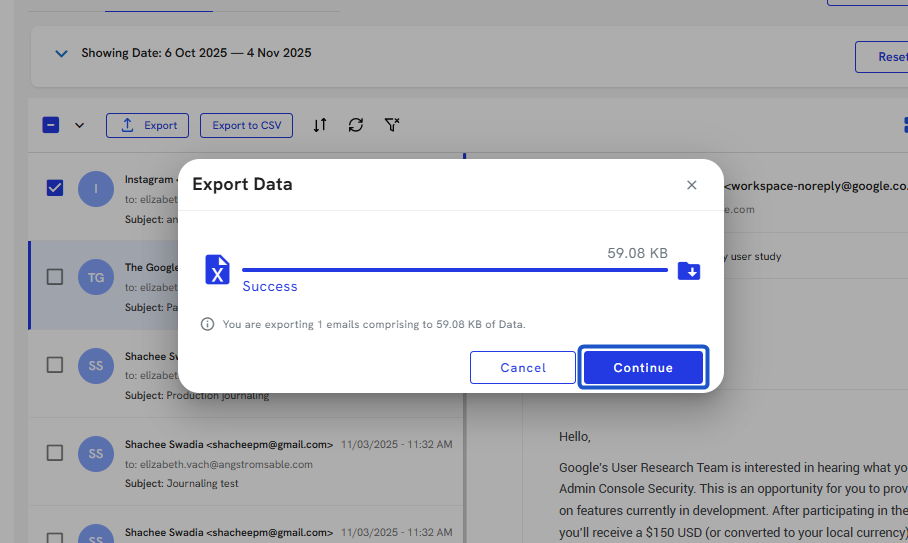
8. You will see the number of emails and file sizes whenever you export.
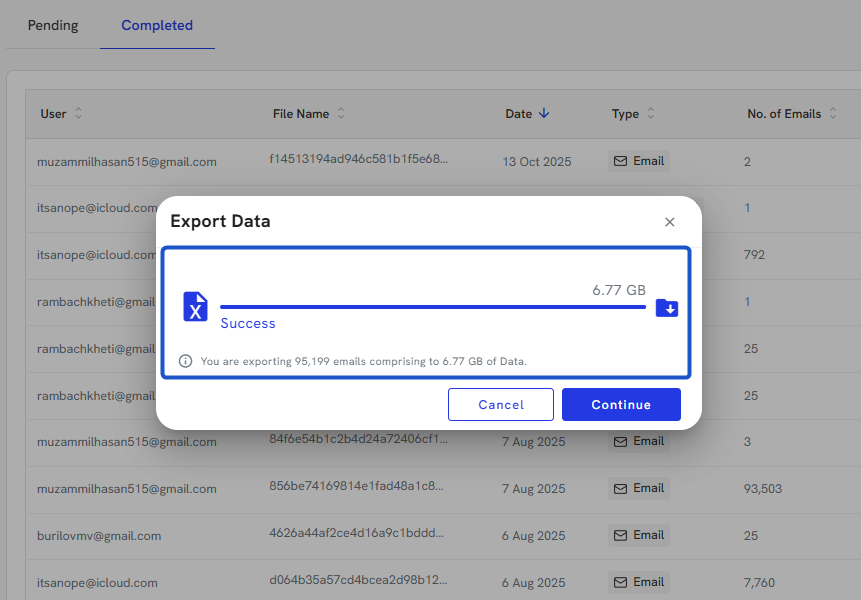
9. Click on Continue
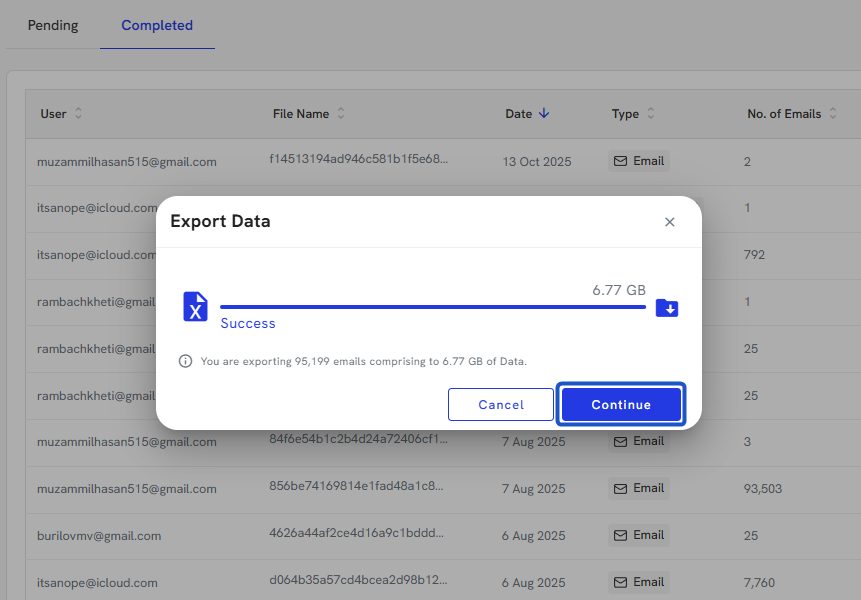
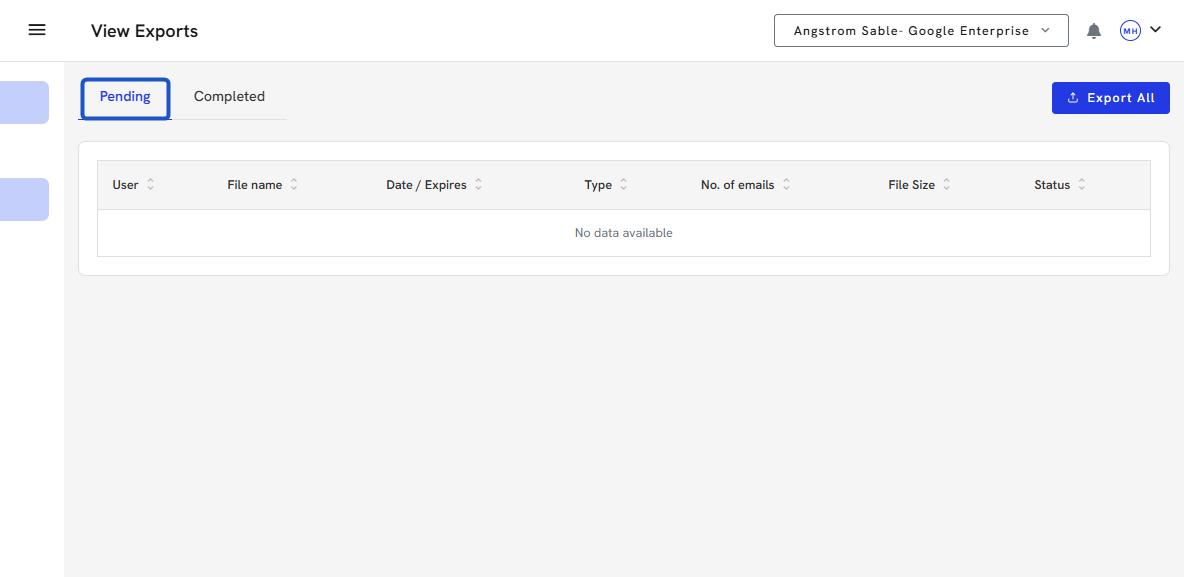
10. Click on Pending tab.
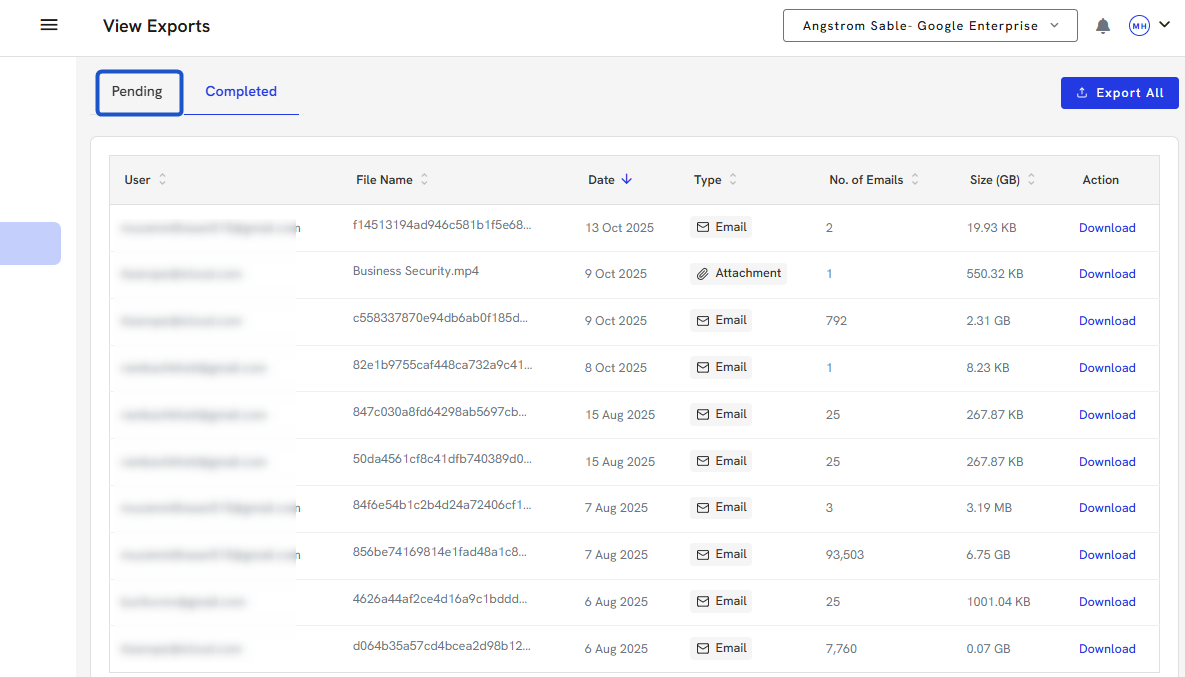
11. Exports will display in the Pending Exports panel on the Export page and go through the following stages. Pending > Exporting.
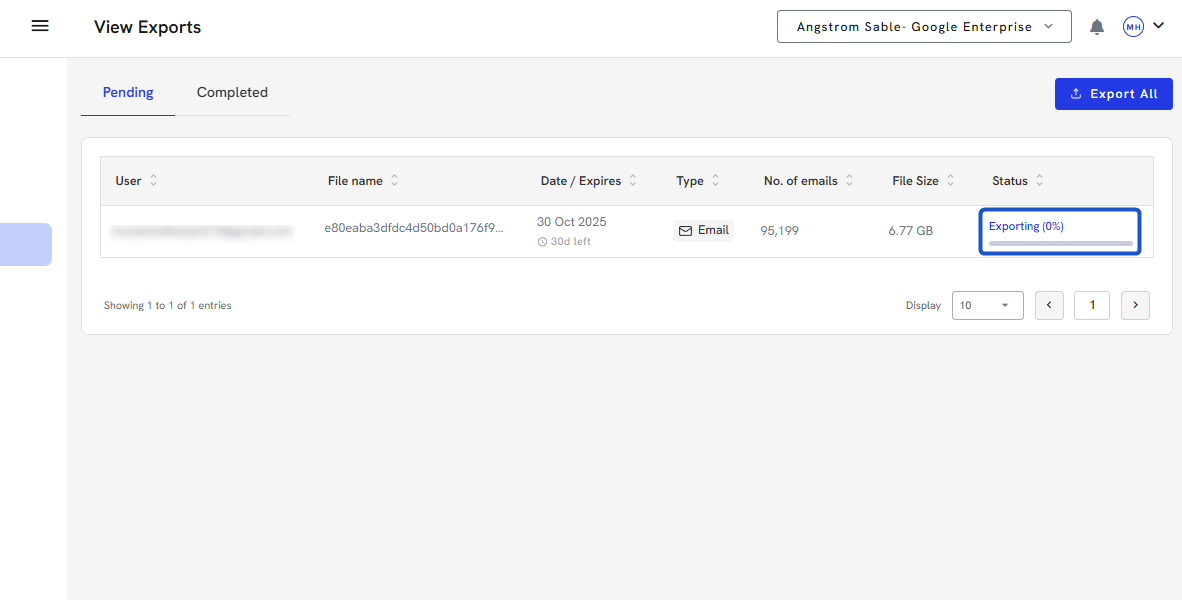
12. Zipping
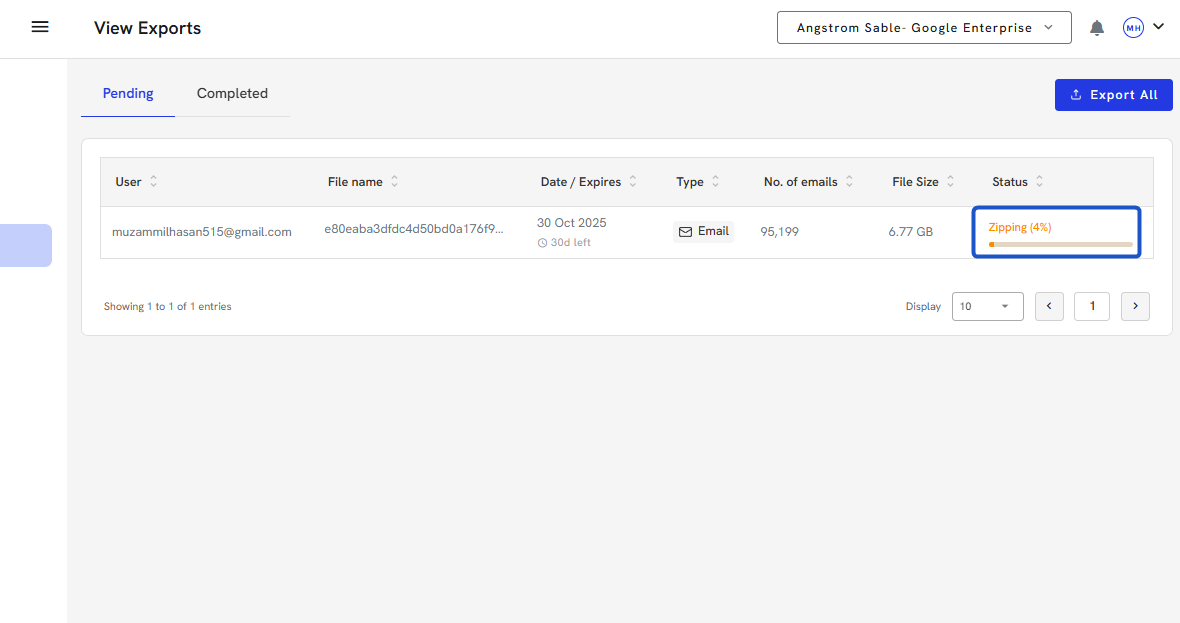
13. Once complete, the export will appear in the Completed Export panel and will be available for download.
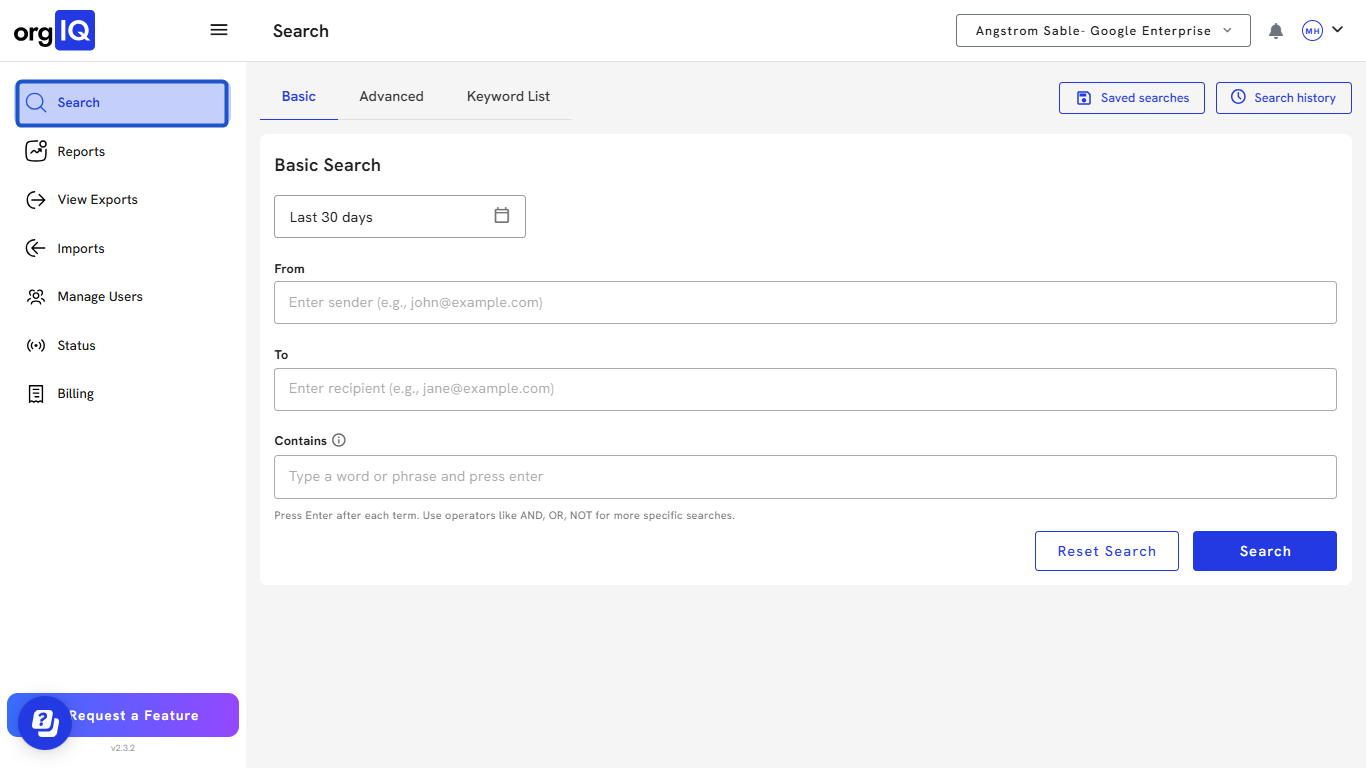
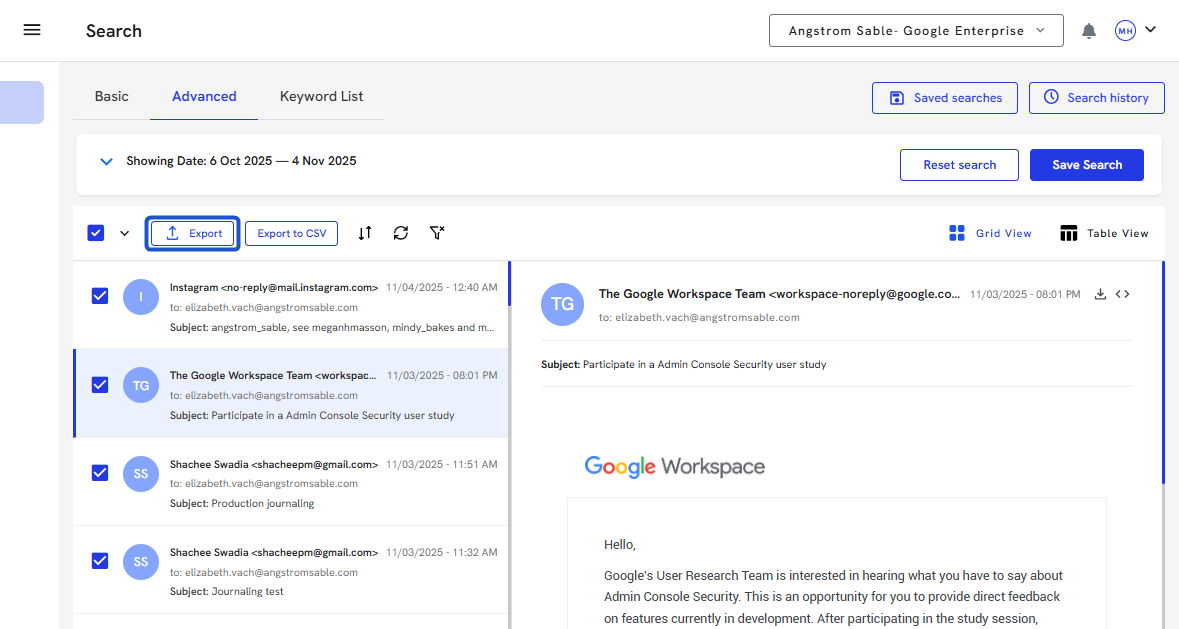
14. You can also export emails from the Search screen.
15. You can quickly download one specific email by clicking on the export at the top.
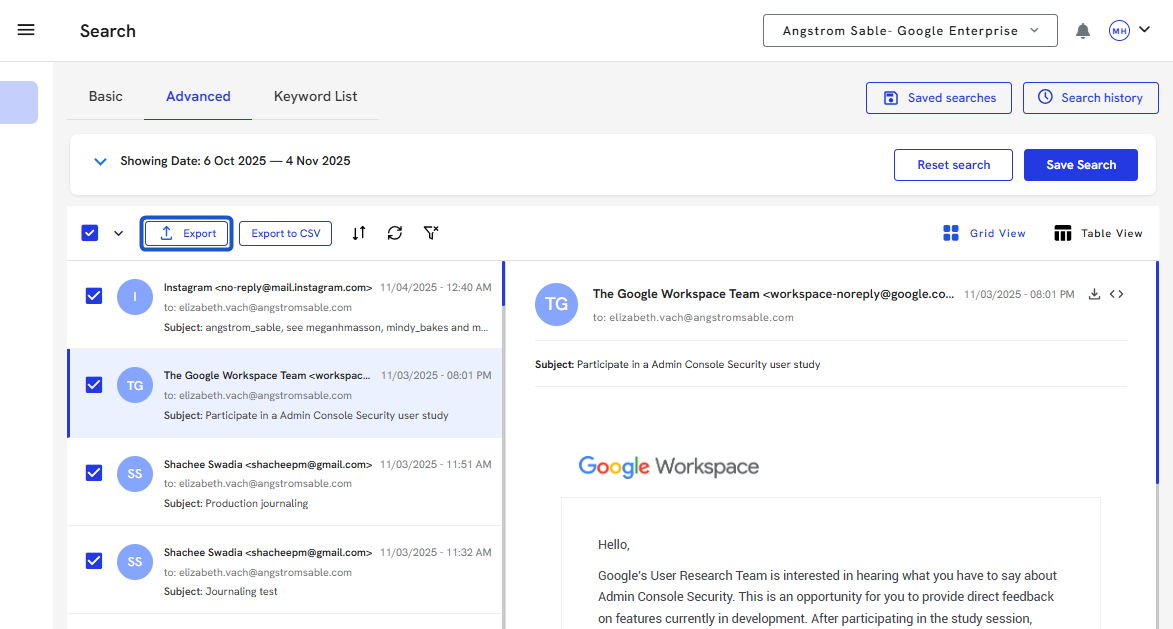
16. You can select individual emails or select all and export them as a group.

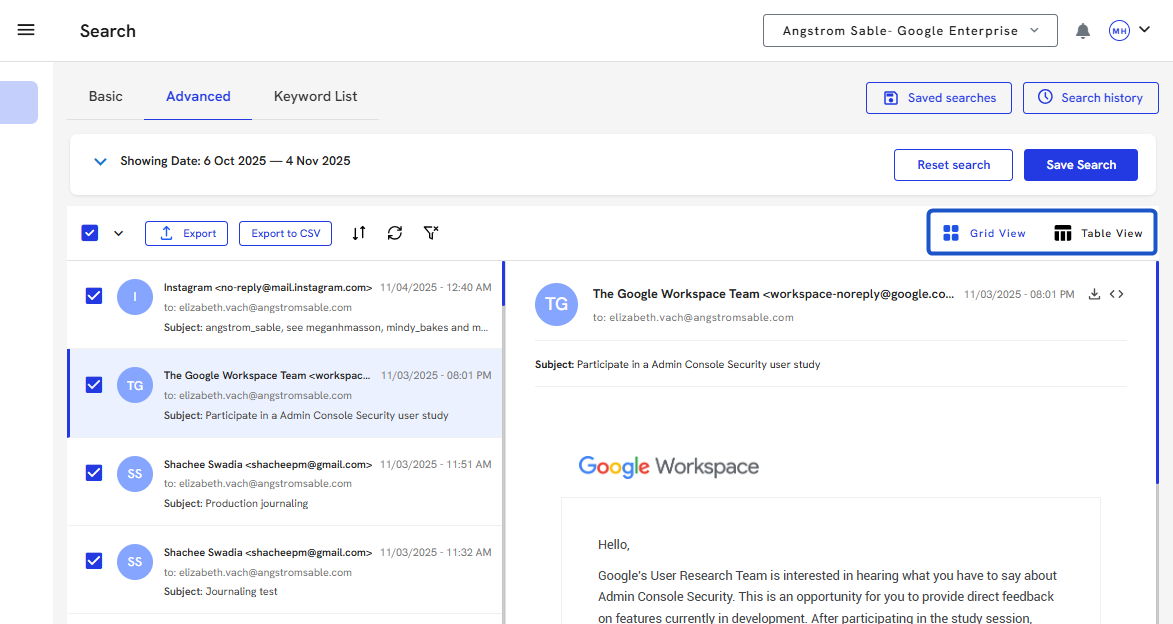
17. From the View icon, you can switch between Grid View and Table View to change how your search results are displayed.
18. Click on Export emails once your selection has been made.
19. Click on Export after you have selected your file type.
20. Click on Continue
21. Schedule Export status info, click on View Exports.
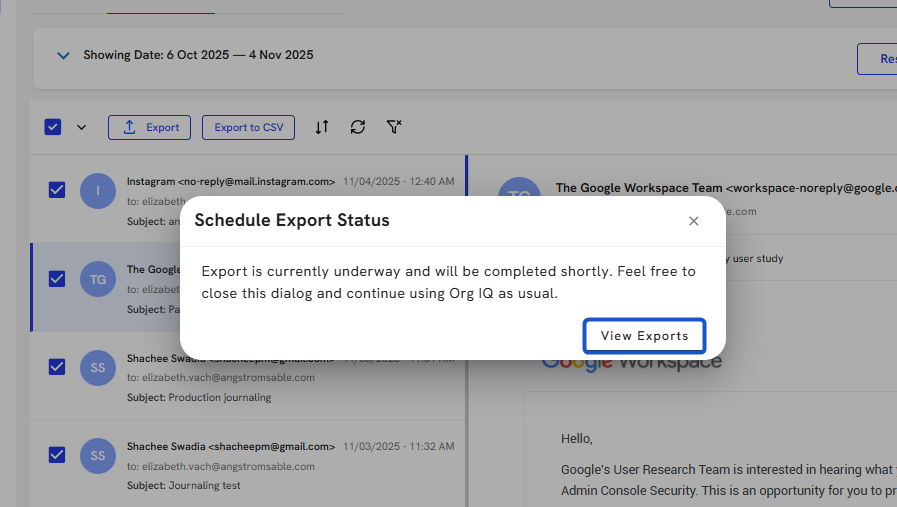
22. Your export will begin and appear on the Pending screen.
 Created with Tango.us
