This document is a comprehensive guide for managing users under the Business and Partner Plans.
Accessing User Management
In Org IQ, access the Manage User screen to view three key sections: the Pending User tab for users yet to accept their invitations, the Active User tab for those who have completed their setup, and the Guest User tab for those users who have access for a limited time. This interface provides a clear overview of the user's status within your organization.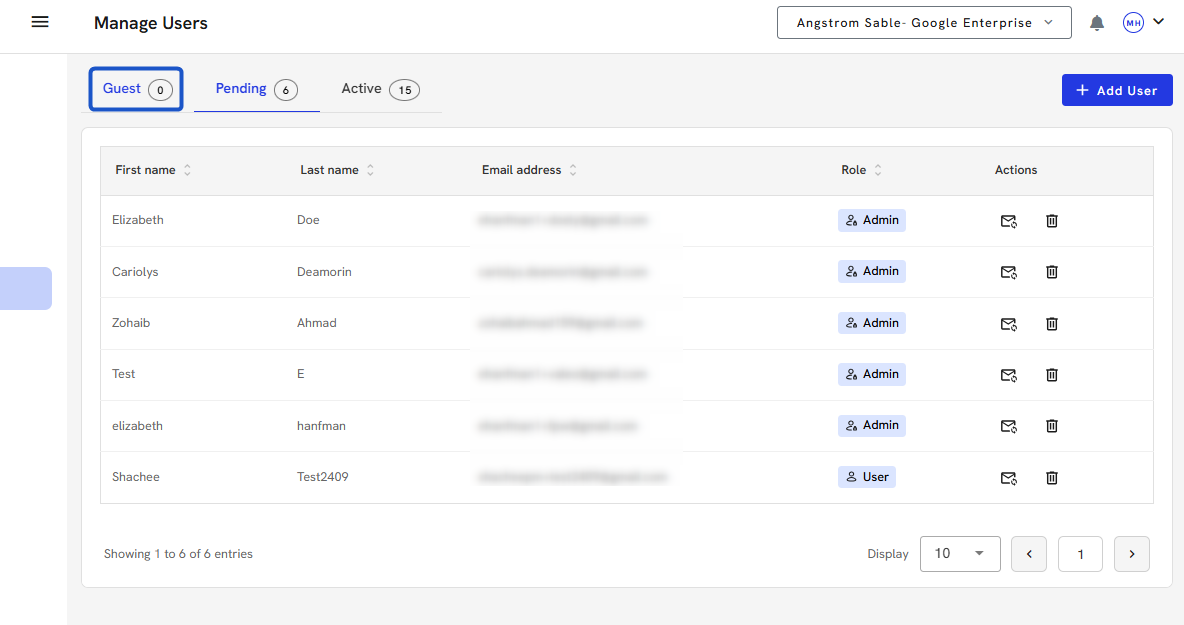
Adding New Users
To add a user, click on the “Add a User” button. Enter the user’s personal information and assign a role—Admin, User, or Guest. The Guest role is designed for limited-duration access in Partner client users and business organizations.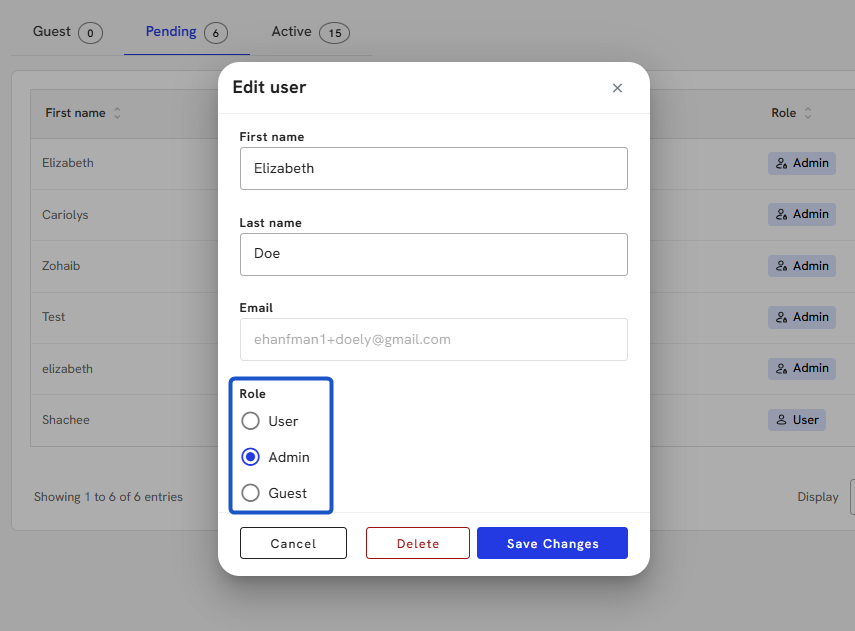
Understanding User Roles
- Admins have full access to all system features but cannot modify their role.
- Users enjoy many functionalities except for certain areas like billing and user management.
- Guests have access akin to Users but with a predefined active duration.
At least one admin is required in the system at all times.
Invitations and User Setup
After a user is added, they will receive an invitation via email. If they do not receive this invitation, you can resend it. Upon accepting the invite and creating a password, the user will transition from the Pending User tab to the Active User section.
Managing Existing Organization Members
For users already part of another organization within Org IQ, their addition to a new organization is immediate. This feature facilitates easy collaboration across different organizations.
Switching Between Organizations
Users associated with multiple organizations can easily switch their active organizations. After logging in, they will see the name of their current organization at the top. When clicking on this name, a drop-down menu appears, allowing them to select from the available organizations and switch seamlessly.
Active User Management
Administrators can modify the names and roles of active users. Additionally, a search feature is available for quick user identification.
Search, Restricted Scope, and Filtering
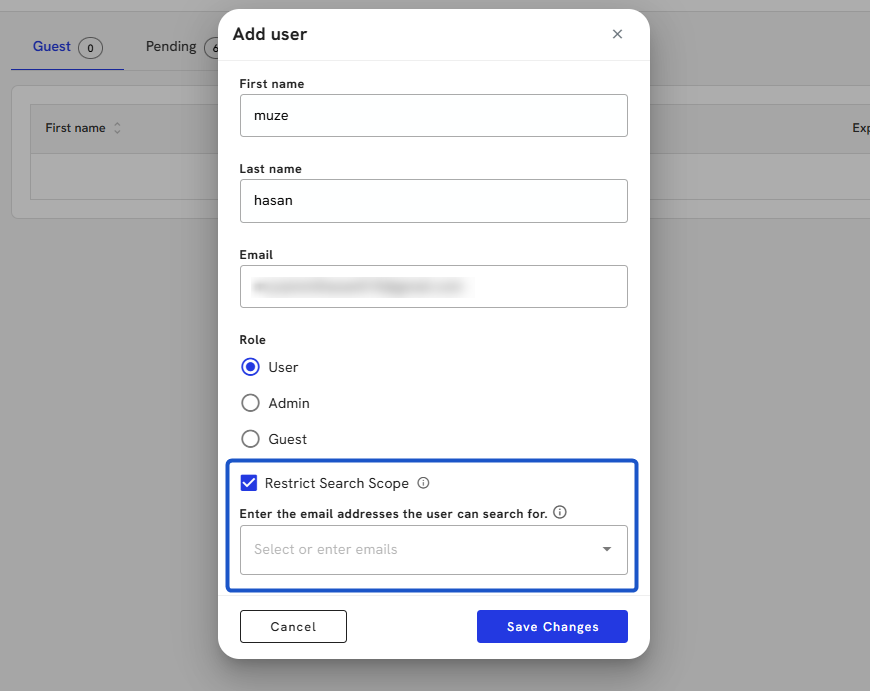
The Manage Users screen also supports restricted search visibility for users with access limits applied. Scoped Users or Scoped Guests can only view and manage users within their assigned domain or organizational group.
If a restricted user accesses this page:
-
The table will display only users within their allowed scope.
-
Search results will be filtered to match their restrictions.
-
Editing and deletion controls will only apply to users they have permission to manage.
These restrictions are enforced at the API level and mirrored in the frontend, where edit/delete buttons are disabled when scoped access is active.
Tip: Check the Restrict Search Scope option when adding or editing a user, then enter the allowed email addresses to limit their search access to specific contacts only.
Partner User Permissions and Capabilities
In Org IQ, Partners have robust capabilities for managing both their company site and clients’ accounts. Specifically, Partners can add users to their Partner company site and the client-side interfaces. This dual functionality allows Partners to control their internal team access while managing client-specific user roles.
-
Access for All User Permissions: Every user under the Partner umbrella, regardless of their permission level, can access client accounts. This universal access is key to ensuring that all Partner team members can effectively manage and respond to client needs within the Org IQ environment.
-
Restrictions for Partner Users with 'User' Role: While Partners with the 'User' role can engage fully in client account management, they are not authorized to add new users to the Partner company site. Additionally, these users cannot access billing information, delineating a clear boundary between everyday account management and higher-level administrative functions.
Client Account Setup and Management
-
Initial Client Setup: When a Partner sets up a client in Org IQ, the process begins by assigning a primary email address. This address is crucial as it represents the first admin user for the client’s Org IQ account. Establishing this primary admin user is foundational in creating the client’s presence within the system.
-
Admin and Partner Joint Management: Both the admin user of the client (identified by the primary email) and the Partner have the authority to add client-only users to the client’s account. This collaborative approach ensures that client accounts are tailored to the specific needs and structures of the client, with oversight from the Partner for optimal configuration and support.
-
Separate Access for Partners and Clients: A distinct separation between Partner and client access is maintained. Partners possess the capability to navigate between their Partner dashboards and various client accounts, facilitating seamless management across different interfaces. In contrast, client users are limited to their own Org IQ portal. This limitation ensures clients have a focused and secure environment for their specific email management needs without access to the broader Partner administrative functions.
You can follow along and have us walk you through the steps here:
